Add a widget to your site
Copy your widget's code and paste it into your page where the testimonials should appear. It works on any site that lets you add custom HTML.
Copy the code
Click Widgets in the sidebar.
Click Embed in the widget's row. It changes to Copied.
You can also click Edit and use Copy on the Embed Code card, lower down the page.
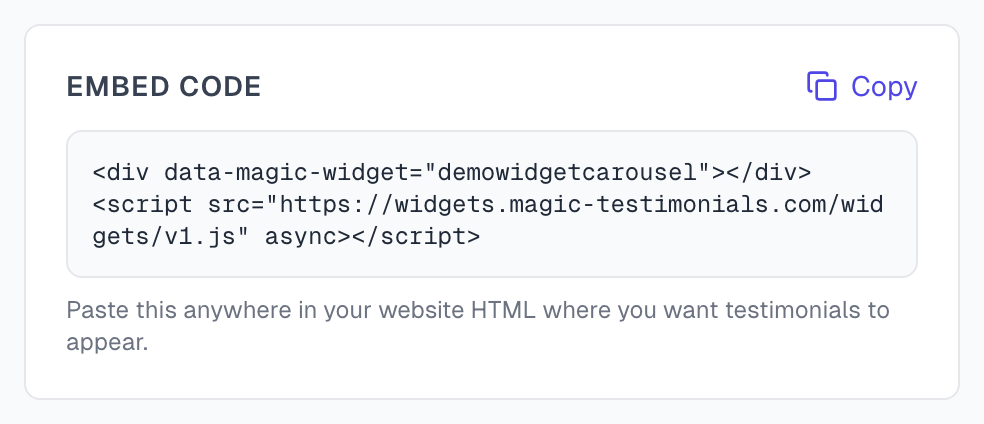
The code is two lines. The first holds your widget's own ID, so always copy it from your account:
<div data-magic-widget="your-widget-id"></div>
<script src="https://widgets.magic-testimonials.com/widgets/v1.js" async></script>
Paste it into your page
Open the page in your site's editor.
Add a custom HTML block where the testimonials should appear.
Paste both lines.
Save and publish the page.
Open the live page and refresh it.
The block has a different name in each site builder:
WordPress: the Custom HTML block.
Elementor: the HTML widget.
Webflow: the Embed element.
Squarespace: the Code block.
Shopify: a Custom Liquid section.
The widget fits the width of the space you put it in. It sets no cookies on your site.
Use a widget on more pages
Paste the same code on as many pages as you like. They all show the same widget, and the widget's counts list each page.
To show two different widgets on one page, paste the code for each. If your site builder lets you, keep the script line only once, below both widgets, because a second script line can count views twice.
See where it is embedded
Click Edit on the widget. The Where it's embedded card lists each page it is on, for the last 7, 30 or 90 days.
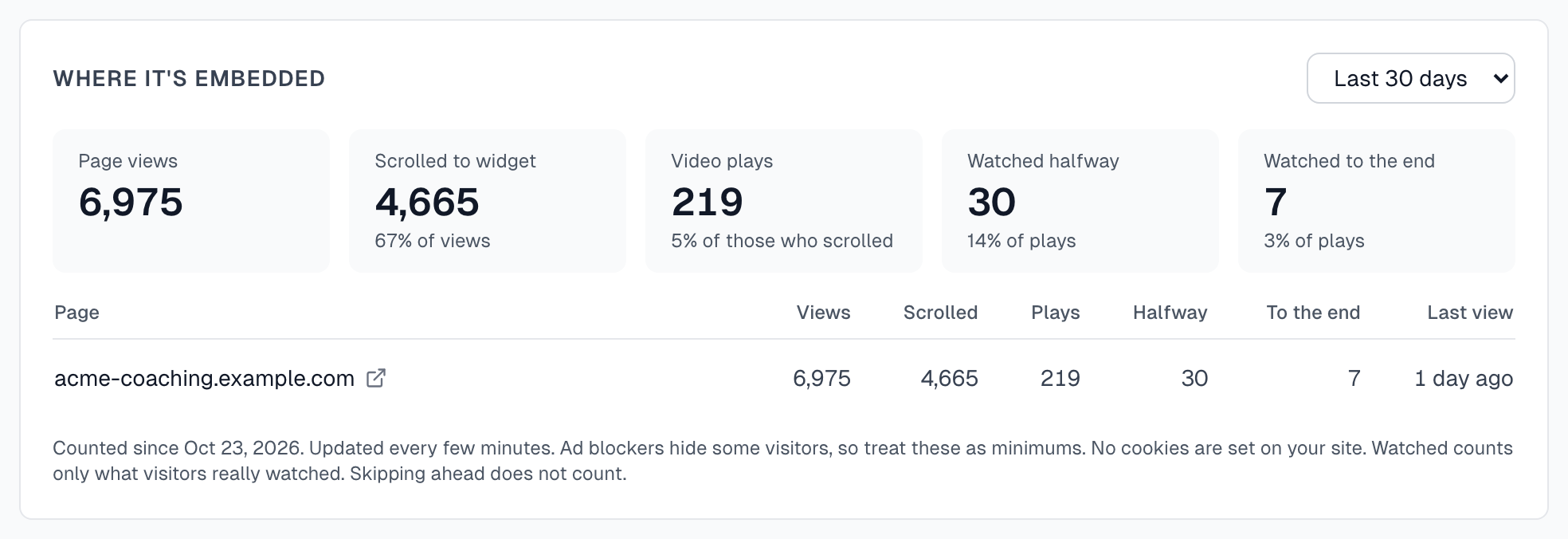
Page views: how many times a page with the widget loaded.
Scrolled to widget: how many of those views reached the widget.
Video plays: how many videos were started.
Watched halfway and Watched to the end: these appear once videos have been played. Skipping ahead does not count.
Counts update every few minutes. Ad blockers hide some visitors, so treat them as minimums. A page with no views for over 14 days is marked, because the widget may have been removed from it.
Change or remove a widget
To change it, edit the widget and click Save. You do not need to paste the code again.
To hide it everywhere, switch Active off and click Save.
To take it off one page, delete the code from that page.
If something goes wrong
Nothing shows on my site
Check that the widget says Active on the Widgets page. The preview still works for a widget that is off, so it does not prove this.
Check that the preview shows testimonials. If it is empty, see Create a widget.
Check that you pasted both lines, and that the first line came before the second.
Check that you pasted into an HTML block. A normal text block shows the code as words or removes it.
If your site has a strict security policy, ask your web developer to allow widgets.magic-testimonials.com.
My change is not on my site yet
Your widget's content is cached for speed, so a saved change can take a few minutes to appear. Wait, then refresh the page.
The widget does not appear in a pop-up or a tab
The script looks for widgets once, as the page loads. If your site adds the code to the page later, as some pop-ups and tabs do, the script does not see it. Put the widget directly on the page, or ask your web developer.
Where it's embedded says Not seen on a page yet
Open the live page and give it a few minutes. Previews in Elementor or WordPress do not count, and neither does a widget with no testimonials to show.
The status says Off (plan limit)
A plan change turned the widget off. See Plans overview.
Last updated