Create a widget
Build a widget in the editor: choose a layout, decide which testimonials it shows and style it to match your site. The preview shows style changes as you make them.
Create the widget
Click Widgets in the sidebar.
Click New widget. The editor opens.
Click the name at the top, New Widget, and type a name you will recognize.
Work through the sections below.
Click Save.
A new widget starts as an active Wall with Simple card style, showing up to 30 of your Live testimonials, newest first. The page does not warn you about unsaved changes, so click Save before you leave it.
Choose the layout
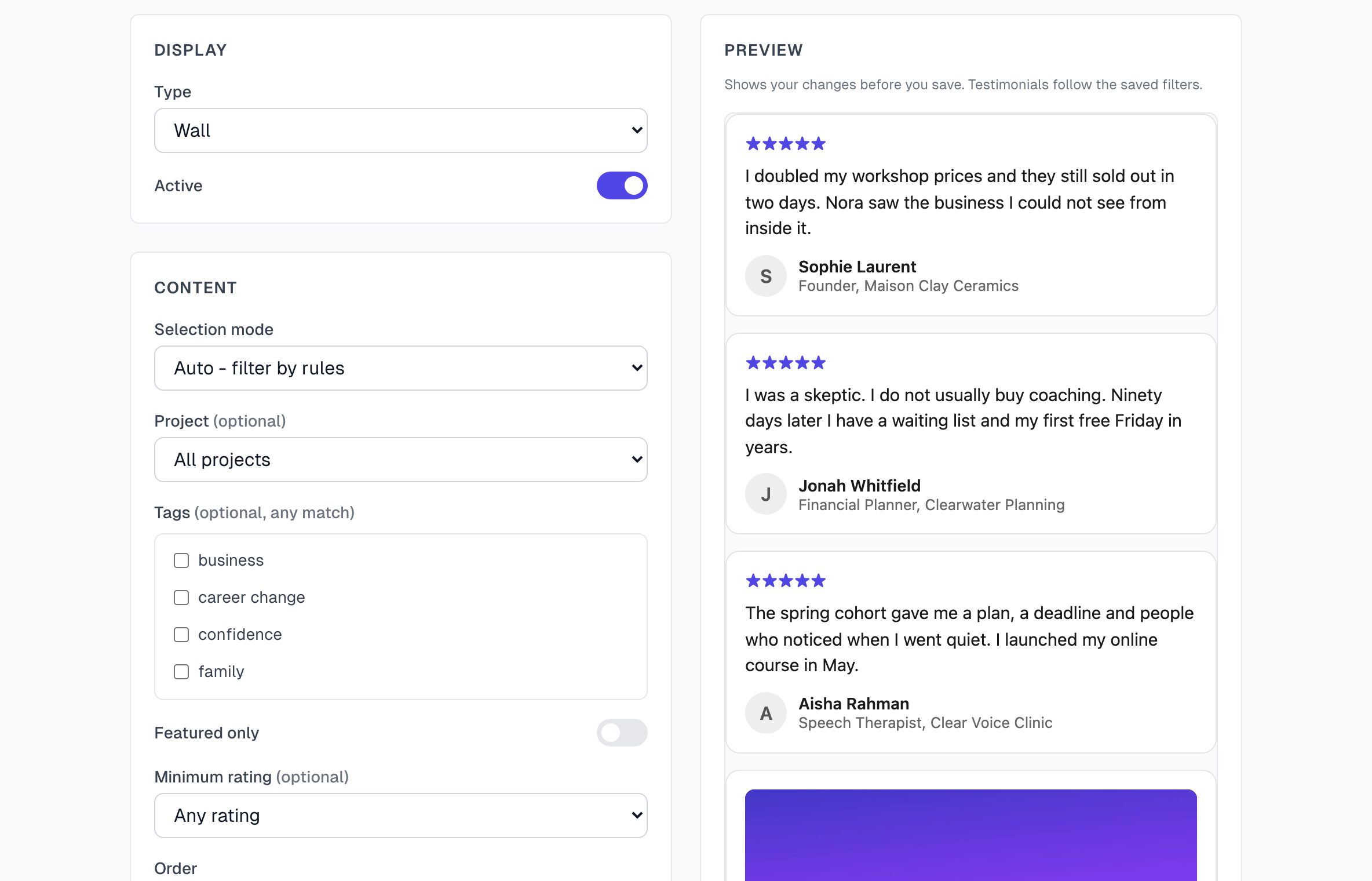
Under Display, choose a Type: Wall, Grid, Carousel or Single. Widgets overview shows the difference. You can change it at any time without changing the code on your site.
Single shows only the first testimonial, so use the filters below to put the right one first.
Choose the testimonials
Under Content, leave Selection mode on Auto - filter by rules. Then narrow it down. A testimonial must pass every filter you set.
Project: All projects, or one project. This shows only if you have projects.
Tags: tick one or more tags, and a testimonial needs any one of them. Tick none to skip this filter. This shows only if you have tags.
Featured only: shows only testimonials marked Featured. To mark one, open it and turn on the Featured switch. See Editing a testimonial.
Minimum rating: for example 4+ stars. Testimonials with no rating are left out.
Order: Newest first goes by capture date. Featured first puts testimonials marked Featured on top, then the newest. Manual order currently works the same as Newest first.
Max testimonials: how many to show. A widget shows 100 at most, whatever you enter.
The preview shows the testimonials from your last save, so click Save to see a filter change.
Show a hand-picked set
Manual - pick specific testimonials is in the list, but the editor has no place to pick testimonials, so a new widget set to it shows nothing. Use a tag instead:
Create a tag such as Homepage and add it to the testimonials you want. See Tag basics.
In the widget, keep Auto - filter by rules and tick that tag under Tags.
Click Save.
Choose a card style
Under Style, click a card style. Each tile shows one of your own testimonials.
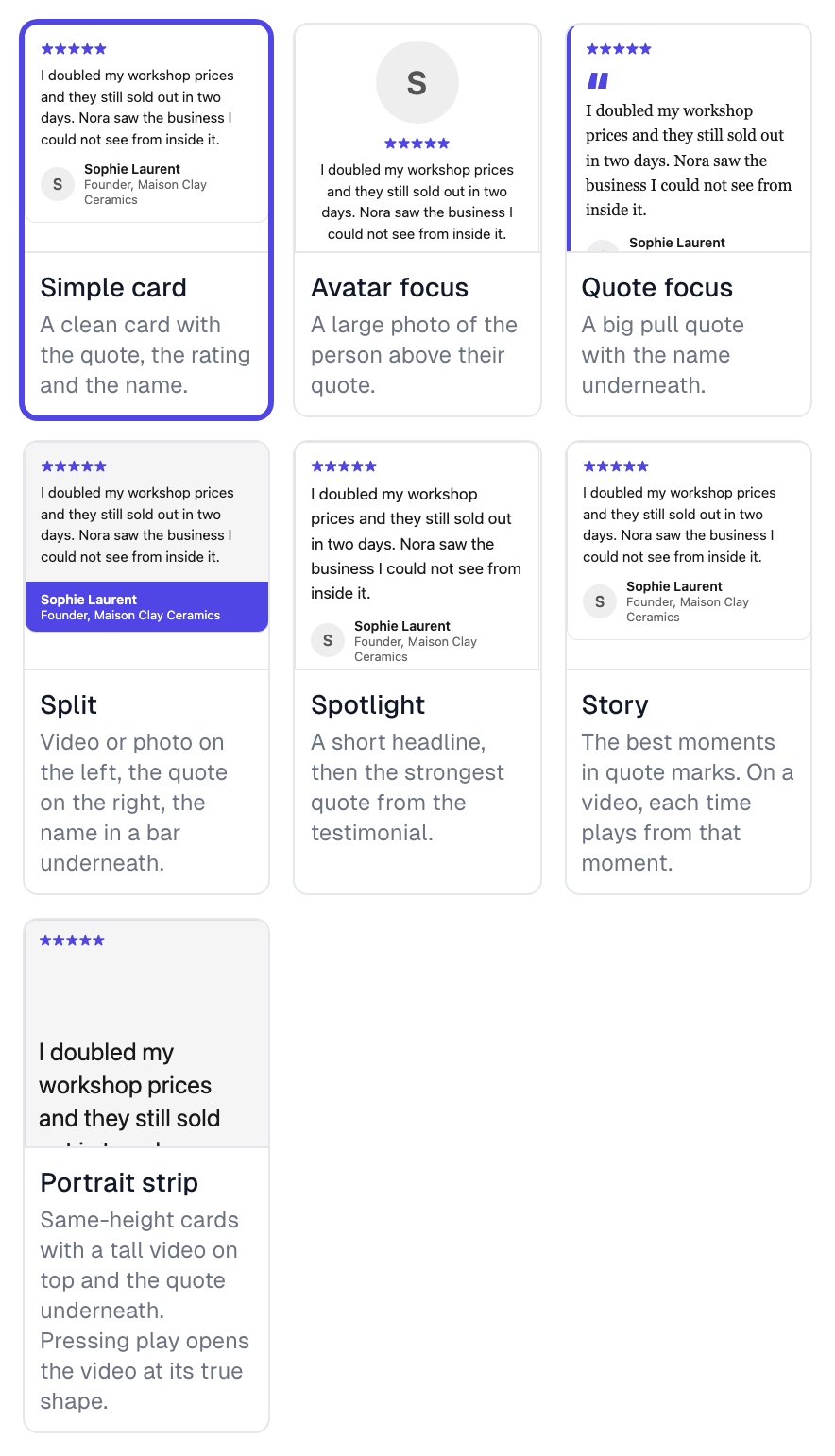
Spotlight and Story use the AI picks. A testimonial with no picks shows its text instead. See Auto-summarization.
Portrait strip suits tall phone videos.
To check how one testimonial looks, open it and use How it looks in widgets.
Match your site
The settings below the card styles depend on the style and the Type you chose, so you may not see all of these.
Cards shown on desktop: 3 or 4, for a Carousel or a Grid in Portrait strip style. Narrow spaces show fewer.
Movement: for a Carousel. Off, Slow glide or One card at a time. It pauses when someone hovers, and visitors who ask for reduced motion never see it move.
Text: Full text, Short, with Read more or Main quote.
Quote on video thumbnail: shows the main quote over a video until someone presses play.
Quote panel color or Card color: the background of the text area. Use default clears it.
Color mode: Light, Dark or Auto (follow page). Auto follows the light or dark setting on the visitor's device.
Accent color: the stars and other highlights. Reset goes back to the default.
Font: Your site's font, Sans serif or Serif.
Corners: Rounded or Square.
Show: switch Star rating, Author photo, Title and company, Source and Date on or off. Source names well-known sites such as Google or LinkedIn and is left out for anything else. Date shows the month and year of the capture.
Quotes your team reworded: Show them uses your team's wording. Use the original wording uses the words the person wrote or said.
Style and Type changes appear in the preview straight away, before you save.
Save and publish
Click Save.
Paste the code into your site. See Add a widget to your site.
Later changes need only Save. The code on your site stays the same.
A blue note above the preview tells you if your plan turns any video in this widget into a text card. See Plans overview.
If something goes wrong
The preview is empty
No Live testimonial passes your filters. Check these in order:
Selection mode is Auto - filter by rules.
Featured only is off, or some Live testimonials are marked Featured.
Project, Tags and Minimum rating are not too narrow.
The testimonials you expect say Live on the Testimonials page.
The widget shows fewer testimonials than I set
Each person appears once, so several testimonials from one person count as one card. Only Live testimonials count too. Your plan may also limit how many published testimonials a widget shows, newest first. See Plans overview.
A widget went empty after I deleted a project
The widget keeps looking for the deleted project, even though the Project box now reads All projects. Choose any other project, choose All projects again, and click Save. If you have no projects left, the box is gone, so create a project first.
A widget went empty after I deleted a tag
The widget keeps looking for the deleted tag, and the tag is no longer in the list to untick. Tick another tag and click Save. To show every tag again, create a new widget and replace the code on your site.
Save or the Active switch is refused
The message gives your plan's limit. Turn another widget off, or see Plans overview.
Last updated