Editing a testimonial
Open any testimonial to correct what AI read, add details it missed, keep a private note or mark it as Featured. Your changes apply as soon as you click Save.
Edit the details
Open the testimonial from your Inbox or the Testimonials page.
Scroll to Edit Testimonial and click Edit.
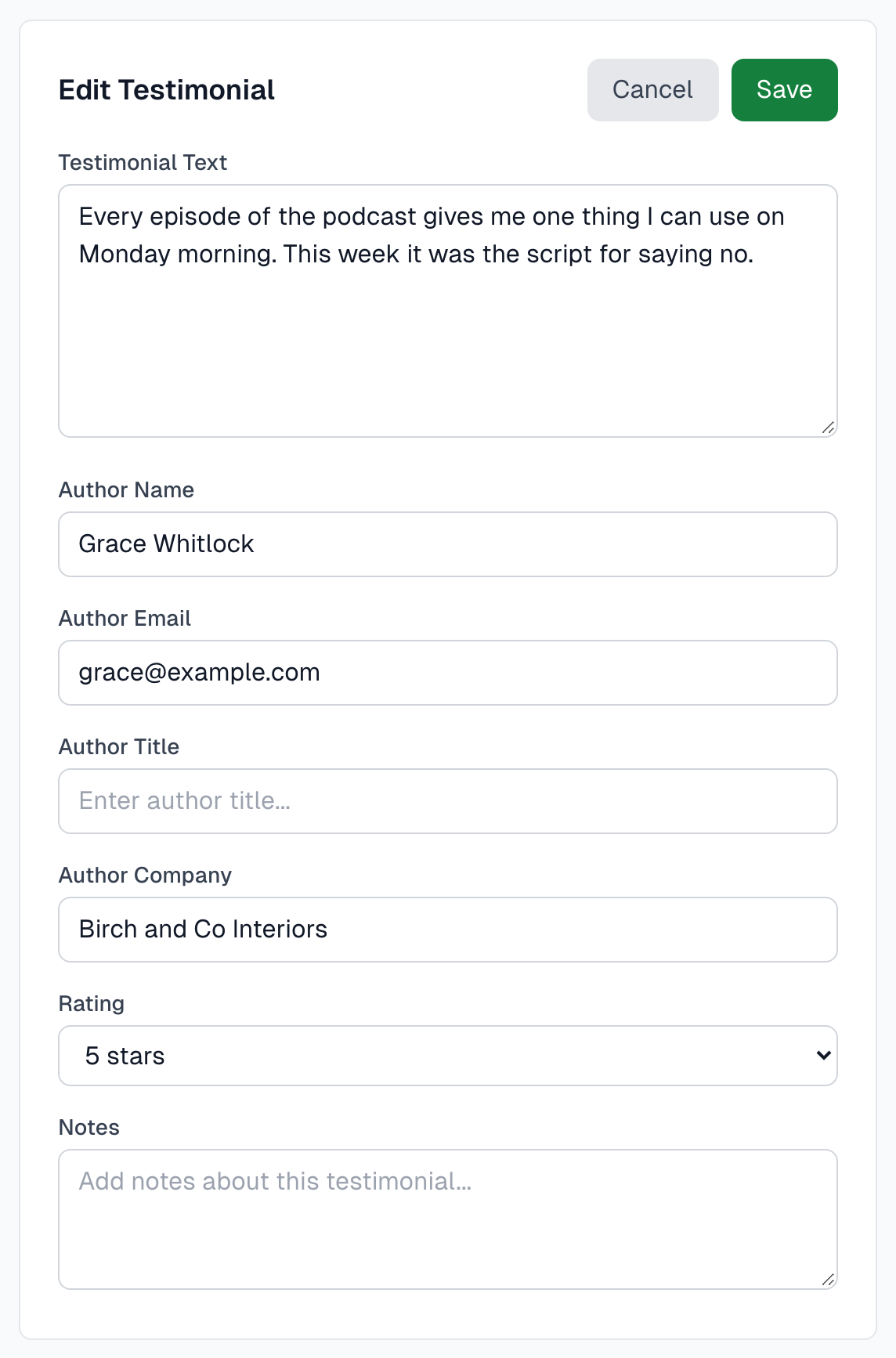
Change what you need.
Click Save. You will see Testimonial updated successfully! To drop your changes, click Cancel instead.
Owners, Admins and Members can all edit.
The fields
Testimonial Text: the words themselves. Line breaks are kept.
Author Name, Author Title and Author Company: how the person is described.
Author Email: needed to ask for permission. If you have connected an email tool, Find Email can fill this in for you.
Rating: a menu from 1 to 5 stars, or No rating.
Notes: for your team, such as where you got the testimonial or what the author agreed to. Keep them here, not in the text.
Notes never appear in widgets or in a CSV export. They are included in a JSON export and a Full Backup.
Mark it as Featured
Widgets set to Featured only or Featured first use this. See Create a widget.
Open the testimonial.
Find the Featured card, below Project.
Click the switch. It saves straight away, with no Save button.

Click the switch again to turn it off. Anyone who can edit can change it. If you see Could not save Featured, reload the page and try again.
Good to know
If a permission request has already gone out, the author may have seen the old text.
When you change the text, AI writes new AI picks, unless you already edited the picks yourself.
The Details card shows who captured the testimonial, when it was created, and when it was last updated. There is no field-by-field history.
To change the screenshot itself, see Screenshot tools.
Be careful with Reprocess
Reprocess, in the Processing card, makes AI read the screenshot again. It replaces the text, summary, author details and rating with the new result, so your edits are lost. It also moves the testimonial back to your Inbox and uses one AI capture, unless your organization uses its own AI key. The app asks you to confirm first. Use it when AI failed or read the screenshot badly, and before you start editing.
If something goes wrong
My changes disappeared
You clicked Cancel or left the page before saving. Click Edit, make the changes again and click Save.
The email will not save
It must be a valid address. Check for typos or a missing @.
I cannot edit the location
AI reads the location and shows it in the Details card, but the form has no field for it. Contact support if it needs correcting.
Last updated