Find one author's email
Use Find Email on a testimonial to look up its author in your connected source and pick the right contact, without leaving the page.
Find the email
Open a testimonial whose Permission card says Email Missing.
Click Find Email. The search takes a few seconds.
Compare each contact with the testimonial. The best matches are at the top, with a HIGH, MEDIUM or LOW badge.
Click Use this email on the right one. You see Email set to and the address.
Reload the page. Send Permission Request is now active.
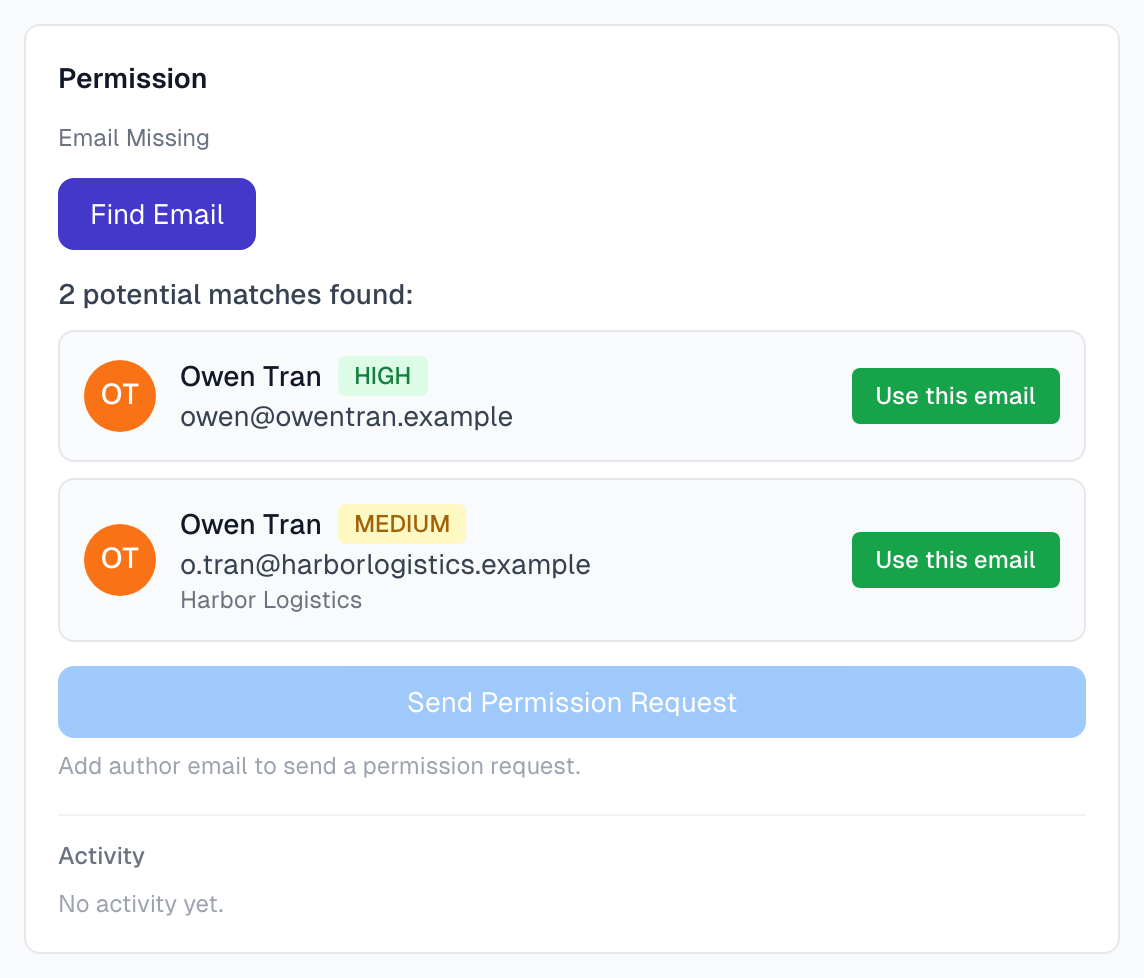
If none of them is right, leave the page. Nothing is added. How email matching works explains the badges.
Other labels you may see
KM: the contact comes from KeyMetriq.
Rejected before: someone rejected this contact, or it was set aside when another was accepted. You can still use it.
What happens when you choose
The email goes onto the testimonial. Empty company, name and photo fields are filled in too.
The other suggestions for this testimonial are marked as rejected.
To undo it, click Undo beside Email set to. The email is cleared and the other suggestions come back. After you reload the page, use Undo on the Email Sync page, or correct the email with Edit.
Good habits
Use the company as a tiebreaker.
Never accept a LOW match without checking another detail.
If something goes wrong
I do not see Find Email
The button shows only when all of these are true:
The testimonial has no Author Email.
You have a connected source. See Find author emails.
Your email setup is complete. If the card shows a message about your address or provider, fix that first.
The author has not already answered a request.
It says No matching contacts found
The person may not be in your source, or their name may differ there. See Find author emails troubleshooting. If you know the email, add it with Edit.
It says Failed to search for email
We could not reach your source. Check the connection under Settings > Integrations. See Integrations troubleshooting.
The button stays greyed out after I chose an email
Reload the page.
Last updated