The consent page
The consent page is where an author answers your request. It opens from the link in the email, needs no account, and shows the testimonial with three choices.
What the author sees
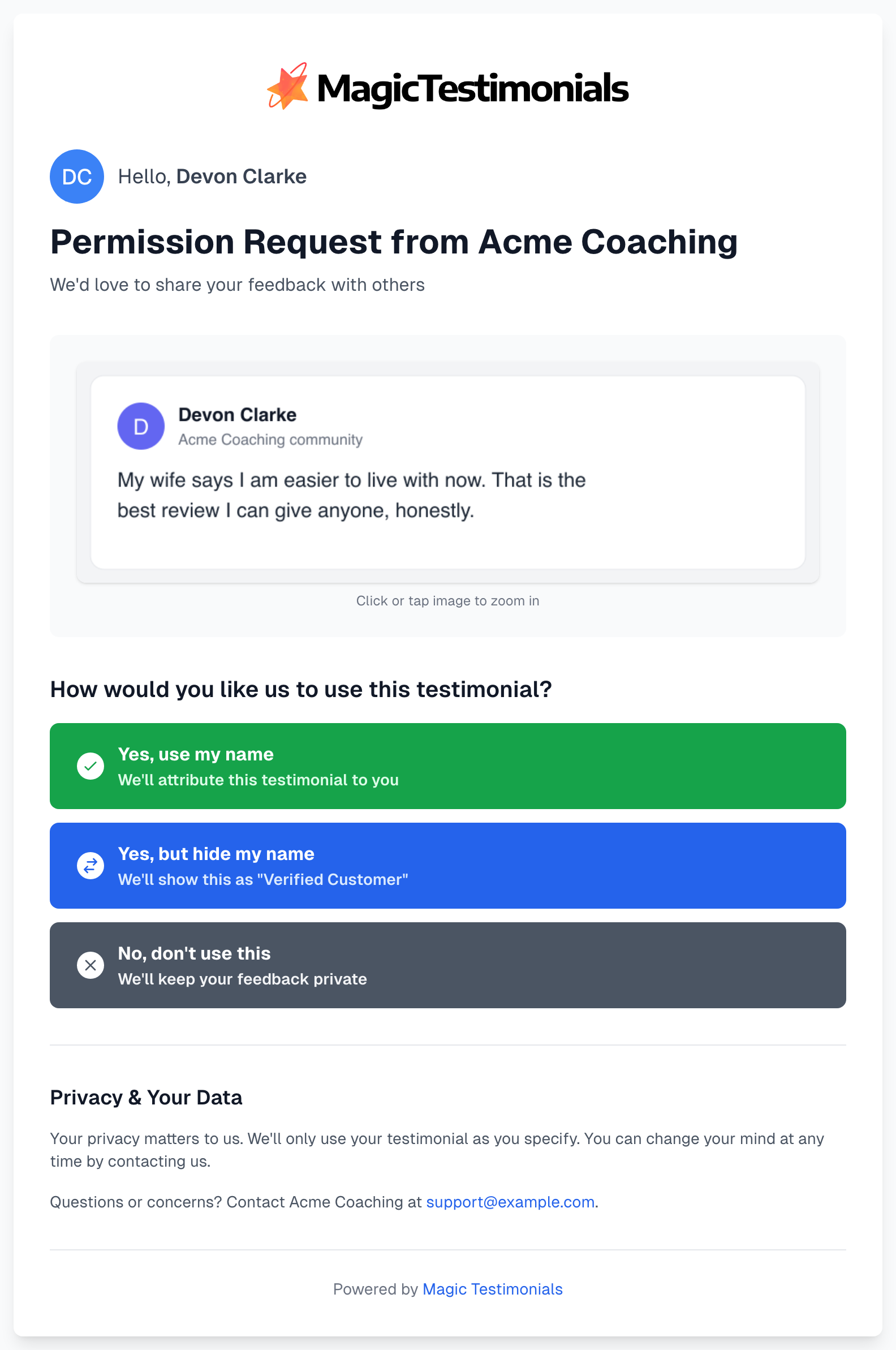
A logo. Yours, if your plan includes custom logos and Show on permission pages is on. Otherwise the Magic Testimonials logo. See Branding.
A greeting, with their picture or initials, if the testimonial has their name.
The testimonial. The screenshot if there is one, which they can click to zoom. Otherwise the text.
Three choices, described below.
Privacy & Your Data. It tells them they can change their mind by contacting you, and shows your Support Email.
The three choices
The author clicks | Permission status | Testimonial status |
|---|---|---|
Yes, use my name | Granted | Approved |
Yes, but hide my name | Granted, anonymous | Approved (Anonymous) |
No, don't use this | Declined | Archived |
The name shown for the second choice is your Anonymous Display Name under Settings > General.
If you rejected or archived the testimonial before the author answered, a yes is recorded, but the testimonial stays Rejected or Archived until someone approves it.
After the author answers
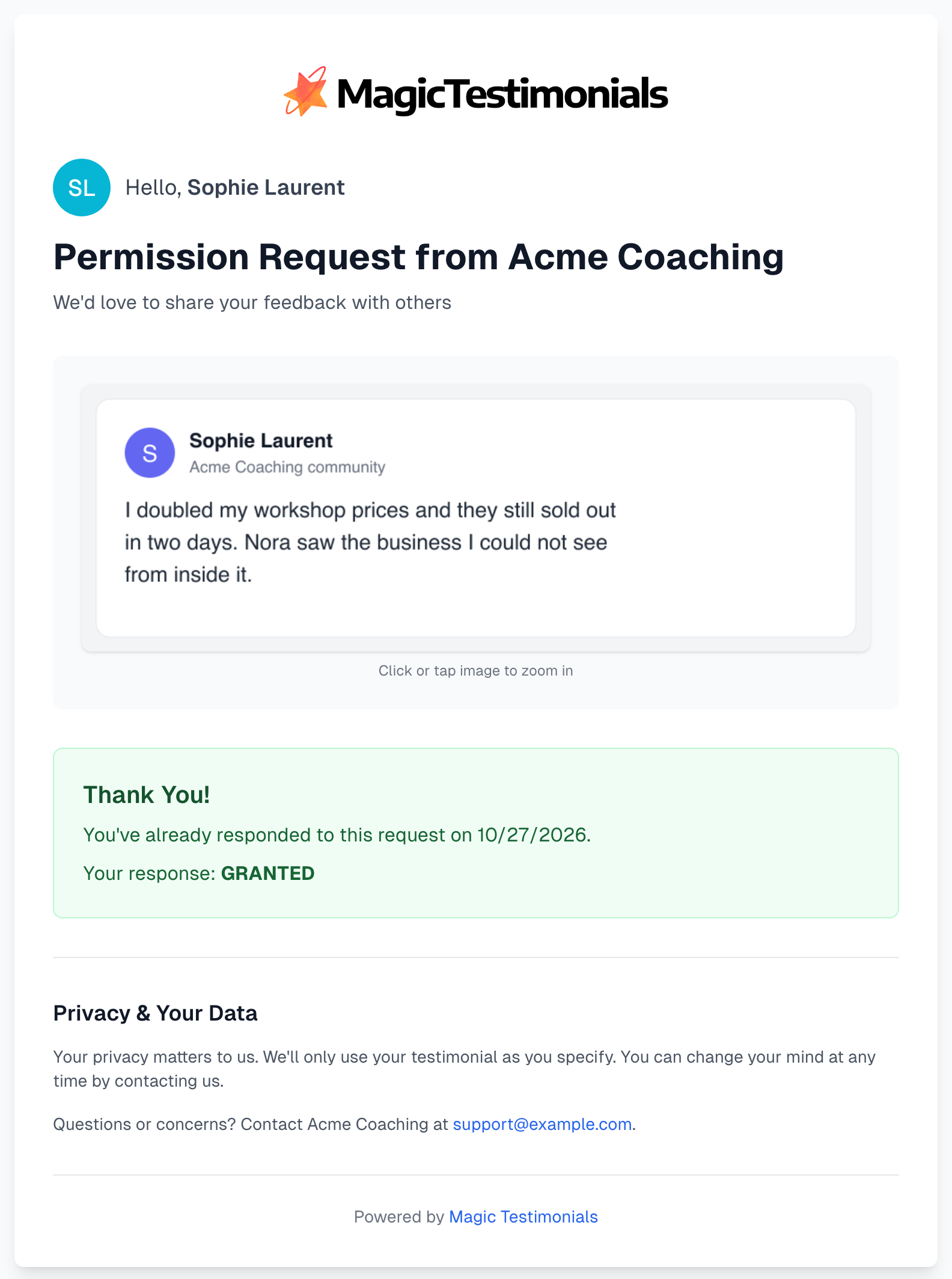
The answer is saved at once. If the author opens the link again, the buttons are gone and they see a thank you with the date and their answer. The answer appears as GRANTED, GRANTED_ANONYMOUS or DENIED.
If the author changes their mind
They cannot change their answer on this page. They have to contact you, so keep your Support Email current.
From yes to no: open the testimonial and click Reject or Archive. It leaves your widgets.
To answer again: an Owner or Admin clicks Ask again on the Permissions page. The author gets a new email, and the page shows the three choices again. See Declined permissions.
Authors cannot edit their words here either. If one asks for a change, make it yourself. See Editing a testimonial.
What is recorded
Each time the page opens, we record the time, the IP address and the browser. We record the same when the author answers. In the app you see the visits and the answer with their dates, but not the address or browser.
Opening the link yourself counts as a page visit.
See it for yourself
Add your own email to a test testimonial and send a request.
Open the email and click Let Us Know.
Choose an answer.
Delete the test testimonial, or the test will stay in your list. An answered request cannot be deleted on its own.
If something goes wrong
The author sees Request Not Found
The request was deleted, or the link was copied incompletely. Ask them to click the link in the email. If the request was deleted, send a new one, because the old link will not work again.
My logo does not show
Check that you uploaded one, that Show on permission pages is on, and that your plan includes custom logos. See Plans overview.
The author wants to answer again, but the page says Thank You
Each link takes one answer, and an answered request cannot be deleted. An Owner or Admin can click Ask again on the Permissions page. The author gets a new email, and the page then shows the three choices again.
Last updated