Branding
Add your own logo to permission emails and the consent page, for light and dark screens, and choose where it shows.
You need an Owner or Admin role, and custom logos depend on your plan. If you see Upgrade your plan, see Plans overview.
Upload your logo
Click Settings at the bottom of the sidebar. General opens first.
Under Light Theme Logo, click Choose File and pick a PNG, JPG or WEBP file of up to 2 MB. It uploads straight away.
Under Dark Theme Logo, do the same if you have a version for dark backgrounds.
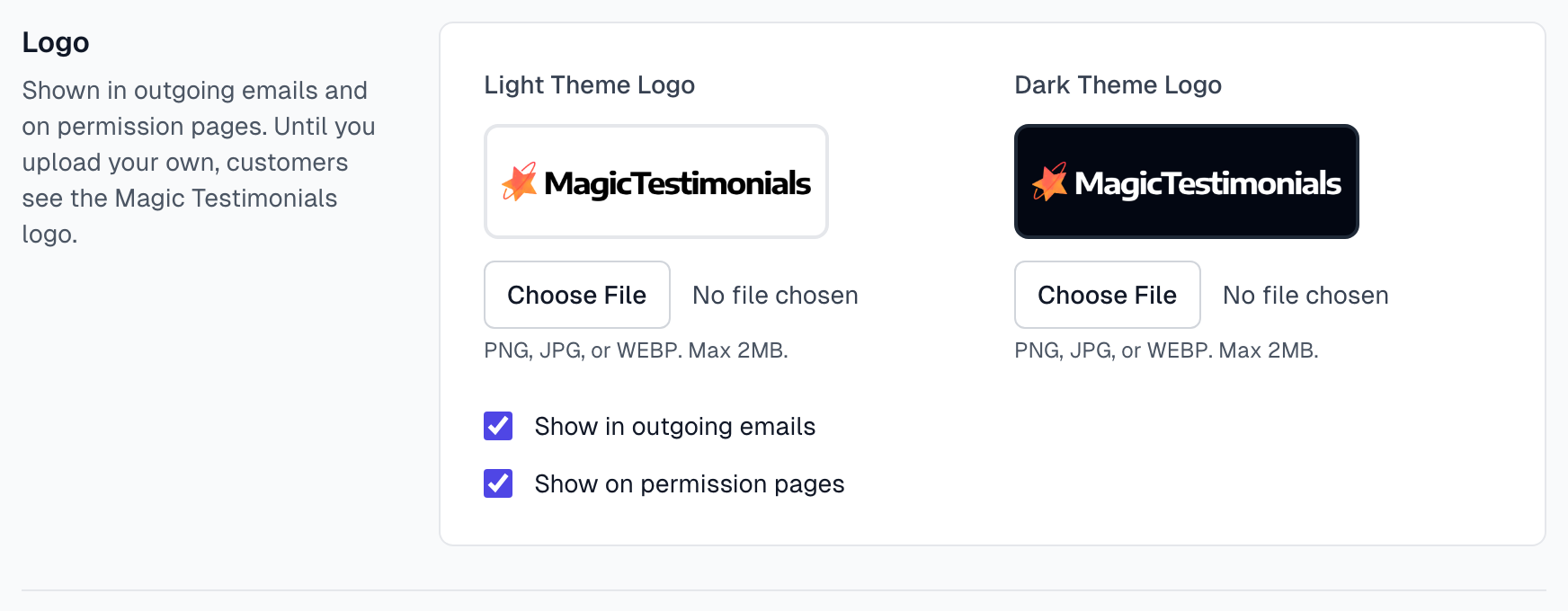
Choose where it shows
Tick or clear Show in outgoing emails and Show on permission pages.
Click Save changes at the bottom of the page.
If you clear a box, people see the Magic Testimonials logo in that place, not an empty space. The app's own sidebar always shows the Magic Testimonials logo.
Where | Which logo | Controlled by |
|---|---|---|
Permission requests | Light | Show in outgoing emails |
The page a teammate sees when accepting an invitation | Light or dark, to match their screen | Show in outgoing emails |
The consent page | Light or dark, to match their screen | Show on permission pages |
Other emails, such as invitations and password resets, have no logo.
Get the best result
Keep it under 1 MB for email. A logo over 1 MB can be uploaded, but permission emails then show the Magic Testimonials logo.
Use a wide logo. Emails show it at up to 300 pixels wide and 48 high.
Use a transparent PNG. A logo on a white block looks boxy on a dark background.
Upload a light logo first. A dark logo on its own is not used. Without a dark logo, your light one is used everywhere.
Check a real email. Send a permission request to yourself. Preview in the template editor does not show your logo.
Remove a logo
Click Remove next to the preview and confirm. The Magic Testimonials logo comes back.
If something goes wrong
Invalid file type
Only PNG, JPG and WEBP are accepted, so SVG and GIF files are refused. Export your logo as a PNG and try again.
File size exceeds 2MB limit
Export a smaller version. Logos show at a small size, so you lose nothing.
Emails I already sent have the old logo
That is expected. A new logo appears only in emails sent after you change it.
My logo disappeared after a plan change
If your new plan does not include custom logos, the Magic Testimonials logo is used again. See Plans overview.
Last updated