Default vs custom templates
Every email starts with a built-in template, and you can save your own version. What your version changes depends on the email, and for permission emails it is less than you might expect.
What a custom template changes
It depends on the email. For permission requests, the formatted email is fixed. That is the version with the button that nearly everyone sees. Your custom version changes only its subject and the plain text copy sent along with it.
Template | What your version changes |
|---|---|
PERMISSION REQUEST | The subject and the plain text copy. Not the formatted email. |
MEMBER INVITATION | The whole email, in a simple layout. |
PASSWORD RESET | The whole email, in a simple layout. It reaches people whose first organization is yours. |
WELCOME, ACCOUNT APPROVED, ACCOUNT REJECTED | Nothing useful. These go out while an organization is being created or reviewed, before anyone would edit them. |
The Templates tab says the formatted version is generated automatically. For permission emails, that means it is built from fixed wording, not from your text.
So a custom permission template is worth it for the subject line. It will not change what most authors read.
The default email names no date and does not say that silence counts as a yes. {{timeoutDate}} is always empty, so if your custom text has a sentence that holds it, that sentence is removed from the email. If it is in a shape we cannot remove safely, for example with the link in the same sentence, that send uses the default plain text instead. A custom subject that names the date is swapped for the default subject in the same way. See Legal and GDPR.
See which version you use
Click Settings at the bottom of the sidebar, then Email. You need an Owner or Admin role.
Click the Templates tab.
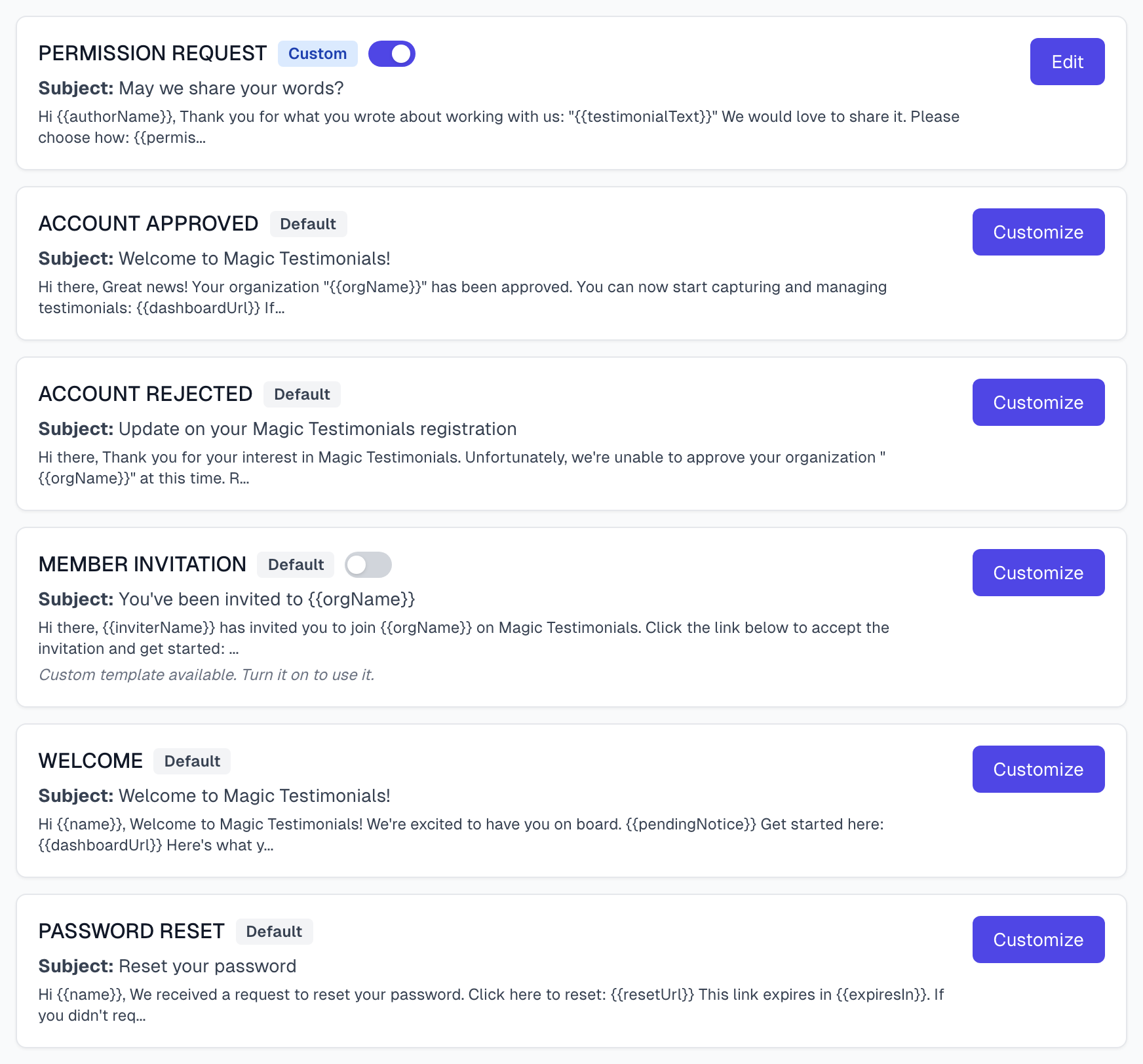
Each email has a badge. Default means the built-in version, and Custom means yours. A switch appears next to the badge once you have saved your own version.
Create a custom template
Click Customize next to the template. The default wording opens, so you can start from it.
Change the Subject and Body Text.
Click Save Template.
Saving turns your version on straight away. Writing a custom template has the details.
Switch between default and custom
Click the switch next to the badge. With the switch off, the built-in version is used, and yours stays saved. The list then shows Custom template available. Turn it on to use it.
To edit a saved version that is switched off, turn it on first, then click Edit. With the switch off, the button says Customize and opens the default wording. If you save from there, your saved version is replaced.
There is no delete button. To stop using a custom version, switch it off. Emails already sent do not change.
What templates cannot do
A template applies to your whole organization. You cannot have different versions for different projects or authors.
The switch chooses between two versions. It does not stop an email going out.
If something goes wrong
I changed the template, but the email looks the same
For a permission email, that is how it works. Look at the subject line, which does change.
My saved version is gone
It was probably replaced from Customize while the switch was off. Saved versions have no history, so you need to write it again.
Last updated