Writing a custom template
Use the template editor to change an email's subject and text. For permission emails, the subject matters most, because the formatted email itself does not change.
Read this first. For permission requests, your text reaches only the subject line and the plain text copy of the email. The formatted email that nearly everyone sees does not change. Default vs custom templates explains this for each email.
Open the editor
Click Settings at the bottom of the sidebar, then Email.
Click the Templates tab.
Click Customize next to the template, or Edit if your version is in use.
Change the Subject and Body Text.
Click Save Template. Your version is used from now on.
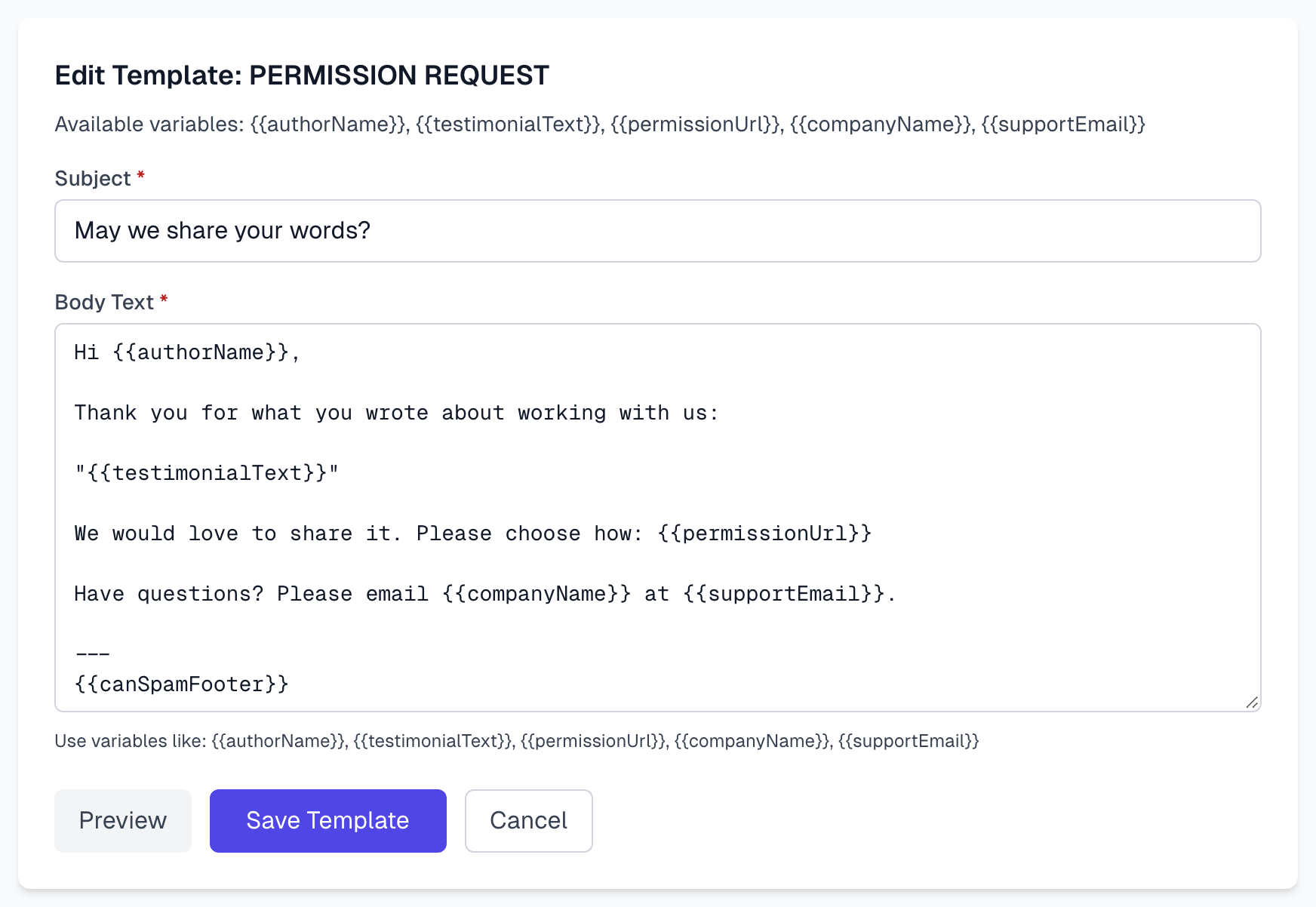
You need an Owner or Admin role. Cancel leaves without saving. A saved version has no history, so keep a copy of anything you may want back.
Write the subject
This is the part of a permission email that every author sees, so spend your time here.
Keep it short. Long subjects get cut off on phones.
Be specific. Can we share your feedback? says more than A request from Acme.
Avoid alarm. Skip capital letters, rows of exclamation marks and Action required.
Variables work in the subject. We suggest leaving out {{authorName}}, because a name with an apostrophe can show up wrongly. See Template variables.
Write the body
The body is plain text. HTML tags and Markdown are not turned into formatting, and they show as typed.
Keep the required variables. Save is refused without them. The list is above the Subject field.
Keep
{{canSpamFooter}}in permission emails. It adds your mailing address to the plain text copy. Nothing warns you if you remove it.Use a blank line between paragraphs. Your line breaks are kept.
Type full web addresses. In MEMBER INVITATION and PASSWORD RESET, an address starting with https:// becomes a link. Fonts, colors and bold cannot be set.
Good wording
Keep it short and friendly. Write as you would to a customer you know.
Be clear about the ask. Can we use your quote? beats a long formal sentence.
Make no easy to say. An author who feels pressured tends to ignore you. Avoid lines such as Most customers say yes.
Do not promise what happens if they do not answer. Nothing happens by itself, and silence never counts as a yes.
{{timeoutDate}}is always empty, so a sentence that holds it is removed from the email. If we cannot remove it safely, for example with the link in the same sentence, that send uses the default text instead. See Default vs custom templates.
Emails in another language
You can translate the subject and the plain text copy. The formatted permission email stays in English, so most authors see an English email with a translated subject. Member invitations and password resets can be fully translated.
If something goes wrong
Template missing required variables
The message names what is missing from the body. Add it back, spelled exactly as listed.
Subject is required, or Body text is required
Both fields must have text. You cannot clear them to remove a template. Use the switch instead.
My new wording is not in the email
You are looking at the formatted permission email, which does not change.
A variable has disappeared from the email
A variable we do not recognize is removed when the email goes out. Check the spelling and capitals in Template variables.
Last updated