Test send
Send yourself a test email to confirm that your email provider works before you write to real customers.
Send a test email
Click Settings at the bottom of the sidebar, then Email.
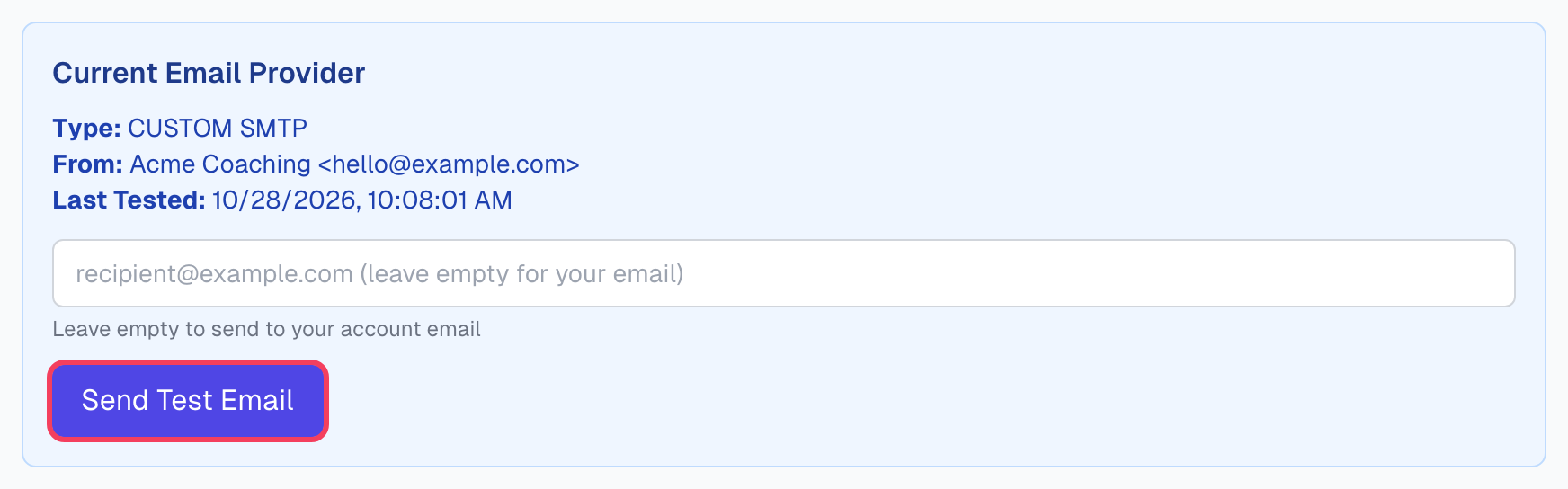
Find Current Email Provider. If you do not see it, save a provider first: choose one under Configure Email Provider and click Save Configuration. This applies to Platform Default too.
Enter an address, or leave the box empty to use your account email.
Click Send Test Email.
Look for the green message, then check that inbox.
Try a free webmail address as well as your own. Your usual inbox may already trust you and hide a spam problem.
What the test shows
The subject is Test Email from Magic Testimonials. The message is a short note with your organization name and the time. It tells you that:
Your provider accepted the email.
The email reaches an inbox and not the spam folder.
The sender name and address look right.
It does not show your template, your logo or your footer. To check those, send a real permission request to yourself, using a testimonial with your own address as the Author Email. Then open the link and answer it. See Sending a permission request.
Test Connection or Send Test Email?
Test Connection | Send Test Email | |
|---|---|---|
Where | In the provider form, for Postmark and Custom SMTP | In the Current Email Provider box |
What it checks | Your key or login works | An email can go out from your saved provider |
Sends an email | No | Yes |
When to use it | While you fill in the form | After you save |
Test again whenever you change provider or replace a key.
If something goes wrong
I do not see Send Test Email
No provider has been saved yet. Click Save Configuration under Configure Email Provider, and the box appears.
Failed to send test email
Your provider refused the email. Click Reconfigure, enter your details again and click Test Connection. See Email provider setup.
Invalid email format
Check the address in the box for typos, or leave it empty.
It says sent, but nothing arrived
Check spam and promotions folders. The message means your provider accepted the email, not that it was delivered. If it is not there, check your domain's settings in From address.
The test worked, but permission requests do not send
The test does not need a mailing address or Support Email, but permission requests do. See Email provider setup.
Last updated