Sending a permission request
Send an author an email that asks if you can use their testimonial with their name, with their name hidden, or not at all. Their answer comes back to Magic Testimonials by itself.
Before you start
Author email. The testimonial needs one. If it is missing, add it with Edit or use Find Email.
Support Email and mailing address. The app will not send without both. Organization settings shows where to add them.
Email sending. Platform Default needs no setup. To send from your own address, see Email provider setup.
Anyone on your team can send a request. The author does not need an account.
Send the request
Open the testimonial.
In the Permission card, check that the status says Ready to Request.
Click Send Permission Request. The email goes straight away, with no confirmation step.
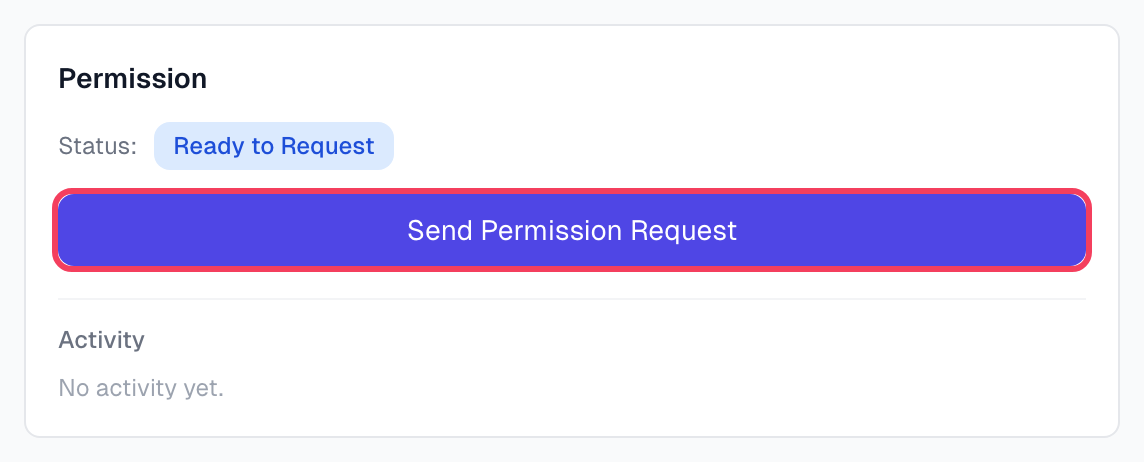
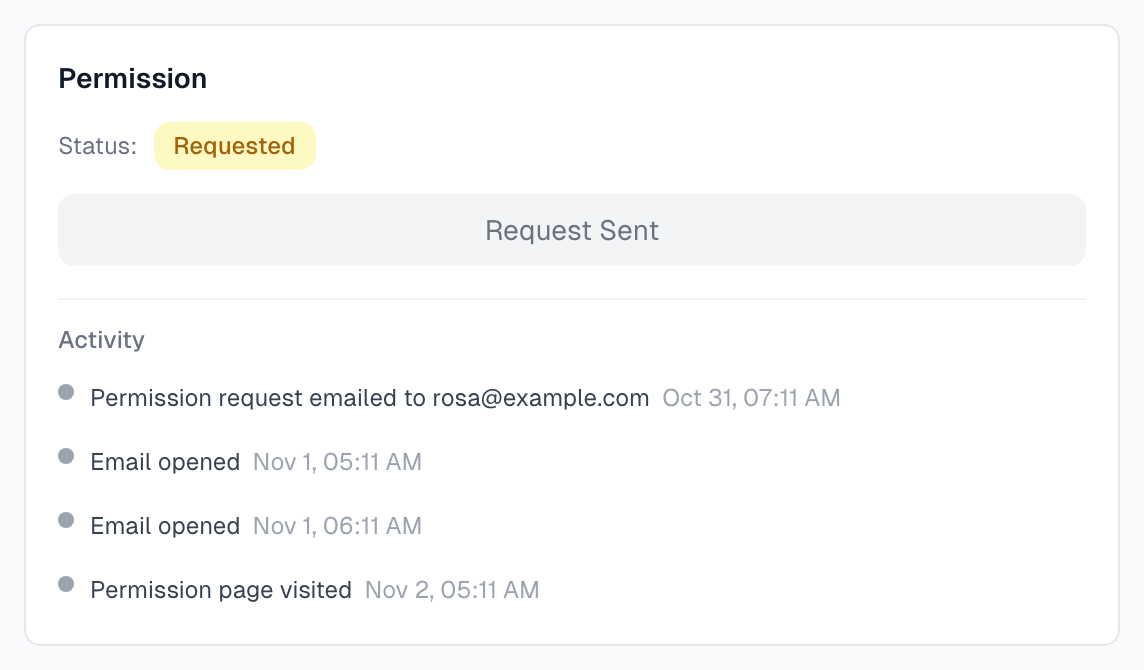
You see Permission request sent successfully. The status changes to Requested and the button changes to Request Sent.
What the author gets
The subject Can we share your feedback? unless you changed it.
A greeting by name, then the screenshot, or the text if there is no screenshot or it is too large to attach.
The three choices and a Let Us Know button, which opens the consent page.
Your Support Email, and your mailing address in the footer.
Most people see the formatted version of the email. Your own template changes the subject and the plain text version only. See Default vs custom templates.
Follow the request
The Activity list on the Permission card shows each step with its date.
To see every request, click Permissions in the sidebar. The number beside it counts requests waiting for a reply. Use the All statuses menu to filter the list, and click a row to open the testimonial.
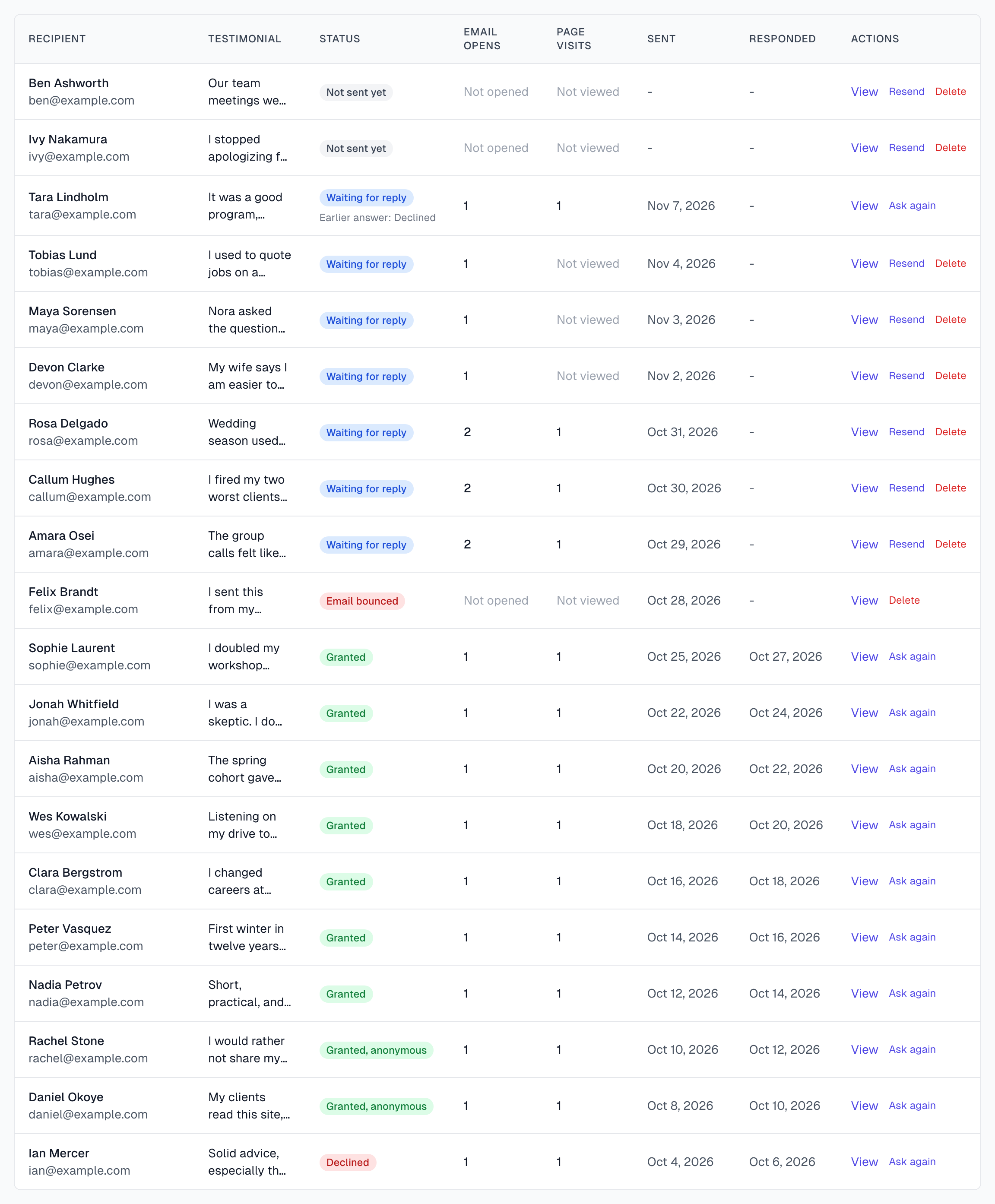
Tracking engagement explains the opens and visits.
Send the email again
On the Permissions page, click Resend in the row.
Click Resend in the dialog.
The email goes to the address on the request, even if you have since changed the Author Email. Resend does not show once the author has answered, or after Email bounced or Marked as spam.
No reminder goes out by itself, so use Resend when an author has not answered.
Ask an author again
Once the author has answered, an Owner or Admin can send a new request with Ask again in the row on the Permissions page. It goes to the testimonial's current Author Email. The testimonial is Hidden until the author replies, and the earlier answer stays in its history. Declined permissions walks through it.
Withdraw a request
Before the author answers, an Owner or Admin can click Delete in the row and confirm. This cannot be undone. The testimonial goes back to your Inbox with no permission, its history of opens and visits is removed, and the author's link stops working. The author is not told.
Once the author has answered, the request cannot be deleted, and Delete is gone from the row. Their answer stays on record. A request that was asked again cannot be deleted either.
Rejecting or archiving a testimonial does not withdraw its request, and the author can still answer. A yes is recorded, but the testimonial stays Rejected or Archived until someone approves it. If the author chose Yes, but hide my name, Approve gives Approved (Anonymous).
Good habits
Send a request to your own email first, so you see what authors see. Then delete the test testimonial.
Silence never counts as a yes. A request stays Waiting for reply until the author answers or someone in your workspace acts on it.
If something goes wrong
Send Permission Request is greyed out
The message under the button gives the reason:
Add author email to send a permission request. Add the email to the testimonial.
Physical mailing address not configured. Add it under Settings > Email.
Support email not configured. Add it under Settings > General.
No email provider configured. See Email provider setup.
The button says Request Sent
This testimonial already has a request. Use the Permissions page to resend it, delete it, or ask again.
It says the recipient has unsubscribed
The address is on your organization's blocked list, so the app will not send to it. Usually the person opted out, but an address that bounced or was marked as spam is blocked too once an Owner or Admin asked again at a new address. No setting in the app reverses this. See Legal and GDPR.
A red error appears after you click
The email did not go out and no request was saved. Fix the cause and click again. Test send checks your email setup.
The author says nothing arrived
Last updated