Testimonials overview
The Testimonials page lists every testimonial in your organization, whatever its status. Use it to find a testimonial, see which ones are live and act on many at once.
What is on the page
Click Testimonials in the sidebar.
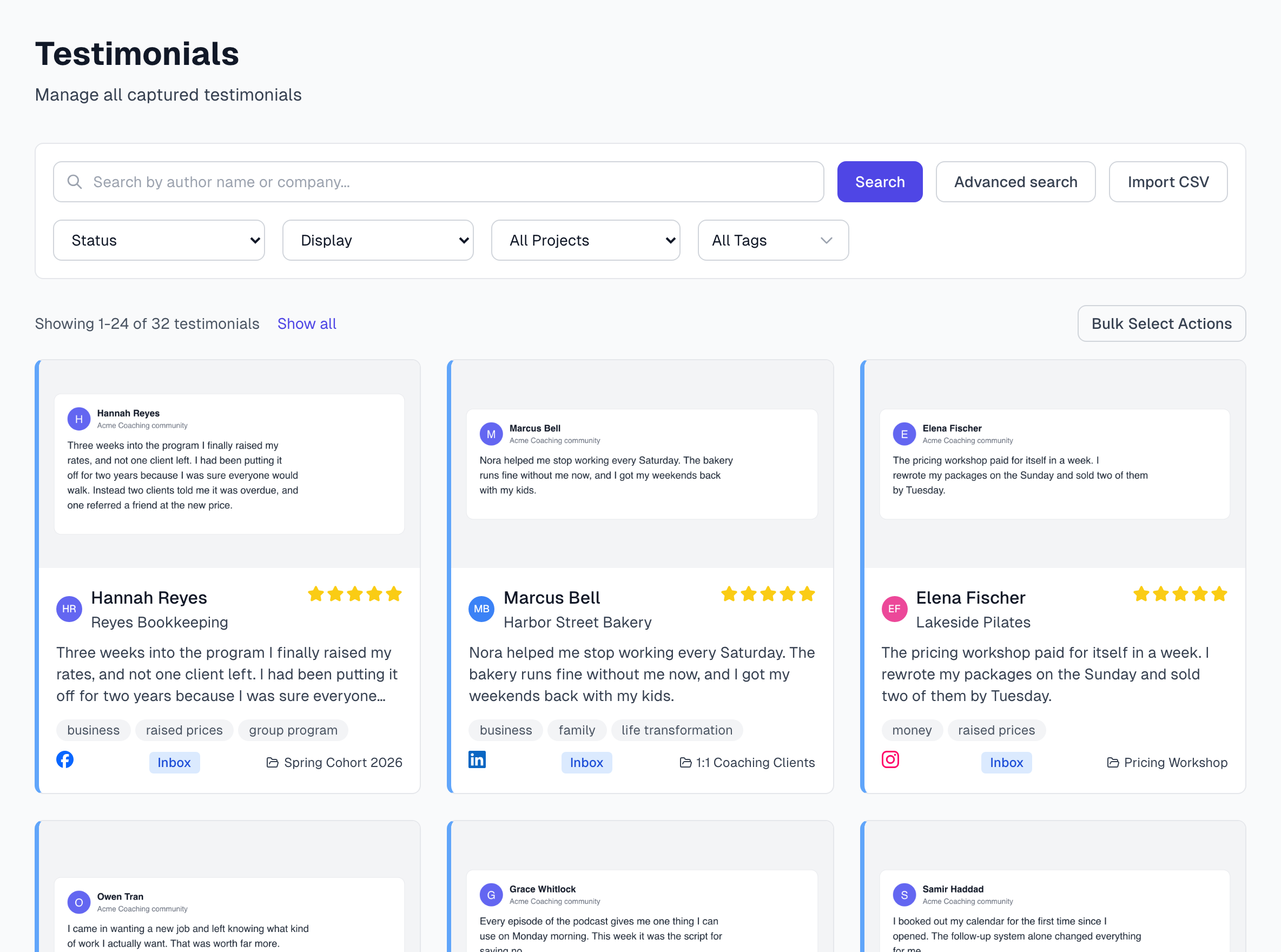
Search box: finds testimonials by author name or company. Press Enter or click Search. Clear empties it.
Advanced search: searches the words in your testimonials and what they mean. See Advanced search.
Import CSV: brings in testimonials from a spreadsheet. See CSV import.
Process AI Pending: appears only when imported testimonials are waiting for AI. An Owner or Admin can click it to queue them again.
Status, Display, All Projects and All Tags: narrow the list. See Advanced filters.
Show all: appears when you have more than 24 matches, and puts them all on one page.
Bulk Select Actions: lets you act on many at once. See Bulk actions.
Read a card
Each card shows the screenshot or video, the author, their company, any star rating and the start of the text. Up to three tags appear below that, with +N if there are more. The bottom row has the source icon, the labels and the project.
Label | What it means |
|---|---|
Live | Approved and allowed to appear in your widgets. |
Hidden | Approved, but it cannot appear in your widgets. Status workflow explains why. |
Inbox | Waiting for your review. |
Rejected | You decided not to use it. |
Archived | Out of your active list, kept for your records. |
Processing failed | Something went wrong and it needs a look. |
Duplicate | It looks like one you already have. |
Split | AI cut it out of a screenshot that held several testimonials. See Multi-testimonial split. |
The colored left edge of a card matches: green for Live, blue for Inbox, red for Rejected and Processing failed, gray for Hidden and Archived.
Open a testimonial
Click a card. The page has Previous and Next at the top, and the left and right arrow keys do the same.
If something goes wrong
A card says Image unavailable
The screenshot file could not be loaded. Open the testimonial. If the image still does not load, capture the testimonial again.
A testimonial does not appear when I filter
Filters add up, so one of them may be excluding it. Set each filter back to its first option, remove any tags, then add them again one at a time.
Last updated