CSV import
Turn a spreadsheet of testimonials into Magic Testimonials records in three steps: upload the file, match the columns to fields, then review and import. It brings in text only, up to 500 rows at a time.
Before you start
You must be an Owner or Admin. Members see the button, but the import is refused.
Save your file as .csv with commas between columns. The first row must hold the column names.
One column must hold the testimonial text.
Each file can have up to 500 rows. Split a bigger file and import the parts.
Each imported row counts as one AI capture, unless your organization uses its own AI key. See AI capture credits.
Import your file
Click Testimonials in the sidebar, then Import CSV.
Click Choose CSV file and pick your file.
Check the row count and the preview of the first 5 rows, then click Next: Map columns.
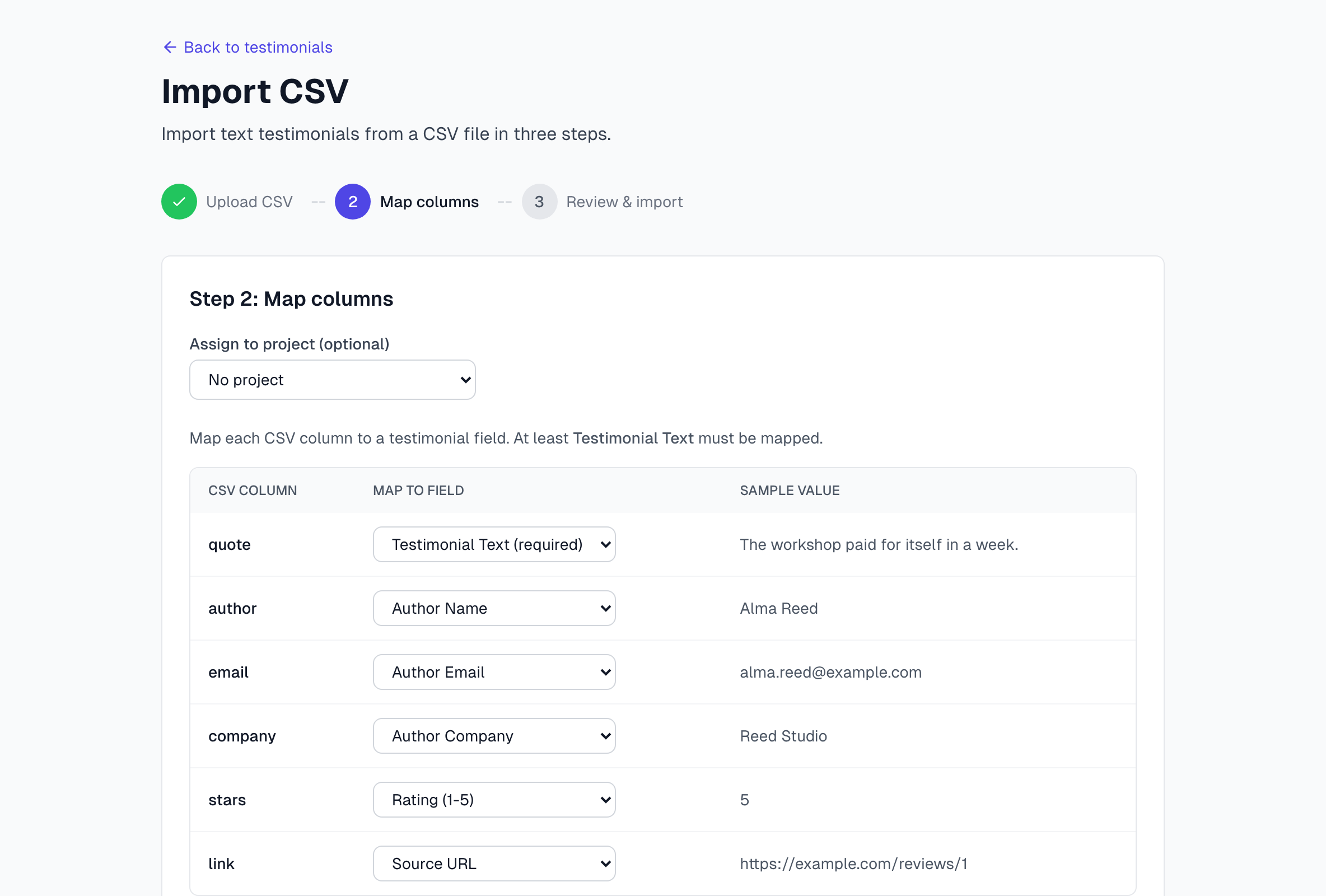
Choose a project under Assign to project (optional) if these belong to one.
For each column, check the field under Map to Field. Choose (skip) for any column you do not want.
Click Next: Review.
Check the preview, then click the Import button. It shows how many testimonials are ready.
Your testimonials arrive in your Inbox. AI then tags them and prepares them for search. If they stay waiting, an Owner or Admin can click Process AI Pending on the Testimonials page.
Column names we recognize
A column with one of these exact names is mapped for you. Capitals do not matter. For anything else, choose the field yourself.
Column name | Maps to |
|---|---|
text, testimonial, quote, content, review | Testimonial Text |
name, author, author_name | Author Name |
email, author_email | Author Email |
title, job_title, author_title | Author Title |
company, organization, author_company | Author Company |
location, city, country, author_location | Author Location |
rating, stars, score | Rating (1-5) |
url, link, source_url | Source URL |
What happens to bad data
A row with no text is left out.
A rating that does not start with a whole number from 1 to 5 is dropped, and the row still imports.
Only the whole number at the start of a rating is kept, so 4.5 becomes 4 and 5/5 becomes 5.
An invalid email address or link is dropped, and the row still imports.
Tips
Choose a project at import time. It is easier than sorting them later.
Clean the file first: remove empty rows and fix broken ratings.
In Excel, use Save As and choose CSV UTF-8 (Comma delimited).
Try 5 rows first to check your mapping, then import the rest.
If something goes wrong
The file appears to be empty or has no headers
The first row must hold column names. Add a header row if your file starts with data.
All my data is in one column
Your file probably uses semicolons between columns. Export it again with commas.
You must map at least one column to Testimonial Text
Go back to the mapping step and choose Testimonial Text (required) for the column with the testimonial.
Failed to parse CSV file
The file may be damaged or have broken quotation marks. Open it in a text editor to check.
Maximum 500 rows per import request
Your file has too many rows. Split it and import each part.
The import would go over my monthly limit
The whole file is refused. Import fewer rows, or wait for the count to reset next month. See Understanding usage limits.
My imported testimonials have no screenshots
CSV import brings in text only. For a screenshot, capture the testimonial with the browser extension. See Capture modes.
Last updated