Status workflow
Every testimonial has a status that decides where it appears and what you can do with it. Most changes happen when you click a button or the author answers a permission request.
The statuses
Status | What it means | Buttons you get |
|---|---|---|
Inbox | Waiting for your review. New captures start here, and so do imports that wait for approval in Endorsal. | Approve, Reject, Archive |
Approved | Cleared for use, with the author's name. | Reject, Archive |
Approved (Anonymous) | Cleared for use, with the name hidden. | Reject, Archive |
Rejected | You decided not to use it. | Approve, Move to Inbox |
Archived | Out of your active list, kept for your records. | Move to Inbox |
Processing Failed | AI could not read it, or a permission email could not be delivered. | Move to Inbox |
A testimonial waiting for a reply keeps its status, usually Inbox. There is no separate Reviewing status: your Inbox is the review queue.
Change a status
Open the testimonial.
In the Status & Actions card, click a button.
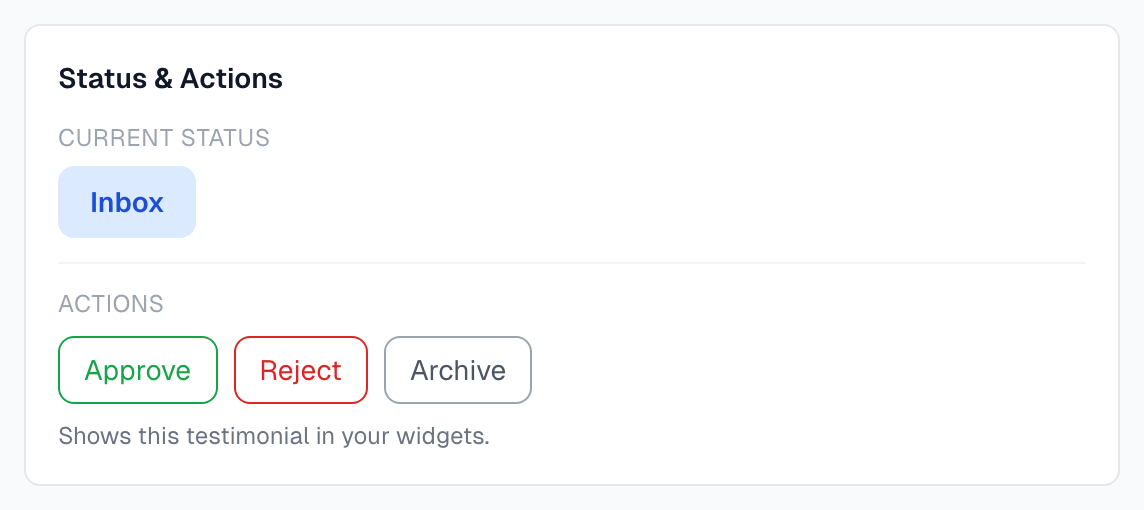
To change many at once, see Bulk actions.
What changes a status by itself
The author says yes: Approved.
The author says yes but hides their name: Approved (Anonymous).
The author says no: Archived.
If you rejected or archived the testimonial before the author answered, a yes is recorded, but the status stays Rejected or Archived until someone approves it.
An Owner or Admin clicks Ask again after a No: Inbox. See Declined permissions.
A capture comes from a source with Auto-Approve on: Approved. See Sources.
An import from Endorsal brings a testimonial in with its Endorsal status: Approved and Live, Inbox or Rejected. If the workspace ever sent testimonials to Endorsal, every new one lands in the Inbox instead. A later import carries a status change made in Endorsal over, unless someone has changed the status here. See Import from Endorsal.
AI cannot read a capture, or a permission email bounces for good: Processing Failed.
The recipient marks a permission email as spam: Archived.
Someone deletes a permission request on the Permissions page, or clicks Reprocess: Inbox.
Approved does not always mean live
A testimonial appears in your widgets only when its permission allows it. On the Testimonials page, each approved card says Live or Hidden.
When you click Approve, you are saying you have permission, so the testimonial goes live. If the author chose to hide their name, Approve gives Approved (Anonymous), so the name stays hidden.
It stays Hidden in these cases:
The author declined. Approving it does not change that.
It came in through Auto-Approve. It is Approved, but nobody has confirmed permission. Send a permission request, or use Approve & display on the Testimonials page if you already have permission.
The author is being asked again. It stays Hidden until they reply, even if it was live before.
Permission is Granted, and you used Approve anonymously & display. That button does not match the author's answer. Use Approve & display.
Good to know
Only approve testimonials you have permission to use publicly. Use Approved (Anonymous) when the author wants their name left out.
Archive can be undone with Move to Inbox. Delete cannot be undone.
To take back an approval, click Reject or Archive, then Move to Inbox if you want to review it again.
Move to Inbox on a failed testimonial changes only the status. To run AI again, click Reprocess.
If something goes wrong
The Approve button is missing
If a permission request is waiting for a reply, the card says so and hides Approve. Wait for the answer, or see Manual approval if the author said yes another way. An Approved or Archived testimonial has no Approve button either.
Last updated