Sources
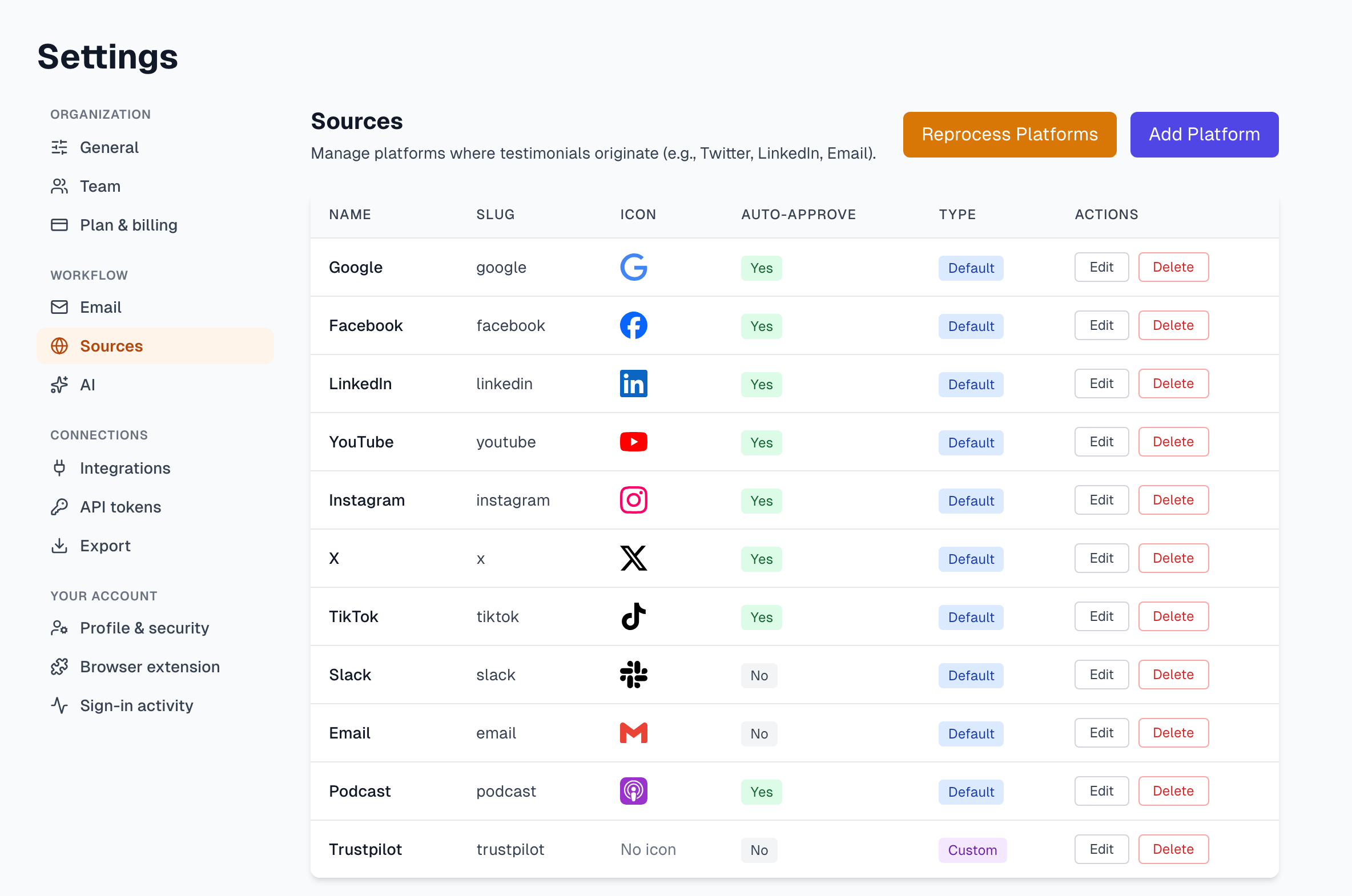
A source says where a testimonial came from, such as LinkedIn or Google. Settings > Sources lists them, and it is where you turn Auto-Approve on or off for each one.
Before you start
Everyone on your team can open Sources, under Settings. Only an Owner or Admin can change anything here. A Member still sees Add Platform, Edit and Delete, and gets an error if they use them.
How a testimonial gets a source
When you capture, we read the page address. We recognize Google, Facebook, LinkedIn, YouTube, Instagram, X, TikTok and Slack, and set that source. Any other page has no source, and neither does a CSV import or an uploaded video. Project and source platform covers this from the extension's side.
You can see the source as an icon on the testimonial's card, in its Details card and in exports. You cannot change it on one testimonial, and no filter uses it.
What Auto-Approve does
With Auto-Approve on, a capture from that source skips your Inbox and goes straight to Approved. It stays Hidden from your widgets until the author gives permission. No request goes out by itself, and the testimonial page shows no Approve button.
New accounts start with Auto-Approve on for every default source except Slack and Email. Keep these in mind:
It works only on sources a capture can match. On Email, Podcast or a source you added, it does nothing today, because captures are never matched to them.
It only affects new captures. Testimonials you already have keep their status.
Turn Auto-Approve on or off
In Settings, click Sources.
Click Edit on the source.
Tick or untick the box in the Auto-Approve column.
Click Save.
Edit also changes the icon address. On a source you added, you can change the name too, and its slug changes with it.
Add your own source
Click Add Platform.
Enter a Platform Name. The Slug fills in by itself.
Add an Icon URL if you have one.
Click Create Platform.
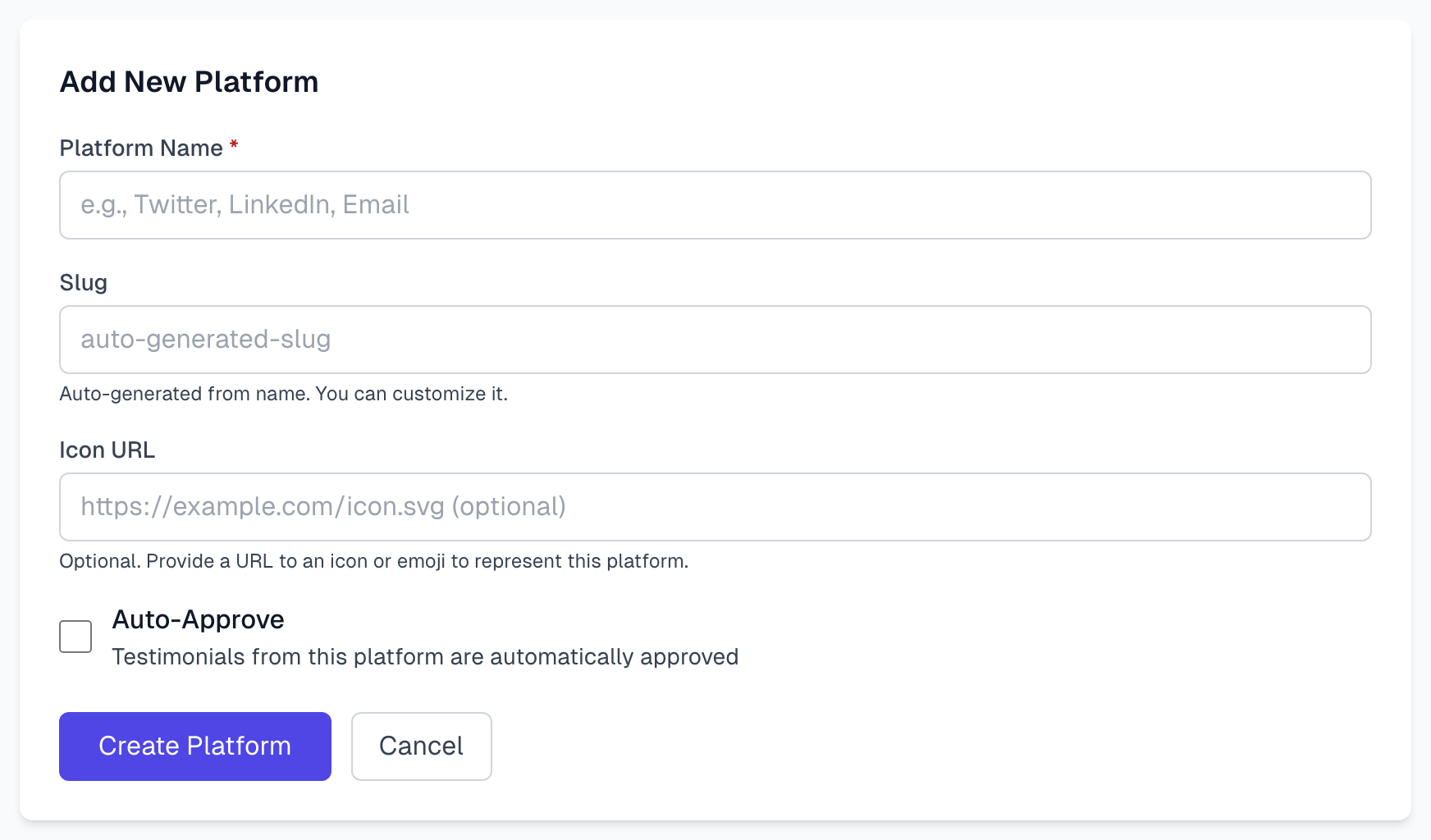
A source you add is not used on new captures by itself. To put it on testimonials, run Reprocess Platforms. It matches when the slug is part of the site's address, so the slug trustpilot matches www.trustpilot.com. A slug of three characters or fewer is skipped, so use the full name.
Update testimonials you already have
Click Reprocess Platforms.
Click Reprocess to confirm.
We check every testimonial's source URL, then its page title, and set the source. If one matches a different source, it moves to that one. A green message says how many changed.
This changes the source only. It does not approve anything, even when the source has Auto-Approve on.
Delete a source
Click Delete on the row.
Click Confirm.
Testimonials keep everything else and lose only the source. You can delete a default source too. Captures from that site then have no source and go to your Inbox. To bring it back, add a source with the same slug, such as linkedin.
If something goes wrong
It says This action requires ADMIN role or higher
Ask an Owner or Admin to make the change. See Roles and permissions.
It says Failed to create source platform
The slug may already be in use. Change the Slug and try again.
Captures do not reach my Inbox
That source has Auto-Approve on. Look in Testimonials, and turn it off here if you prefer to review first.
Reprocess says Updated 0 testimonials
Nothing needed changing, or no testimonial's address matches. Check the slug, and remember that a slug of three characters or fewer is skipped.
Last updated