Mailchimp
Connect Mailchimp to fill in author names and companies from your audience, and to find missing emails by name.
Before you start
You need to be an Owner or Admin.
You need an API key from your Mailchimp account. It ends with a dash and a data center code, such as -us1.
Connect Mailchimp
In Settings, click Integrations.
Under Lookup Sources, find Mailchimp and click Connect. If another source is active, the button says Switch to Mailchimp.
Paste your whole API Key, including the ending.
Click Connect. We check the key before saving.
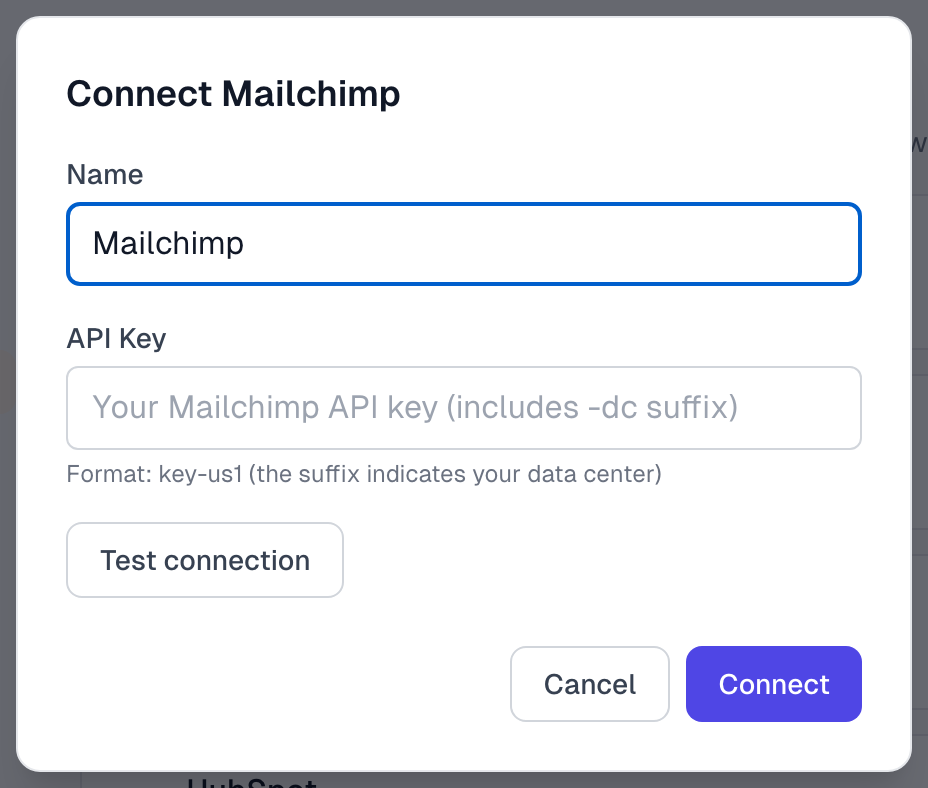
Mailchimp now shows as Active. If you are switching from another source, read Integrations overview first, because Test connection turns your current source off.
What comes across
We read these merge fields, by these names:
FNAME and LNAME, for the author's name
COMPANY, for the company
If your merge fields have other names, we do not find them. Only empty fields are filled in, and tags do not come across. Integrations overview explains when a lookup runs.
There is no setting for choosing an audience. The search is not limited to one, and if a person is in several, we use the first result.
Find Email and Run sync search Mailchimp by name. See Find author emails.
If something goes wrong
It says Invalid Mailchimp API key format
The ending is missing. Copy the whole key, including the dash and the code after it.
It says Unable to connect to Mailchimp
The key is wrong or no longer valid. Create a new one in Mailchimp.
The name or company is empty
Check your merge field names. Rename them to FNAME, LNAME and COMPANY, or type the details in on the testimonial.
Integrations troubleshooting has more.
Last updated