Moosend
Connect Moosend to fill in author names and companies from one mailing list, and to find missing emails by name.
Before you start
You need to be an Owner or Admin.
You need an API key from your Moosend account, and the ID of the mailing list to search. The form says the ID is in your mailing list settings.
Connect Moosend
In Settings, click Integrations.
Under Lookup Sources, find Moosend and click Connect. If another source is active, the button says Switch to Moosend.
Paste your API Key.
Paste your Mailing List ID.
Click Connect. We check the key before saving.
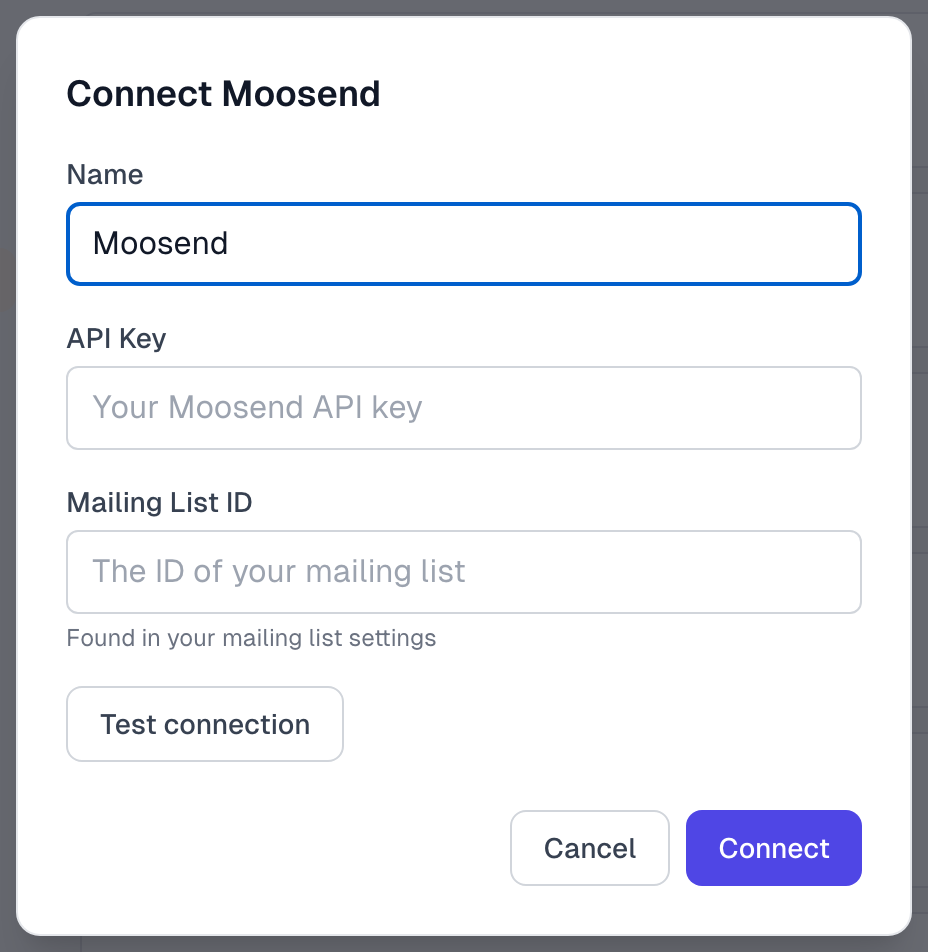
Moosend now shows as Active. If you are switching from another source, read Integrations overview first, because Test connection turns your current source off.
The check covers the key, not the list. A wrong list ID still connects, and then lookups find nobody.
What comes across
Name, from the subscriber's name
Company, from a custom field called Company
Only empty fields are filled in, and tags do not come across. Integrations overview explains when a lookup runs.
We search one mailing list. If your contacts are on several, choose the one most of your authors are on.
Find Email and Run sync search that list by name. See Find author emails.
If something goes wrong
It says Unable to connect to Moosend
The API key is wrong or no longer valid. Copy it again, or create a new one in Moosend.
It connects, but lookups find nobody
The Mailing List ID may be wrong, or the person is on a different list. To change the ID, click Disconnect and connect again with the right one.
Integrations troubleshooting has more.
Last updated