Integrations overview
Connect an email or CRM tool to fill in author details and find missing emails, or connect Endorsal to copy your testimonials in. Everything is under Settings > Integrations.
Before you start
You need to be an Owner or Admin. Members do not see Integrations in Settings.
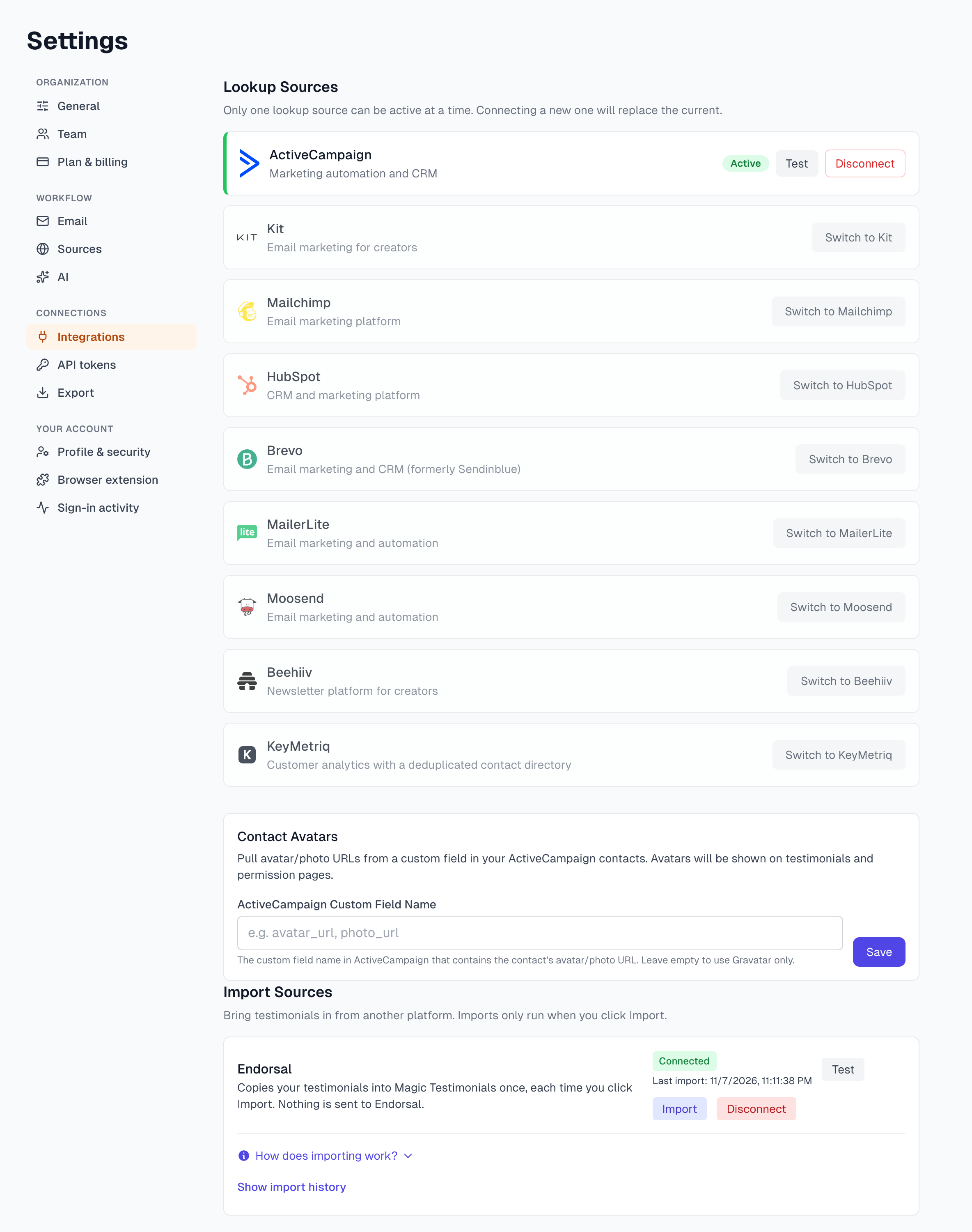
The two kinds of connection
Lookup Sources are your email and CRM tools. We look up authors there to fill in their details. You can have one active at a time.
Import Sources bring testimonials in from another platform. Endorsal is the one there today. An import only reads, and it runs only when you click Import. See Import from Endorsal.
To show testimonials on your website, use widgets. See Widgets overview.
To let another tool read your testimonials, use a token instead. See API tokens.
What a lookup source does
Fills in details on new captures. When AI reads an email address on a capture, we look for a contact with that address and fill in the author's empty fields. What you already have is never overwritten.
Fills them in when you ask. If a testimonial has an Author Email, the Details card has a Lookup Contact button. It does the same thing. Use it after you add an email yourself.
Finds missing emails. If you only have a name, Find Email and Run sync search your source by name. See Find author emails.
A lookup only reads. We never change anything in your email or CRM tool.
What each tool fills in
Tool | Fills in |
|---|---|
Name and company. It also tries title, location and photo, from custom fields. | |
Name | |
Name and company | |
Name and company | |
KeyMetriq | Name, company, and country as the location |
Name and company | |
Name and company | |
Name and company | |
Name and company |
Tags and phone numbers do not come across. A contact's tags are not added to the testimonial, and testimonials have no phone field. With ActiveCampaign and Kit, tags do help email matching.
Connect a lookup source
In Settings, click Integrations.
Under Lookup Sources, find your tool and click Connect.
Paste the details the form asks for. Each tool's article above says what you need.
Click Connect. We check the details before saving. If they do not work, you see why and nothing changes.
The tool then shows as Active.
Switch to another source
Find the new tool and click Switch to and its name.
Paste its details.
Click Connect. The old source is turned off.
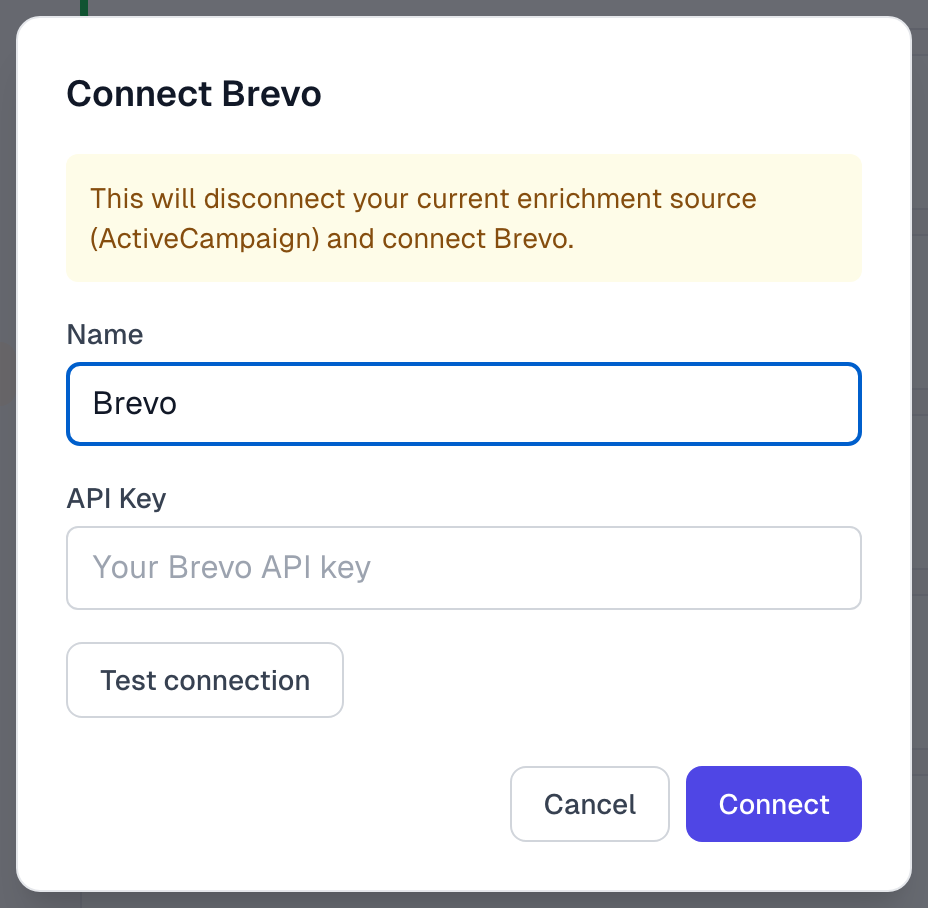
Do not click Test connection while switching. If the test passes, your current source is turned off straight away, even if you then click Cancel. The Connect button runs the same check, and it changes nothing if the check fails.
Testimonials keep the details they already have. If you want the old source back, connect it again and paste its details.
Check or disconnect a source
Test checks the saved details. A message says Connection works, or shows the error.
Disconnect stops lookups after you confirm. Testimonials keep the details they already have. To reconnect, paste the details again.
How your keys are kept
Keys and tokens are stored encrypted, and the page never shows them again after you save.
Disconnecting stops us using a key, but it does not cancel it. To end access for good, delete the key in the tool itself.
For fixes, see Integrations troubleshooting.
Last updated