Widgets overview
A widget shows your approved testimonials on your own website. You choose which ones appear and how they look, and new testimonials that match appear by themselves.
Find your widgets
Click Widgets under Showcase in the sidebar.
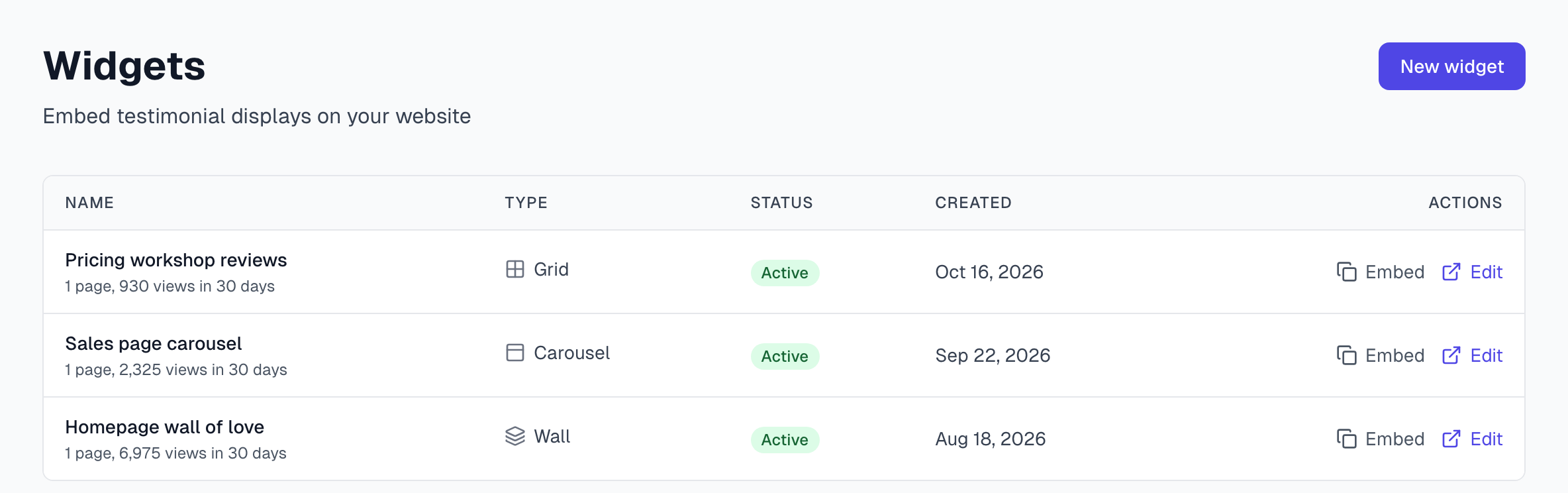
The line under each name shows how many pages the widget is on and its views in the last 30 days. Until a visitor has seen it, the line says Not seen on a page yet.
Embed copies the code for your site.
Edit opens the widget's settings.
Each widget has one of these statuses:
Active: it shows on your site.
Inactive: someone turned it off, so your site shows nothing in its place.
Off (plan limit): a plan change turned it off. See Plans overview.
Everyone on your team can create, change and delete widgets, whatever their role.
Choose a layout
Type | What visitors see |
|---|---|
Wall | Cards in columns, each as tall as its text. Three columns on a wide screen, one on a phone. |
Grid | Cards in even rows. The number of cards in a row follows the space on your page. |
Carousel | One row of cards that visitors move through. It can also move by itself. |
Single | One testimonial, centered. |
The layout is separate from the card style, which sets how each testimonial looks. Create a widget covers both.
Which testimonials appear
A widget shows only testimonials that are Live, which means approved and allowed by their permission. A Hidden testimonial never appears. Status workflow explains the difference.
New testimonials appear by themselves. If a testimonial goes Live and matches the widget's filters, the widget picks it up.
Your plan may cap what shows. A plan can limit how many published testimonials a widget shows, newest first. See Plans overview.
Each person appears once. If someone has several testimonials, the widget keeps one. If one of them is a video, the video takes that place.
Anonymous testimonials stay anonymous. The card shows your Anonymous Display Name and no photo, title or company. A video shows as text, because the face and voice would give the person away.
Emails are never shown.
To take one testimonial out of your widgets, open it and click Reject or Archive.
Approved videos can play in a widget. Whether they do depends on your plan and the length of the video. See Plans overview.
Turn a widget off
Click Edit on the widget.
Switch Active off.
Click Save.
Your site then shows nothing where the widget was. The code can stay on the page, so you can turn the widget back on later without pasting it again.
Delete a widget
Click Edit on the widget.
Click Delete at the top of the page.
Click Delete widget to confirm.
This cannot be undone, and the widget's view counts go with it. Your testimonials are not affected. The code on your site stops showing anything, so remove it from the page when you can.
If something goes wrong
A new widget or the Active switch is refused
The message gives your plan's limit. Turn another widget off, or see Plans overview.
A widget shows nothing on your site
Last updated