Project and source platform
Every capture can carry a project, which says what it is for, and a source, which says where it came from. You choose the project as you capture, and Magic Testimonials sets the source from the page address.
Choose a project as you capture
A project says what a testimonial is for, such as a campaign, product or client. You create projects in the app, and the extension lists them. See Project basics.
In Preview Capture, the Project menu shows where the capture will go. Change it there if you need to. That choice applies to this one capture.
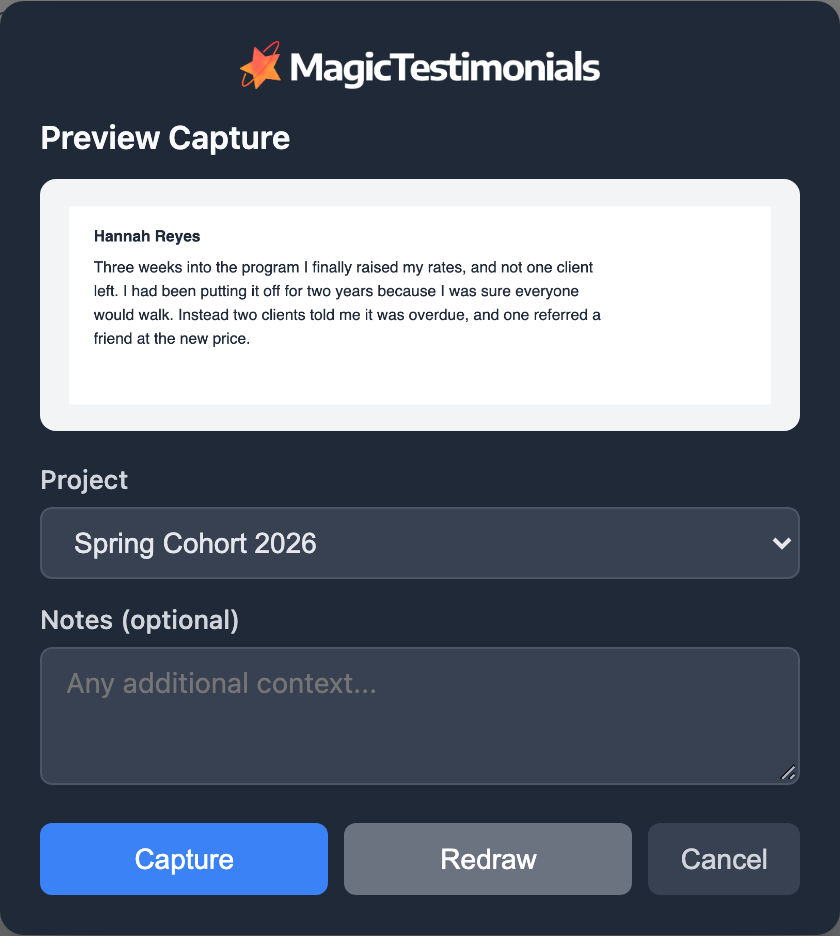
Each way of capturing picks its project a little differently:
How you capture | Which project it gets |
|---|---|
Drag a box, or Send to Magic Testimonials | The Project menu in the preview. It starts on the last project you chose in the panel, or your default project. |
Quick capture (no preview) | The last project you chose in the panel, or your default project. |
Capture Region in the panel | The Project menu. If it is empty, your default project. |
Capture Full Page in the panel, or the Upload tab | The Project menu. If it is empty, no project. |
Full Page Capture from the right-click menu | The last project you chose in the panel, or your default project. |
Upload or Paste from Clipboard | The menu at the top of the window. |
Clearing the menu in a preview does not remove the project. The capture still goes to the project the menu started on.
Capturing a batch for one project? Right-click the icon, choose Open Panel, pick the project and click Capture Region. Your next captures start on that project.
If a testimonial lands in the wrong place, open it and change the Project card. Nothing is lost. Multi-project workflow covers the default project.
How the source is set
The source says where a testimonial came from. You do not choose it. Magic Testimonials reads the page address when you capture, and sets the source if the page is on:
Google, which includes Gmail
Facebook
LinkedIn
YouTube
Instagram
X
TikTok
Slack
A capture from any other site has no source, and neither does an uploaded file. The extension has no source menu.
The source appears as an icon on the testimonial's card and in the Details card, next to the Source URL. A widget can show it too. The testimonial page has no field for changing it.
Auto-Approve and sources
A source can have Auto-Approve turned on. Captures from that source skip your Inbox and go straight to Approved. They stay Hidden from your widgets until the author gives permission, and no request goes out by itself.
New accounts start with Auto-Approve on for Google, Facebook, LinkedIn, YouTube, Instagram, X, TikTok and Podcast. An Owner or Admin can change this under Settings > Sources, where you can also add your own sources. See Sources.
If something goes wrong
The Project menu is empty
Your organization may have no projects yet. Create one on the Projects page, then open the panel again.
My capture is not in the Inbox
Look in Testimonials. The source probably has Auto-Approve on. See Capture your first testimonial.
Auto-Approve is on, but the capture went to the Inbox
The page address did not match that source, or you uploaded a file. Open the testimonial and approve it yourself.
A new default project does not show in the extension
The extension stays on the last project you chose. Pick the new default in the Project menu.
Last updated