Install the browser extension
Add the Magic Testimonials extension to Chrome from the Chrome Web Store, pin it to your toolbar and sign in. Then you can capture a testimonial from any web page.
Install it
Click Add to Chrome. The Chrome Web Store opens in a new tab.
Click Add to Chrome on the store page and confirm.
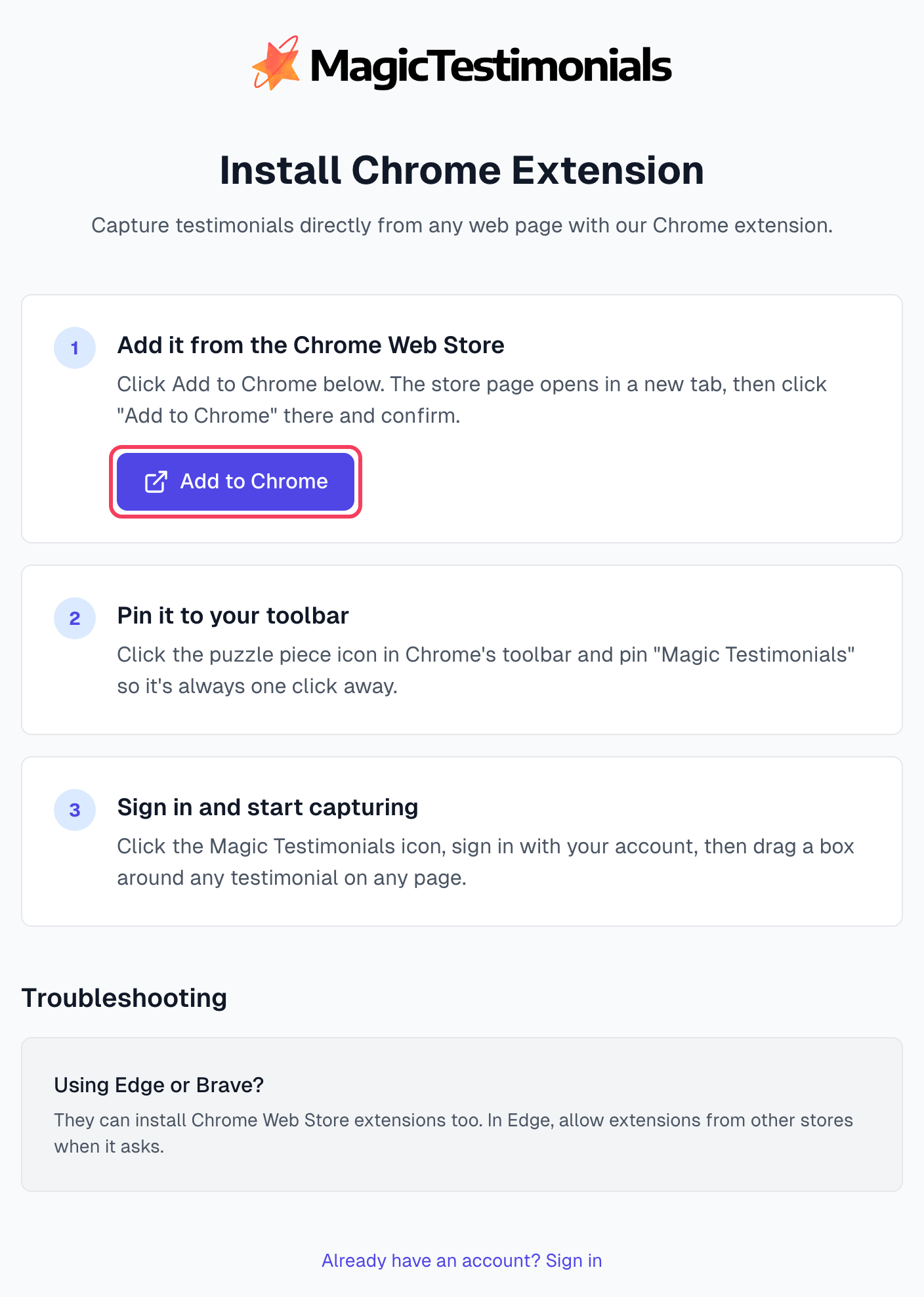
You can also start from the app. Until an extension is connected, the sidebar shows Capture from any page with an Install extension button, unless you dismissed that card. Settings > Browser extension has an Add to Chrome button too.
Pin it to your toolbar
Click the puzzle piece icon in Chrome's toolbar.
Find Magic Testimonials and click the pin next to it.
Sign in
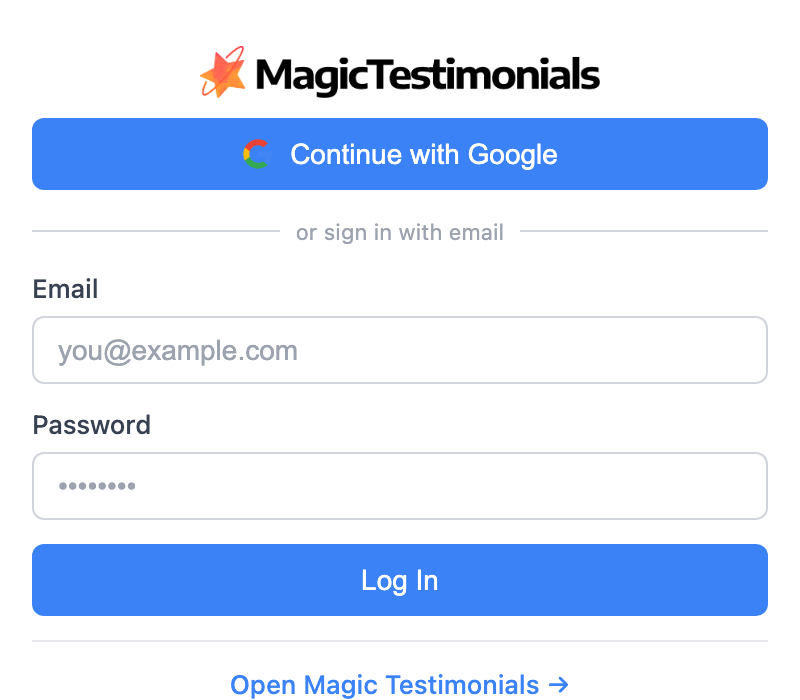
Click the Magic Testimonials icon. The panel opens with the sign-in form.
Click Continue with Google, or enter your Email and Password and click Log In.
If you belong to more than one organization, choose one. With email and password, pick it under Organization and click Log In again.
Your account uses two-factor authentication? Email and password alone cannot sign in the extension. Use the website instead:
Click Continue with Google. A window opens.
If the window asks you to sign in and you use a password, click Sign in with email and password, then sign in.
When asked, enter your code from your authenticator app.
Click Connect next to your organization.
The panel now shows your organization name and the Capture, Upload and Settings tabs. You can close it. From now on, clicking the icon starts a capture on the page you are viewing. See Capture your first testimonial.
Good to know
Other browsers. Edge and Brave can install Chrome Web Store extensions. In Edge, allow extensions from other stores when it asks. There is no version for Firefox or Safari.
Each browser needs its own install. If you use two browsers, install the extension and sign in on both.
You stay signed in for 90 days. After that, sign in again. Your settings in the app are not affected.
Your password is not stored. The extension keeps a session, and you can end it at any time under Settings > Browser extension.
More than one organization? Switch between them on the Settings tab of the panel.
If something goes wrong
I cannot see the icon
Click the puzzle piece icon in Chrome's toolbar. If Magic Testimonials is listed, pin it. If not, install the extension again.
Clicking the icon does not open the panel
You are already signed in, so the click starts a capture instead. To open the panel, right-click the icon and choose Open Panel.
Sign-in fails
Last updated