AI capture quality
AI sometimes misses a detail or reads the wrong text. Here is why, and how to fix it by hand or run AI again.
Why AI misses things
It is not in the image. AI leaves the field empty. Most screenshots show no email address, for example.
The image is small or blurry.
The font is unusual, such as handwriting or heavily styled text.
The page is busy. With a lot of menus or ads around a short review, AI can pick up the wrong text.
Two testimonials sit very close together, so AI reads them as one.
Fix one or two fields
This is the quickest fix, and it uses no AI captures.
Open the testimonial.
In Edit Testimonial, click Edit.
Correct the field and click Save.
This also covers the common mix-ups:
A job title in the company field, or the other way round.
A wrong rating. AI looks for stars, so a rating written as text can be missed. Choose it under Rating.
A missing email address. Type it in, or click Find Email in the Permission card if you have connected an email tool. See Find one author's email.
Run AI again
If AI read the wrong thing altogether, you can run it again on the same screenshot.
Open the testimonial.
If the image is the problem, click Edit Image and crop it first. See Screenshot tools.
In the Processing card, click Reprocess.
In Reprocess this testimonial?, click Reprocess.
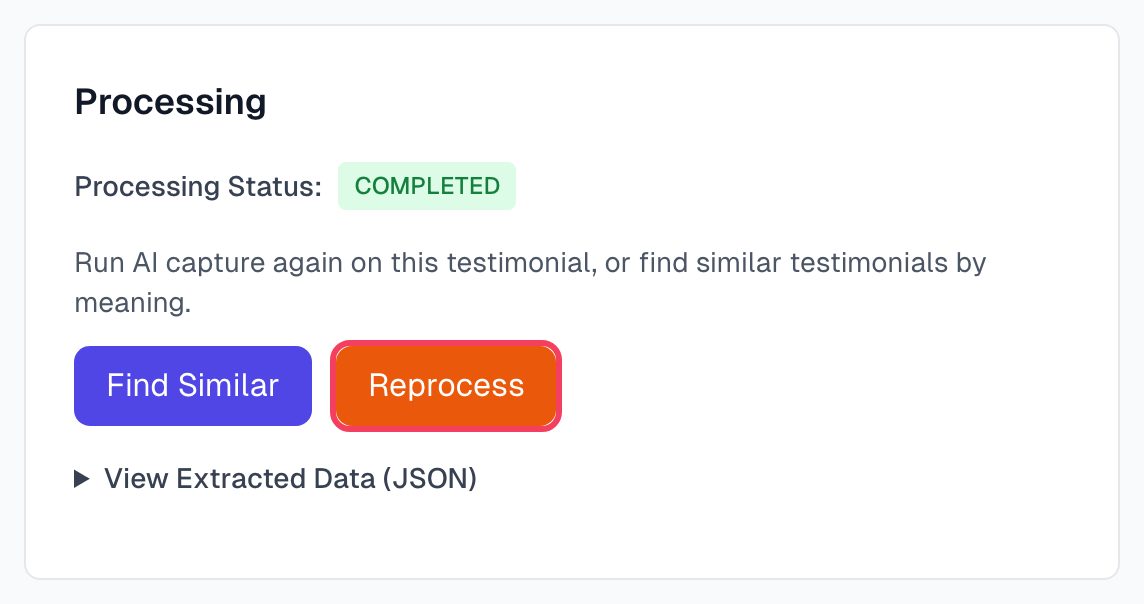
Reprocess asks you to confirm, then overwrites your edits. It replaces the text, the summary, all the author fields and the rating. It also moves the testimonial back to your Inbox, even if it was approved, and uses one AI capture. Use it only when correcting the fields by hand would take longer.
A testimonial shows Processing failed
AI could not finish. Click Reprocess. If it fails again, capture the testimonial again with a tighter box, or type the details in yourself.
Failed captures leave your Inbox, so look for them on the Testimonials page. See Status workflow.
All the fields are empty
The image may hold no testimonial AI can read, such as a blank page or just a menu. The testimonial is still saved, so you do not lose the upload. You can:
capture it again
type the details in yourself under Edit Testimonial
delete it, under Danger zone at the bottom of the page
Good habits
Compare every testimonial with its screenshot before you approve it, even when it looks right.
Prefer small edits to Reprocess. Each run uses an AI capture.
For text that is not in English, see Language and locale.
Last updated