Upload a video
Add a video testimonial from your computer. Magic Testimonials prepares it for playback, makes a transcript and writes the testimonial text for you.
Before you start
Your file must be MP4, WebM or MOV.
It can be up to 2 GB.
You need one AI capture left this month, unless your organization uses its own AI key. See AI capture credits.
Upload it
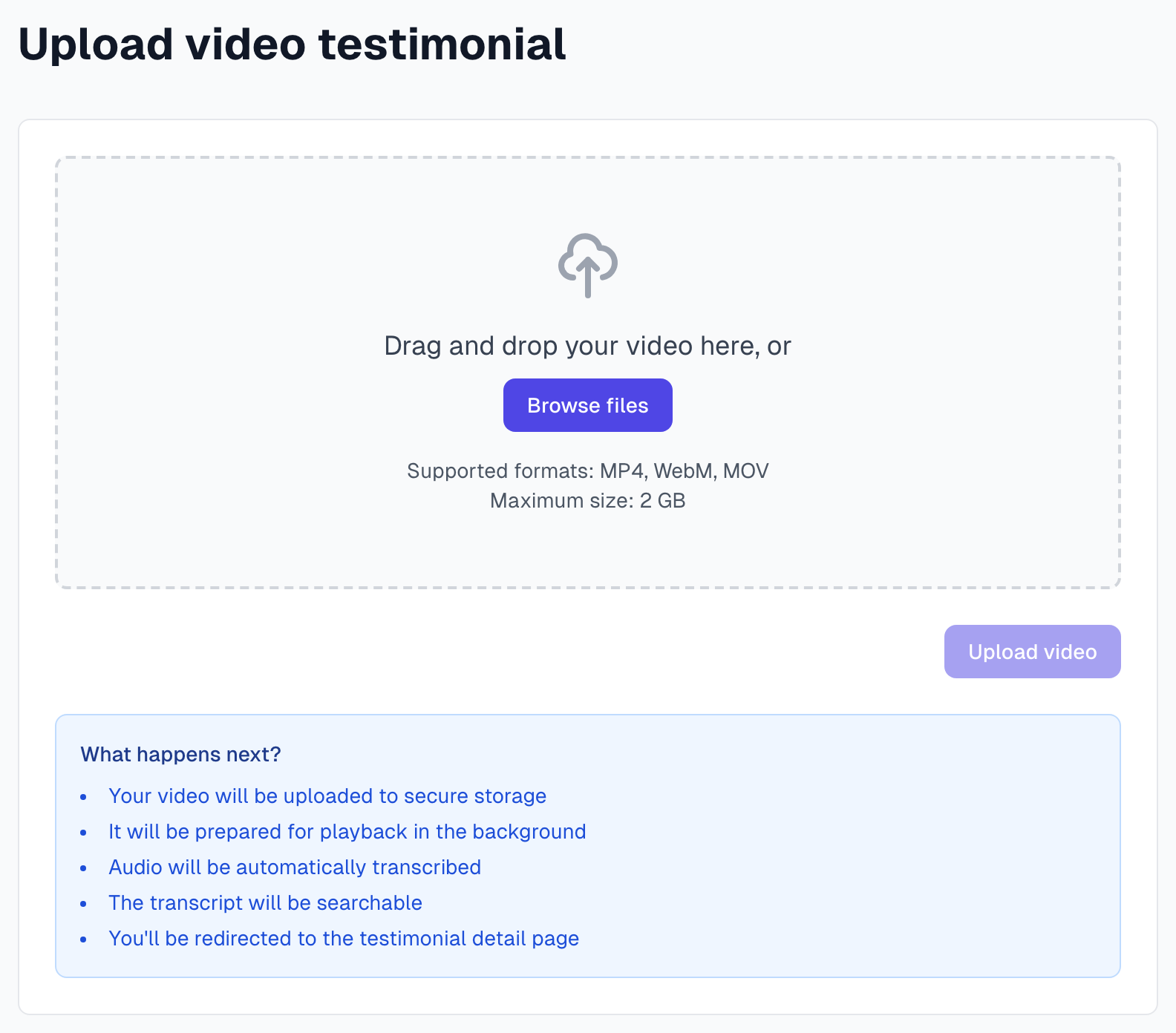
Go to hub.magic-testimonials.com/upload. The page has no link in the menu, so bookmark it.
Drag your video onto the page, or click Browse files.
Check the file name and size. If it is the wrong file, click Remove.
Click Upload video.
Keep the page open until it finishes. A bar shows the progress.
The testimonial page then opens by itself.
What happens next
This runs in the background, so you can leave the page:
The video is prepared for playback. It says Video is processing. It will be ready to play in a few minutes.
The speech is turned into a transcript. See Transcription.
AI writes the testimonial text from the transcript, adds tags and makes its picks.
Finish the testimonial
The video starts in your Inbox. AI fills in the text, but not the author, so:
Open the testimonial.
In Edit Testimonial, add the author's name and any other details.
Choose a project in the Project card. Uploaded videos have no project, and the default project does not apply.
Click Approve when you are ready.
Uploaded videos skip the permission step. The page offers no permission request for one, and approving it shows it in your widgets. Make sure you have the person's OK first.
See Video testimonials for the rest of the review.
If something goes wrong
It says Invalid file type
Convert the video to MP4 with your video tool, then upload it again.
It says File is too large
The limit is 2 GB. Trim the video, or export it at a lower resolution.
The upload was interrupted
Check your connection and click Upload video again. It continues where it left off, as long as you stay on the page. If you leave the page, the upload stops and you start over.
More fixes are in Video troubleshooting.
Last updated