Capture your first testimonial
Save a testimonial from any web page with the Magic Testimonials browser extension. Drag a box around a review or post, and AI reads the author, the text and the rating for you.
Before you start
Install the browser extension and pin it to your Chrome toolbar.
Sign in to the extension: click its icon, then use Continue with Google, or enter your email and password and click Log In.
Start the capture
Open the page with the testimonial. A review site, a LinkedIn post, a customer email in Gmail or your own website all work.
Click the Magic Testimonials icon in your Chrome toolbar. If you do not see it, click the puzzle piece icon and pin it. The page dims.
Select the testimonial
Click and drag a box around the testimonial. Include the quote, the author's name and photo, their title or company, and any star rating.
In Preview Capture, check the image.
Check the Project if you use projects. It starts on the last project you chose in the panel, or on your default project. With neither, leave it empty and choose a project later on the testimonial page.
Add Notes if you want to remember where it came from.
Click Capture. If the box is wrong, click Redraw instead.
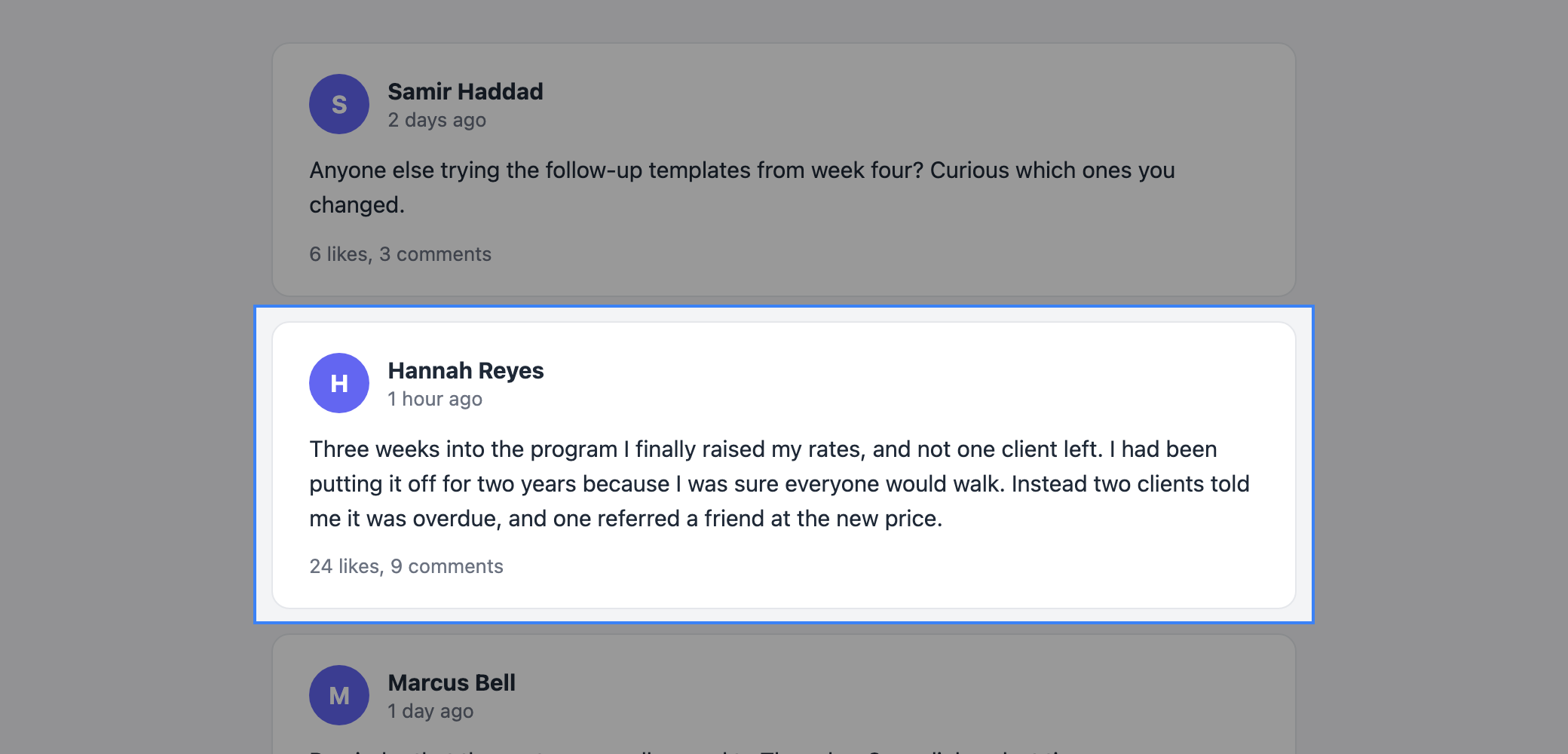
A green message confirms it: Captured! View in dashboard. Click the message to open the testimonial.
Press Esc at any time to cancel the selection. If you are unsure whether to include something, include it, because you can edit later. Try to leave out nearby reviews, ads and page headers. If your box does hold several testimonials, AI splits them into separate ones.
Find your capture
Most captures go to your Inbox, where AI fills in the author's name, title, company, location, rating and the testimonial text. A new row may show Unknown and No text extracted yet for a moment. The Inbox updates by itself.
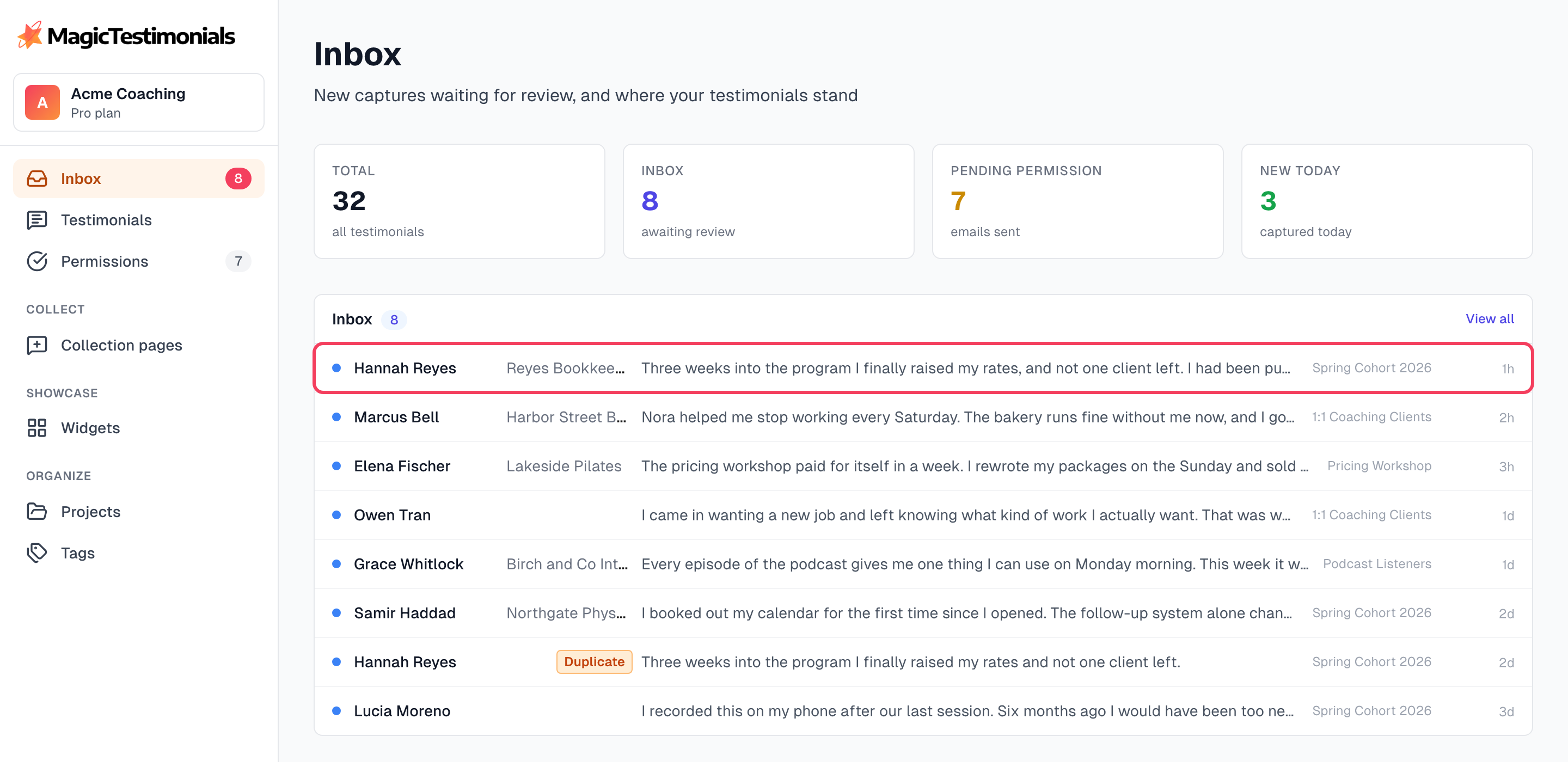
Not in your Inbox? Look in Testimonials. Captures from Google (including Gmail), Facebook, LinkedIn, YouTube, Instagram, X and TikTok skip the Inbox, because those sources have Auto-Approve turned on when your account is created. They show as Approved but stay Hidden from your widgets until the author gives permission. An Owner or Admin can turn this off under Settings > Sources. See Sources.
Faster ways to capture
Capture Full Page saves everything you can see in the browser window, with no box to draw.
Quick capture (no preview), under Capture mode, uploads as soon as you finish the box.
Both are in the panel. To open it, right-click the icon and choose Open Panel.
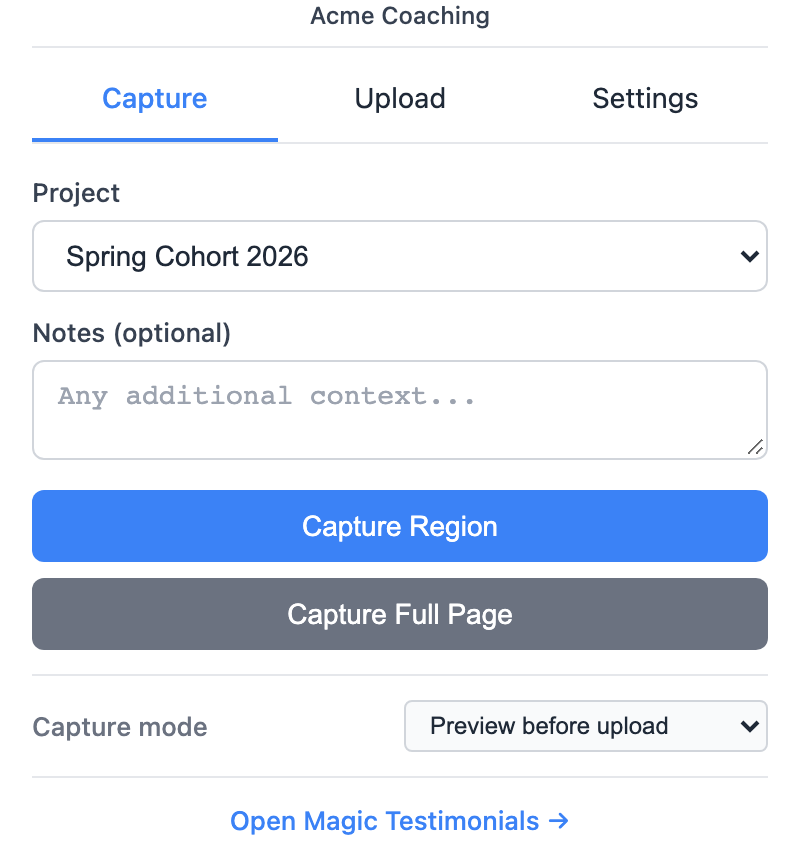
Capture modes covers these and the Upload tab.
If something goes wrong
The page does not dim
Refresh the page and try again. Some sites and Chrome's own pages do not allow extensions. See Browser extension troubleshooting.
It says Already captured
You have saved this exact image before. Click the message to open the existing testimonial.
The capture is refused because of a monthly limit
You have used this month's AI captures. Check AI captures this month at the bottom of the sidebar. The count resets next month. See Understanding usage limits and Plans overview.
The author's name came out wrong
AI can misread unusual fonts and busy layouts. Open the testimonial and correct it, as shown in Review, edit and approve testimonials.
Last updated