Export and use your testimonials
Put your approved testimonials to work. Show them on your website with a widget, save one for a slide, or download them as a file.
Show testimonials on your website
Widgets put your testimonials on your site. Click Widgets in the sidebar to build one, then paste its code into your page. A testimonial can appear in a widget once it is approved and permission is settled. The Testimonials page marks these as Live.
See Widgets overview and Add a widget to your site.
Save one testimonial
For a slide or a proposal, open the testimonial and click Download at the top of the page. You get the screenshot or the video.
Download a file of testimonials
You need to be an Owner or Admin.
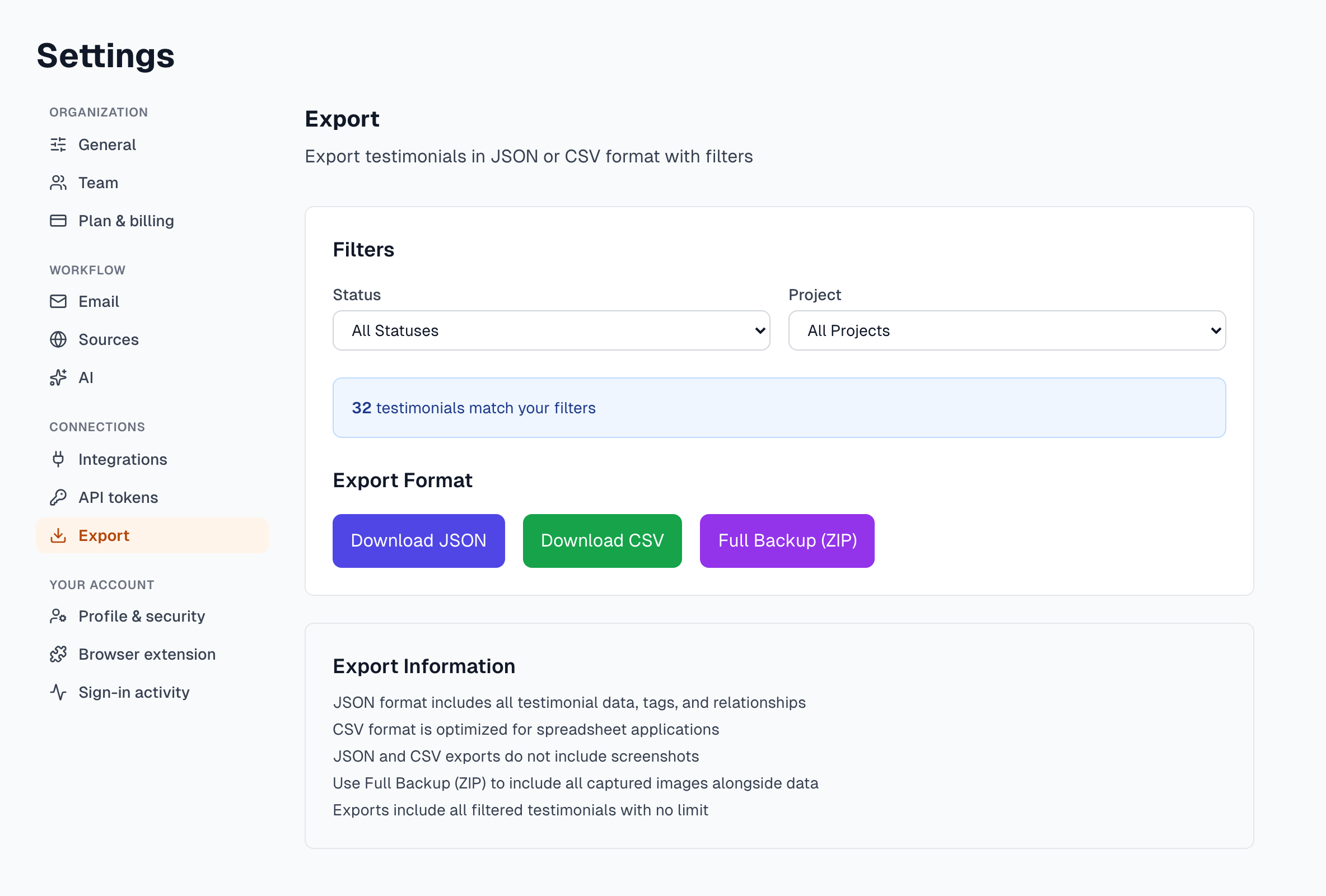
Click Settings at the bottom of the sidebar, then Export.
Under Status, choose what to include. Most people choose Approved. Approved (Anonymous) is a separate option.
Under Project, choose one project or keep All Projects.
Check the count of testimonials that match.
Click Download JSON, Download CSV or Full Backup (ZIP).
Format | What you get | Good for |
|---|---|---|
CSV | A spreadsheet of your testimonials, with no images | Excel, Google Sheets, or copying quotes into a document |
JSON | All testimonial data, with tags and relationships, and no images | Your developer or another tool |
Full Backup (ZIP) | A JSON file, a CSV file, your captured images and a list of the contents. Video files are not included. | Keeping your own archive |
A Full Backup shows its progress on the page and can take a while for a large library. Keep the page open until the file is saved. Export your data has more detail, and CSV import shows how to bring a CSV back in.
If something goes wrong
The download buttons are greyed out
No testimonials match your filters. Set Status to All Statuses or Project to All Projects.
The CSV shows strange characters in Excel
Open it in Google Sheets, or in Excel use Data > From Text/CSV and choose UTF-8.
Last updated