Export your data
Download your testimonials as JSON, as CSV or as a Full Backup with images. Filter by status or project first if you only want some of them.
Before you start
You need to be an Owner or Admin. Members do not see Export in Settings.
Export your testimonials
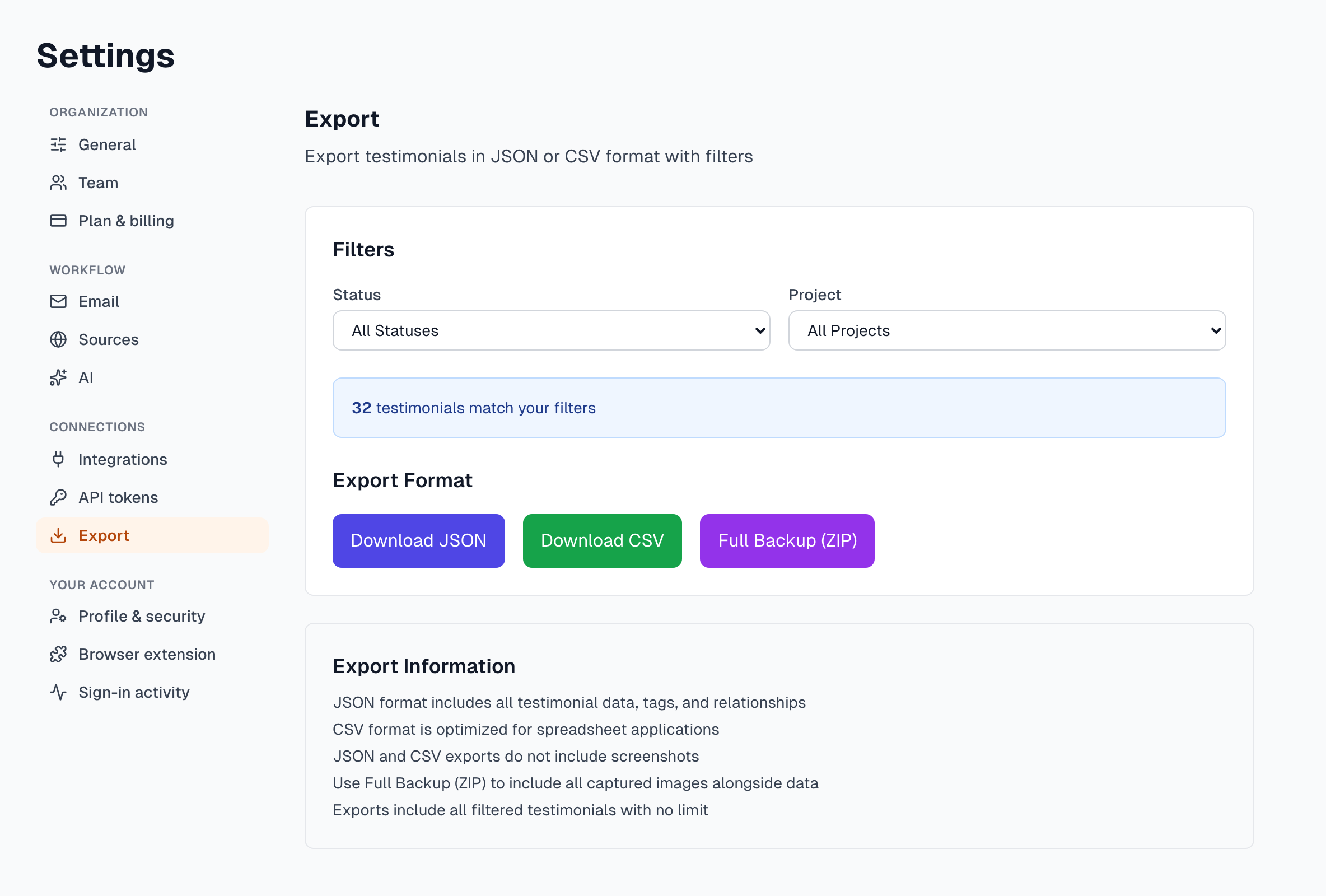
In Settings, click Export.
Choose a Status and a Project to narrow the export, or leave All Statuses and All Projects.
Check the count in the blue box. It shows how many testimonials match.
Click Download JSON, Download CSV or Full Backup (ZIP).
A backup can take a while. The page shows each step and how much has downloaded. Keep the tab open until the file is saved.
Export and use your testimonials covers other ways to use them, such as widgets and single downloads.
What each format holds
Format | What is in it | Good for |
|---|---|---|
Download JSON | Every field, with tags, project, source, notes and permission details. No images. | Developers and other systems |
Download CSV | One row per testimonial, with the main fields, tags, project and permission details. No images, and no notes. | Excel, Google Sheets, sharing a list |
Full Backup (ZIP) | testimonials.json, testimonials.csv, a manifest.json and an images folder with screenshots and original images. | Keeping your own copy |
Videos are not included in any format. Download a video from its testimonial page.
A missing image is not fatal. The backup still finishes, and manifest.json lists anything it could not add.
Only CSV can be brought back in. Nothing imports a JSON file or a backup. See CSV import.
How many testimonials an export holds
Download JSON and Download CSV stop at your 10,000 newest testimonials, even though the page says there is no limit. The file does not warn you. If your count is above that, use Full Backup (ZIP), which has no limit, or export one project or status at a time.
Keep the file private
Every format holds real author names and email addresses. That includes testimonials with status Approved (Anonymous), so an export is not safe to publish as it stands.
Good habits
Set Status to Approved for a list to share with your marketing team.
Run a Full Backup before a big change, such as a bulk delete. Backups do not run by themselves, so set a reminder if you want regular ones.
If something goes wrong
The download buttons are greyed out
No testimonials match your filters. Set Status to All Statuses and Project to All Projects.
It says Failed to export testimonials
Try again. If it keeps failing, see Getting help.
A backup stops part way
Keep the tab open and try again. If your library is large, back up one project at a time.
The CSV shows strange characters in Excel
Last updated