Add team members
Invite teammates by email so they can capture and review testimonials with you. Each person gets their own login, and their role decides what they can change.
Pick a role
Role | What they can do |
|---|---|
Member | Capture, edit, review and approve testimonials, and send permission requests. |
Admin | Everything a Member can do, plus invite people, change organization settings, connect integrations and export. |
Owner | Everything, including managing the plan, changing roles, removing people and deleting the organization. |
Most teammates should be Members. Choose Admin for people who look after settings or integrations.
Invite someone
Click Settings at the bottom of the sidebar, then Team.
Click Invite Member.
Enter their Email Address and choose a Role.
Click Send Invitation.
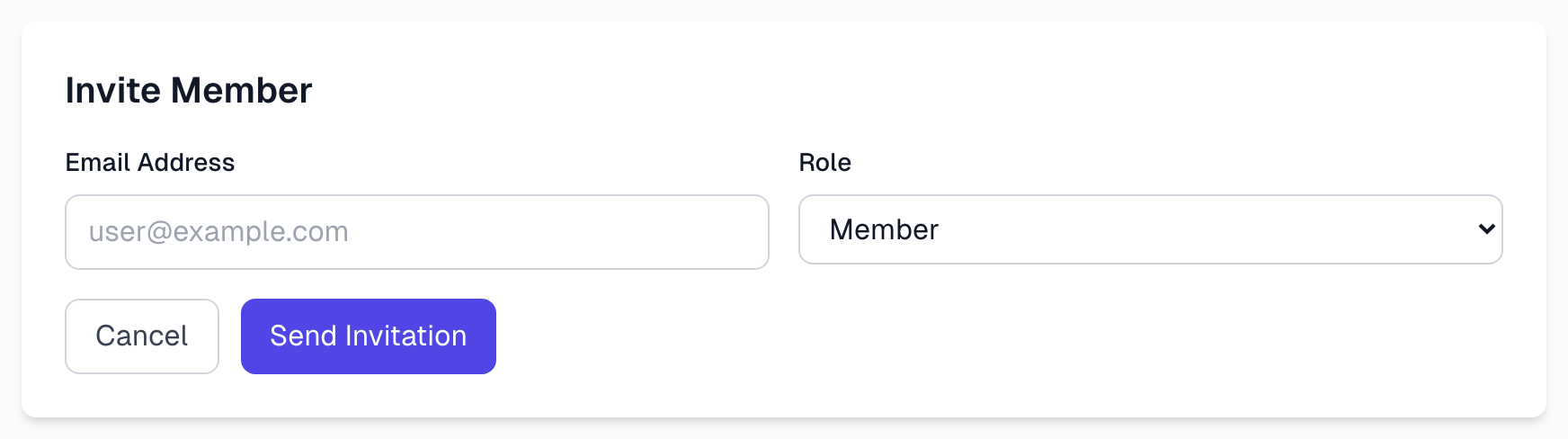
You must be an Owner or Admin to invite people. Your plan may limit how many people you can add. The top of the Team page shows your seats when it does, and pending invitations count. See Plans overview.
What your teammate does
They get an email with a link. What they see next depends on whether they already have an account:
New to Magic Testimonials: they enter their name and a password, then click Create Account & Join.
Already have an account: they click Log In to Accept, sign in, and click Accept Invitation.
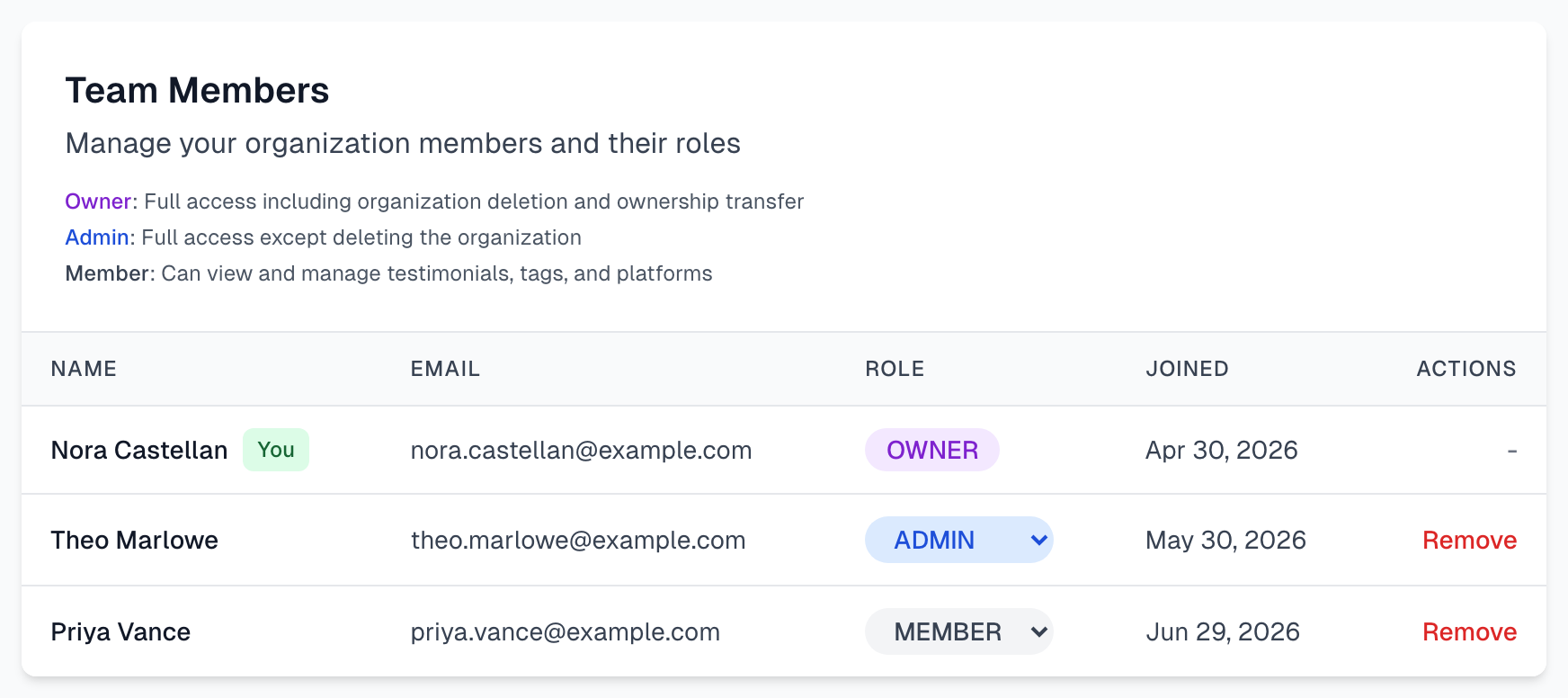
They must use the email address you invited. Once they accept, they appear in your Team Members list.
Follow up on an invitation
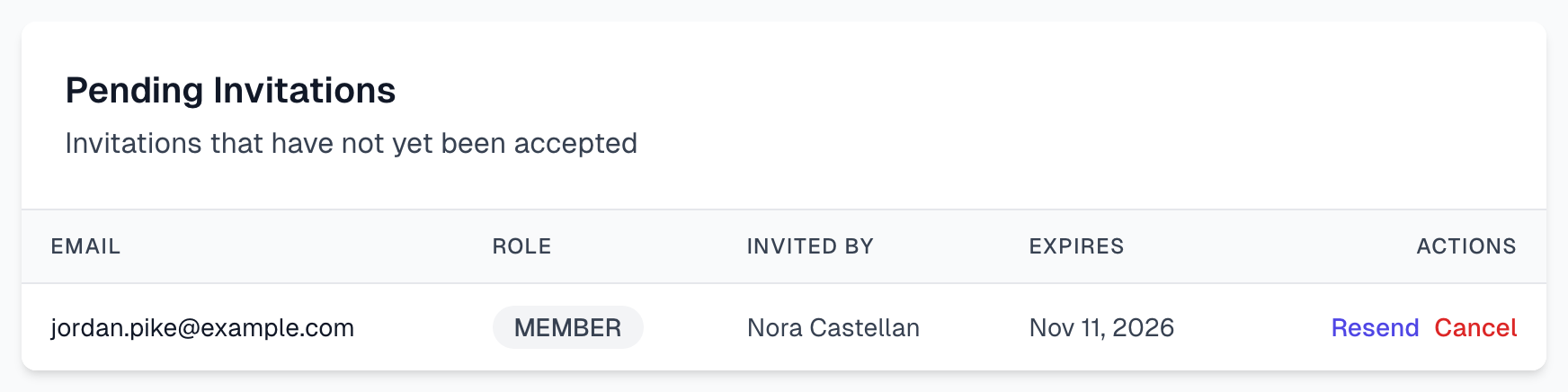
Invitations last 7 days. Until they are accepted, they appear under Pending Invitations:
Resend sends the email again and gives them another 7 days.
Cancel withdraws the invitation.
Change a role or remove someone
Only an Owner can do these.
Change a role: pick a new one from the menu in the Role column. It saves straight away.
Remove someone: click Remove and confirm. They lose access to this organization and their browser extension is signed out. The testimonials they captured stay.
Hand over ownership: change the other person's role to OWNER. An organization can have more than one Owner.
If something goes wrong
My teammate did not get the email
Ask them to check their spam folder, then click Resend. If the address has a typo, click Cancel and invite them again.
The link says Invitation Expired
Invite them again from the Team page.
The invite button says Limit Reached
You have used all your seats. Cancel an old invitation, remove someone who no longer needs access, or change your plan.
A Member cannot see most of Settings
That is expected. Members see Sources and their own account pages. If they need more, an Owner can change their role to Admin.
Next steps
Last updated