Project basics
A project groups testimonials that belong together, such as one product, program, client or campaign. Each testimonial sits in one project or none. Here is how to create a project, fill it, change it and delete it.
Projects or tags?
Project | Tag | |
|---|---|---|
Per testimonial | One, or none | As many as you like |
Best for | A product, brand, program, client or campaign | Themes, topics and outcomes |
Own settings | Yes, such as its Auto-tag mode | No |
Who can create one | Owner or Admin | Anyone on your team |
Think of a project as a folder and a tag as a label. Create a project for a separate stream of testimonials, not for every small theme. See Tag basics.
Create a project
You need to be an Owner or Admin.
Click Projects in the sidebar.
Click New project.
Type a Project name.
Add a Description if it helps your team.
Choose an Auto-tag mode, or leave it on Auto-discover. See AI tag mode per project.
Click Create project.
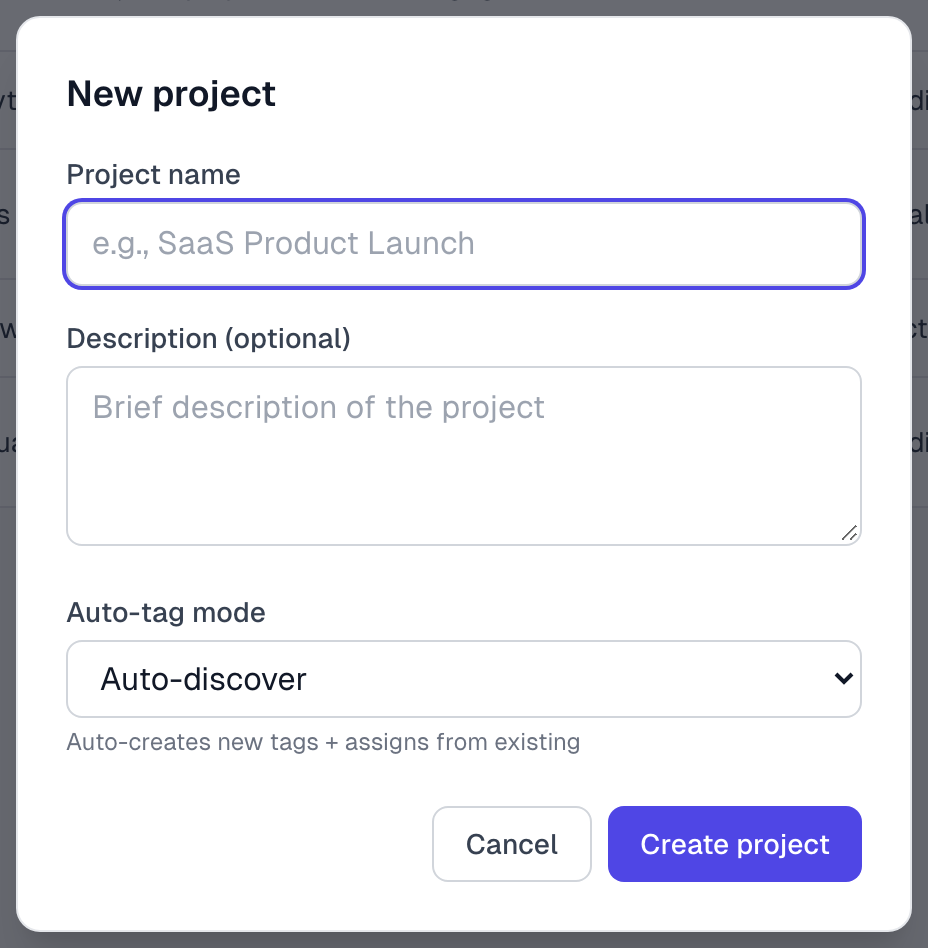
If you have no default project, the new project becomes the default. Multi-project workflow explains what that does.
Put testimonials in a project
When you capture
Choose a Project in the extension panel, or in Preview Capture after you draw the box.
When you import a CSV
Choose one under Assign to project (optional) on step 2. See CSV import.
Any time after that
Open the testimonial.
In the Project card, choose a project. It saves by itself.
Choose No project to take a testimonial out of its project. Anyone on your team can do this. Videos added on the Upload page start with no project, so use this card for them too.
See what is in a project
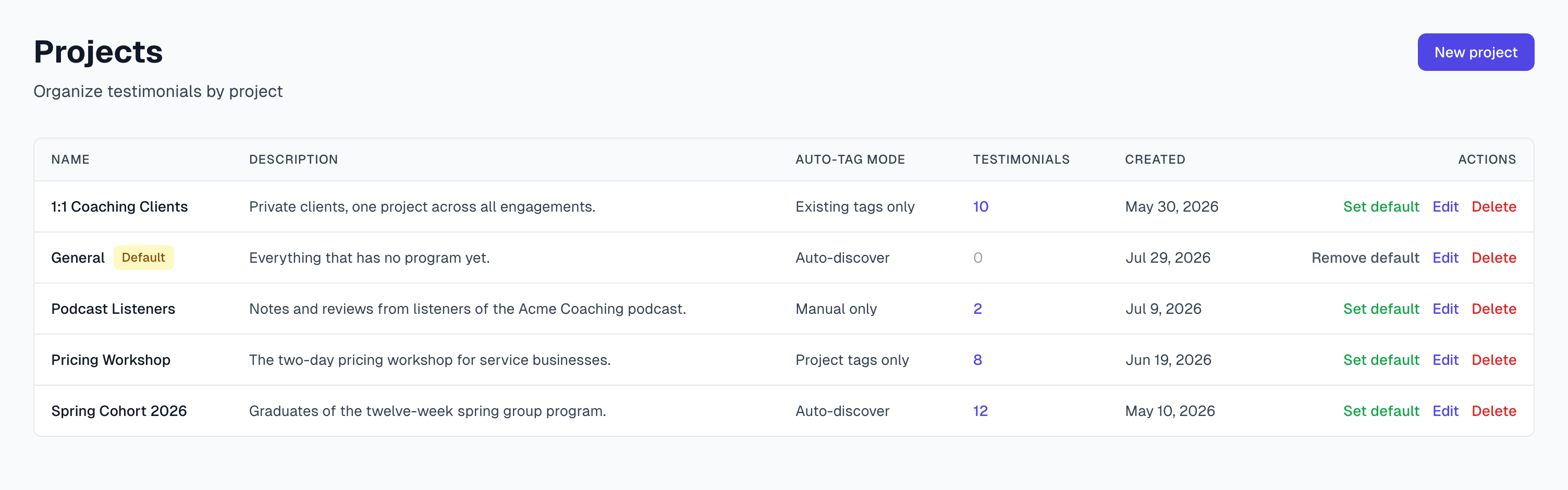
The Testimonials column counts every testimonial in the project. Click the number to open them on the Testimonials page. On a smaller screen you may need to scroll the table sideways to reach Edit and Delete.
Change a project
On the Projects page, click Edit in the project's row.
Change the name, description, Auto-tag mode or Assigned tags.
Click Save changes.
Delete a project
You can delete a project only when it is empty. This count includes Rejected and Archived testimonials.
On the Projects page, click the number in the project's row.
Move each testimonial to another project, or delete it.
Back on the Projects page, click Delete in the row.
Click Delete project.
If a widget shows only this project, change the widget first. It shows nothing once the project is gone. If this was your default project, you have no default until you set a new one.
Who can do what
Owners and Admins can create, edit and delete projects and set the default.
Members can see the Projects page and move testimonials between projects.
Good habits
Start with one or two projects. Most organizations need only a handful.
Pick a naming pattern, such as product and year, and keep to it.
Do not create a project per quarter or per theme. Tags handle that better.
If something goes wrong
It says a project with this name already exists
Each name can be used once, and capital letters do not count. Choose a different name.
I do not see New project
Your role is Member. Ask an Owner or Admin to create the project.
I cannot delete a project
A message tells you how many testimonials it still holds. Move or delete them first, as shown above.
New captures are not going into my new project
Creating a project does not select it. Choose it in the extension panel, or see Multi-project workflow.
Last updated