AI tag mode per project
Each project has an Auto-tag mode that decides how much freedom AI has with tags: create new ones, use your list, use the project's own list, or stay out of it. Compare the four modes, then set one.
The four modes
Mode | What AI does | Choose it when |
|---|---|---|
Auto-discover | Uses your tags and creates new ones when nothing fits | You are starting out and want to see which themes appear |
Existing tags only | Chooses from all your tags and never creates one | You have a tag list you trust |
Project tags only | Chooses only from the tags assigned to this project | This project needs its own short list, such as a separate brand |
Manual only | Adds no tags and gives no suggestions | You want a person to choose every tag, for example on a sensitive project |
New projects start on Auto-discover. A testimonial with no project always uses Auto-discover, because the mode belongs to the project. If you want AI to stop creating tags, every testimonial needs a project with a stricter mode.
The mode limits AI only. In every mode, you can add and remove tags by hand.
With Existing tags only or Project tags only, a testimonial gets no tags when nothing on the list fits. It also stays untagged if the tagging step fails, and the testimonial itself is still saved.
Only an Owner or Admin can set or change a mode. To see what AI does with the mode you pick, read AI auto-tagging.
Set the mode on a new project
Click Projects in the sidebar.
Click New project.
Fill in the name, then choose a mode under Auto-tag mode. A short description appears below the menu.
Click Create project.
Change the mode on a project
On the Projects page, click Edit in the project's row.
Choose a new Auto-tag mode.
Click Save changes.
The new mode applies to testimonials that AI reads from now on. Tags already on testimonials stay as they are, and you can switch back at any time.
Choose the tags for Project tags only
This list is only in Edit project, so create the project first.
On the Projects page, click Edit in the project's row.
Under Assigned tags, tick the tags AI may use.
Click Save changes.
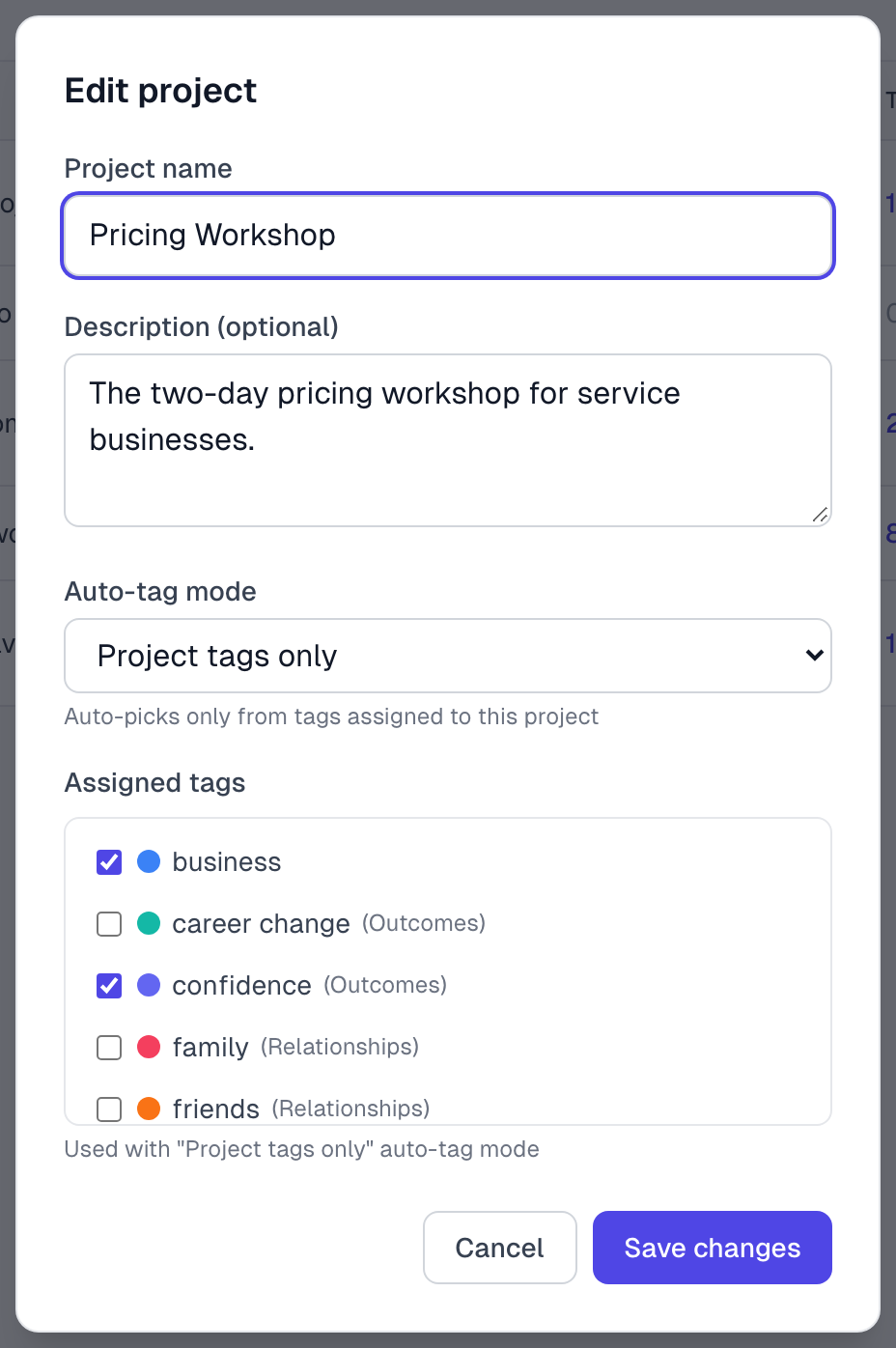
You need to keep this list up to date. A tag you create later is not added to it, and with an empty list AI adds no tags. The list has no effect in the other three modes.
A good way to start
Leave a new project on Auto-discover for its first 50 or so testimonials, so that AI can show you the themes.
Open Tags and tidy up: delete the junk, combine near duplicates and add categories. See Tag basics and Tag categories.
Switch the project to Existing tags only, so that AI keeps to your cleaned list.
If something goes wrong
I changed the mode, but older testimonials look the same
That is expected. The mode affects only what AI reads next. To add tags to an older testimonial, use Get Suggestions, as shown in AI auto-tagging.
New tags keep appearing after I switched to Existing tags only
Check for testimonials with no project, which always use Auto-discover, and for other projects still on Auto-discover. Your teammates can also create tags by hand.
Testimonials in a Project tags only project get no tags
The Assigned tags list may be empty, or nothing on it fits. Add more tags, or switch to Existing tags only if you do not want to keep a list.
I do not see Assigned tags
It appears only when you edit a project, and only if your organization has at least one tag.
Last updated