AI auto-tagging
AI reads each new testimonial and adds tags for you, so your library sorts itself as it grows. Here is when that happens, what you get, and how to ask for suggestions on a single testimonial.
What AI does
When AI first reads a testimonial, it adds tags in the same step. There is nothing to approve. This happens for:
screenshot captures, including each testimonial split out of a capture
CSV imports
written testimonials sent through a collection page
uploaded videos, once AI has read the transcript
What you get:
Up to five tags per testimonial.
Tags within your project's rules. The project's Auto-tag mode decides whether AI may create tags, use your list or do nothing. See AI tag mode per project.
New tags in Uncategorized. A tag AI creates is lowercase, gets a color automatically and has no category.
No extra AI capture. Tagging is part of reading the testimonial.
AI skips very short text, under 20 characters. It adds tags but never removes them.
When AI does not tag again
AI tags a testimonial once. Editing the text, moving it to another project or changing the project's mode does not add or change its tags.
Reprocess does run tagging again, but it also overwrites your edits and uses an AI capture. See Editing a testimonial. To add tags to an older testimonial, use Get Suggestions instead.
Ask for suggestions
Get Suggestions shows you AI's ideas for one testimonial, and nothing is added until you choose.
Open the testimonial.
In the Tags card, click Get Suggestions.
Under Suggested Tags, click a tag to add it, or click Add All.
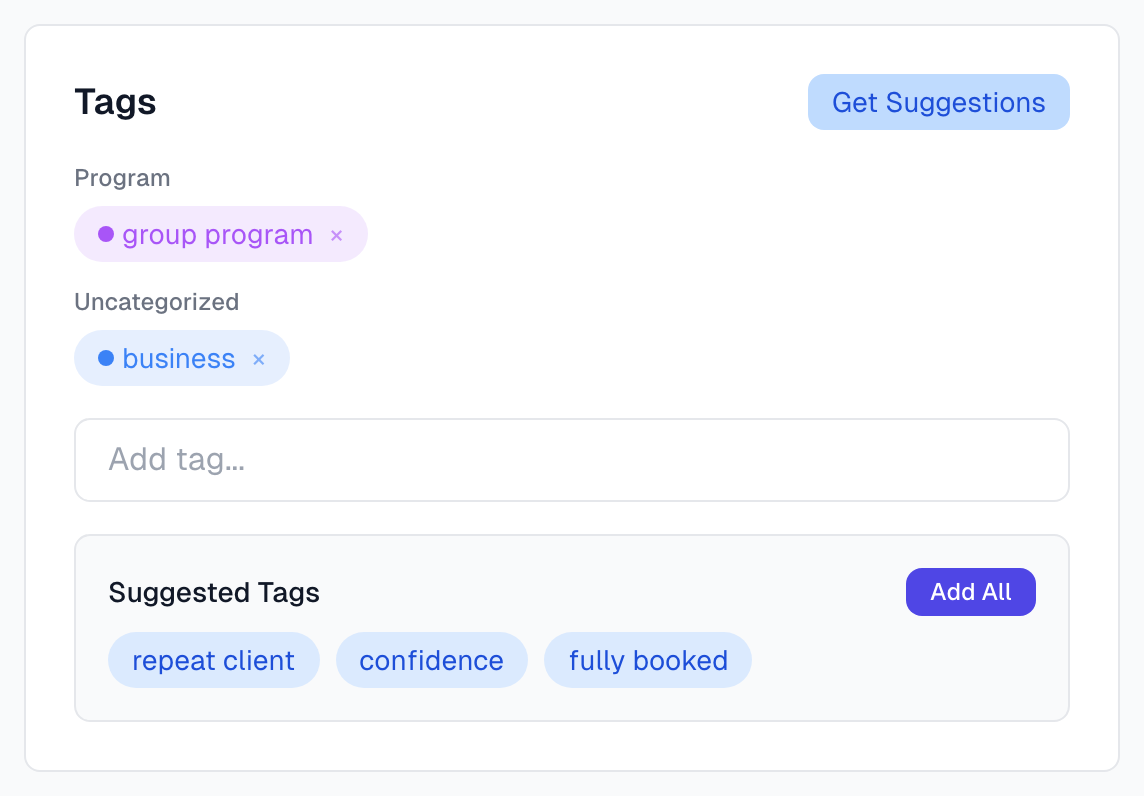
Suggestions follow the project's mode. In Auto-discover they can include new tags, and adding one creates it. In Manual only you get none. Get Suggestions uses no AI captures, and it works one testimonial at a time.
Fix what AI added
To take a tag off one testimonial, click × on the tag in the Tags card.
To remove a poor tag everywhere, or combine near duplicates, see Tag basics.
To sort AI's new tags into groups, see Tag categories.
Look through the Tags page now and then if you use Auto-discover. It is good for finding themes, and a stricter mode keeps things tidy once your list settles.
If something goes wrong
A testimonial has no tags
The text may be very short, or AI may not have read it yet. In Existing tags only or Project tags only, nothing on the list may have fitted. In Manual only, AI adds none. Add tags by hand, or try Get Suggestions.
It says No new tag suggestions available
The message says all relevant tags are already applied, but you also see it when the project is on Manual only, or on Project tags only with an empty list. Check the mode on the Projects page.
Get Suggestions shows an error
The testimonial may have too little text, or you may have clicked it too many times in a minute. Add some text, or wait a minute and try again.
AI created odd or near-duplicate tags
AI can create "very" or "good", or both "ease-of-use" and "easy-to-use". Delete or combine them on the Tags page, then consider switching the project to Existing tags only.
I want AI tags on all my older testimonials
There is no bulk action for this. Use Get Suggestions on each testimonial you care about.
Last updated