Tag basics
Tags are labels you and AI attach to testimonials, so you can find and show the right ones later. A testimonial can have many tags. Here is how to create, apply, edit, combine and delete them.
The Tags page
Click Tags in the sidebar to see every tag, grouped by category, with its color and the number of testimonials using it.
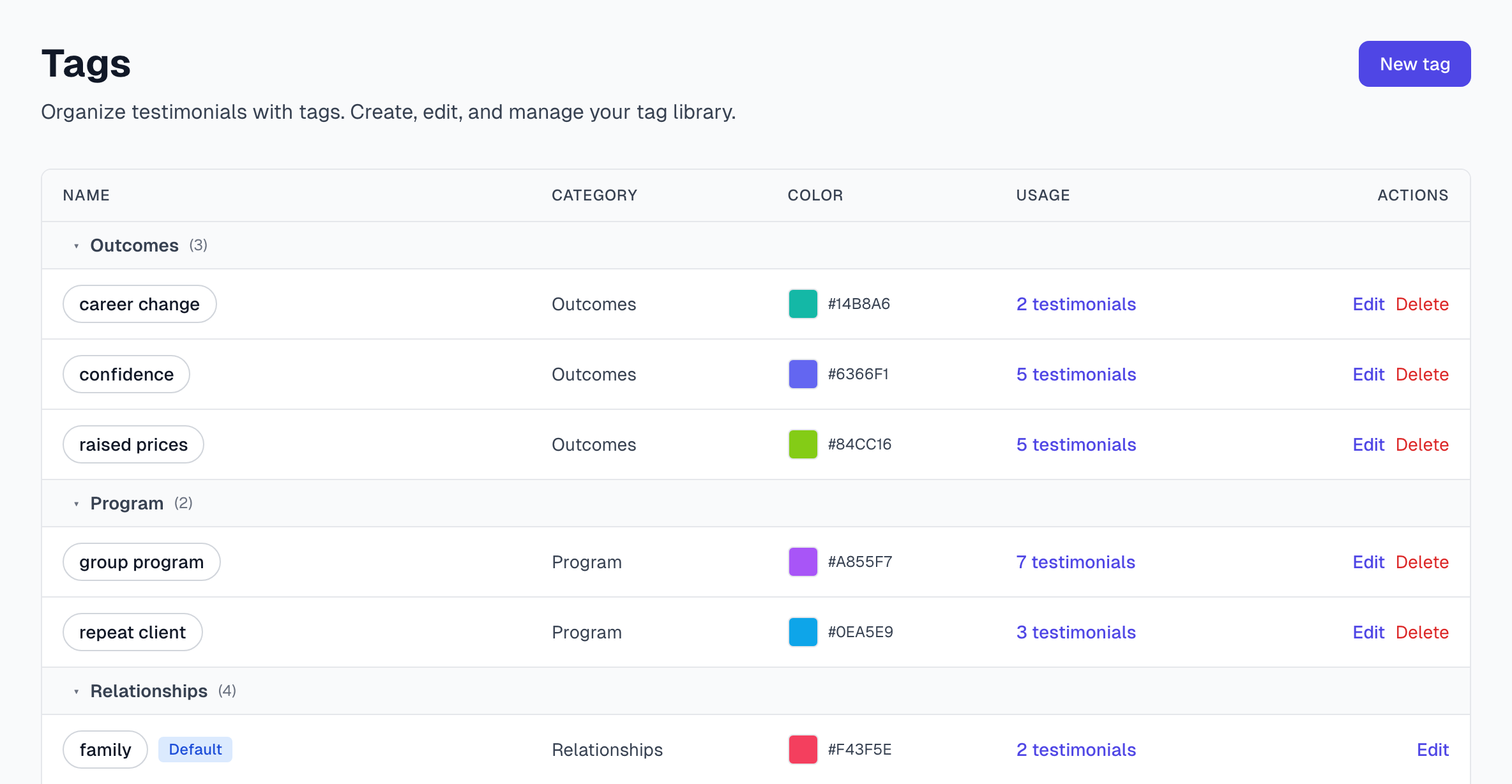
Your account starts with eight tags marked Default: health, business, money, life transformation, parenting, family, friends and romance. You cannot rename or delete these, but you can change their color and category.
Anyone on your team can add, edit and delete tags. All your projects share one tag list.
Tag a testimonial
Open the testimonial.
In the Tags card, click Add tag....
Click a tag in the list, or type to search it.
To make a new tag, type its name and click Create with the name beside it.
The tag is added straight away. Click × on a tag to take it off this testimonial only. There is no way to tag many testimonials at once.
AI also adds tags by itself. See AI auto-tagging.
Create a tag on the Tags page
Use this when you want to set a color or category from the start.
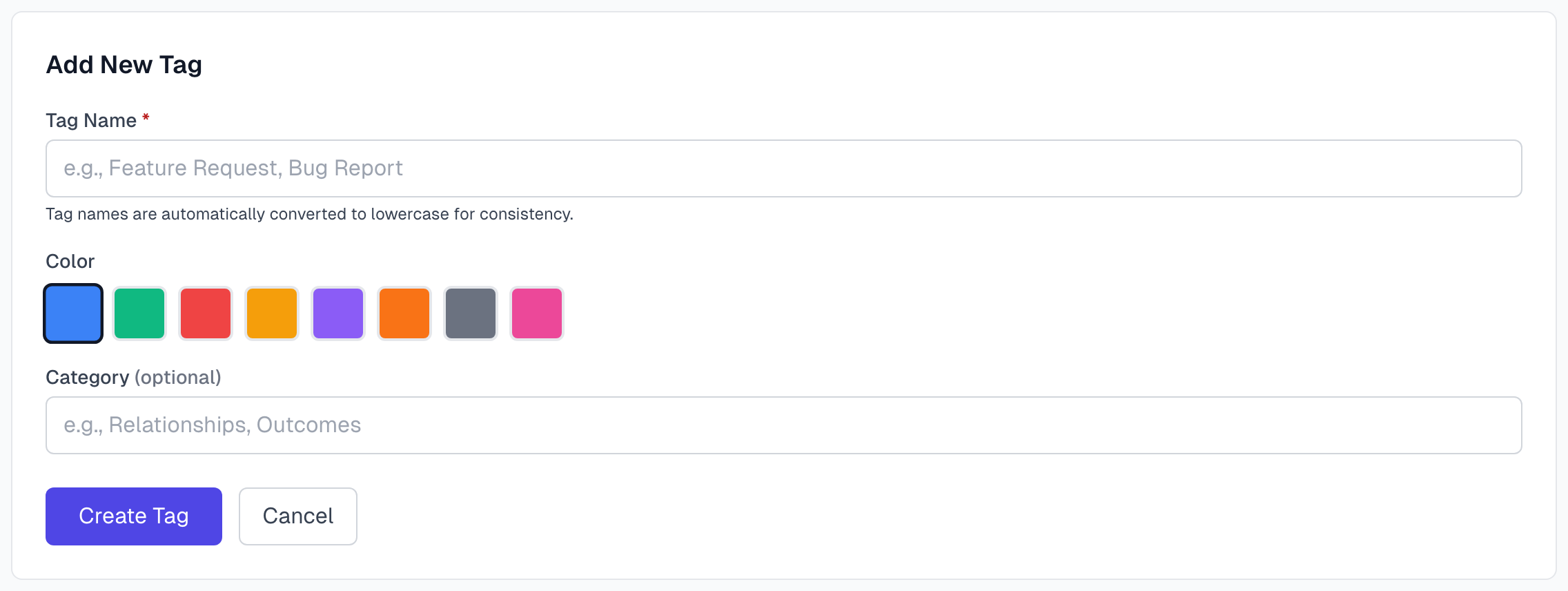
Click New tag.
Type a Tag Name, up to 50 characters. It is saved in lowercase.
Choose a Color.
Add a Category if you use them. See Tag categories.
Click Create Tag.
Edit a tag
Click Edit in the tag's row.
Change the name, category or color.
Click Save.
The change applies everywhere the tag is used.
Delete a tag
Click Delete in the tag's row. A warning shows how many testimonials use it.
Click Confirm.
This cannot be undone. The tag comes off every testimonial and every project's Assigned tags list. If a widget shows only this tag, change the widget first. It shows nothing once the tag is gone.
Combine two tags
There is no merge button, and you cannot rename a tag to a name already in use. To replace one tag with another:
On the Tags page, click the testimonial count of the tag you want to lose.
Open each testimonial and add the tag you want to keep.
Delete the old tag.
Find testimonials by tag
Tags page: click the count in a tag's row.
Testimonials page: use the All Tags filter. A testimonial must have every tag you choose.
Advanced search: use the Tags filter. A testimonial needs only one of them.
Widgets: choose tags to show in a widget. A testimonial needs only one of them. See Create a widget.
Advanced filters has more on this.
Good habits
Keep names short and concrete. "ease of use" beats "the customer found it easy to use".
Choose one word for one idea. Separate "support" and "customer support" tags split your library in two.
Use categories early. Even a few tags are easier to scan in groups.
Use the Default tags before you invent new ones.
If something goes wrong
It says a tag with this name already exists
Each name can be used once, and capital letters do not count. Search the Tags page for it, or add the existing tag to your testimonial.
I cannot delete or rename a tag
It is a Default tag. It has no Delete link, and its name is locked when you edit it.
A new tag is not in the filter list
Refresh the page.
Last updated