Advanced filters
Filters narrow your testimonials to exactly what you need, such as approved testimonials in one project with a certain tag. Combine them to go from hundreds of testimonials to the handful that matter.
Where to filter
Testimonials page: Status, Display, All Projects and All Tags.
Advanced search: Status and Tags, combined with the words you search for. See Advanced search.
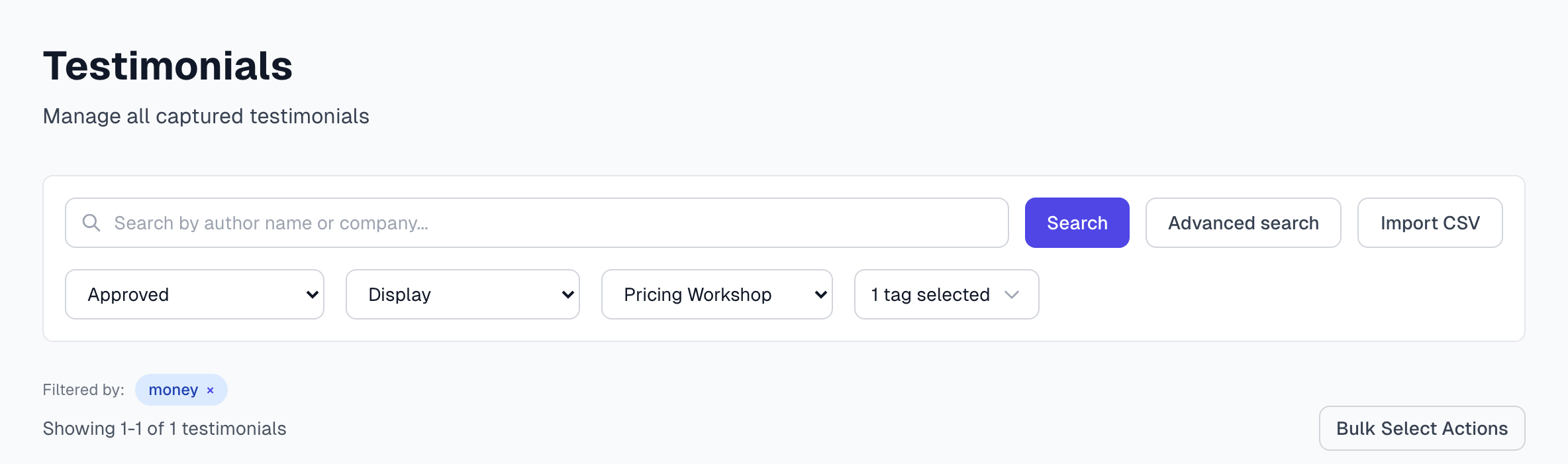
The filters
Status
Shows one of Inbox, Approved, Approved (Anonymous), Rejected or Archived. Choose Status at the top of the menu to see them all. Status workflow explains each one.
Display
Live: approved and allowed to appear in your widgets.
Awaiting permission: a request is waiting for a reply.
Hidden: approved, but not allowed to appear. This option ignores the Status filter.
All Projects
Shows one project at a time.
All Tags
Choose one or more tags, using the search box in the menu to find them. A testimonial must have every tag you choose, so each extra tag shortens the list. Advanced search works the other way: a testimonial needs only one of the tags.
Your tags appear under the filters. Click × on a tag to remove it, or Clear all if you chose more than one.
Useful combinations
Testimonials ready for a campaign
Set Display to Live.
Choose your campaign's project.
Add any tags you need.
Old testimonials still in your Inbox
There is no date filter. Set Status to Inbox and go to the last page, because the list runs from newest to oldest. For exact dates, download a CSV and filter it in your spreadsheet. See Export and use your testimonials.
Testimonials you can use without a name
Set Status to Approved (Anonymous).
Requests still out
Set Display to Awaiting permission, or click Permissions in the sidebar.
Archive everything with one tag
Choose the tag in All Tags.
Click Show all if you see it.
Click Bulk Select Actions, then Select All.
Click Archive Selected.
Good to know
Your filters are part of the page address, so you can bookmark a view you use often.
Filters stay on as you move between pages, and removing one leaves the others in place.
Open a testimonial from a filtered list and Previous and Next follow only your Status and project. They can take you to testimonials outside your tag, Display or search filter.
The Export page has its own filters, so filters set here do not carry over.
If something goes wrong
A tag filter shows nothing, but I know the tag is in use
Another filter may be excluding those testimonials, or you chose tags that no testimonial has together. Try the tag on its own.
The count did not change
The filters may match everything in the list. Check what is selected, then reload the page and try again.
Last updated