Bulk actions
Bulk mode lets you select many testimonials on the Testimonials page and approve, reject, archive or delete them in one go. It saves time on a large backlog or after an import.
Select your testimonials
Click Testimonials in the sidebar.
Filter the list first if you want a smaller group, such as one project's Inbox. See Advanced filters.
Click Show all if you see it and want more than the 24 on this page.
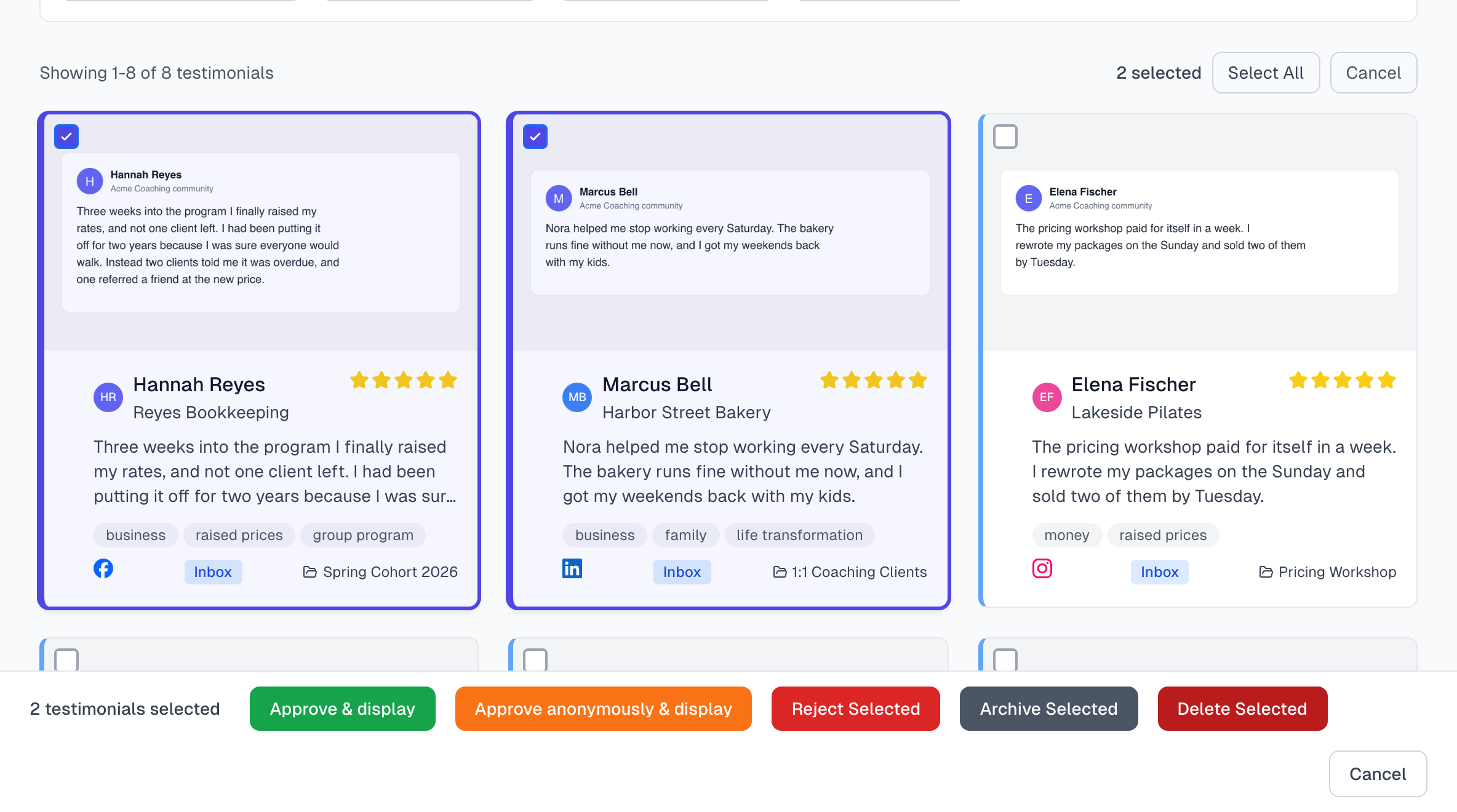
Click Bulk Select Actions. Each card gets a checkbox.
Click the cards you want, or click Select All for every card on the page.
Choose an action
The bar along the bottom of the page holds the actions:
Approve & display: approves them and shows them in your widgets.
Approve anonymously & display: does the same with the authors' names hidden.
Reject Selected: marks them as testimonials you will not use.
Archive Selected: takes them out of your active list.
Delete Selected: removes them for good. You are asked to confirm first.
A message in the bar tells you how many were updated. Click Cancel to leave bulk mode. One action can cover up to 500 testimonials.
Before you approve in bulk
Approving publishes. Only approve testimonials you have permission to use.
Testimonials waiting for a reply are held back. The two approve buttons skip a testimonial whose author has not answered yet, including one whose email bounced or whose author unsubscribed, and leave it as it is. The message says how many were held back. Once the author replies, you can approve it.
A declined testimonial stays hidden, even if you approve it.
A hidden name stays hidden. Approve & display on a Granted, anonymous testimonial gives Approved (Anonymous). The message says how many were approved as anonymous.
Approve anonymously & display does not suit a Granted testimonial. It leaves it Hidden, because the author agreed to show their name. Use Approve & display for those.
Good habits
Filter first, then select.
Archive is the safest way to tidy up. Delete should be rare.
If something goes wrong
I selected everything, but only 24 changed
Select All selects only the cards on the page. Click Show all first, or repeat the action page by page.
I rejected the wrong ones
Set Status to Rejected, open each one and click Move to Inbox. There is no bulk version of this button. If you meant to approve them, you can select them and click Approve & display instead.
Some were held back
Their authors have not answered yet. If no reply can come to a first request, for example after a bounce or an unsubscribe, an Owner or Admin can delete that request on the Permissions page, and then you can approve the testimonial. A request that was asked again cannot be deleted: correct the address and ask again. See Manual approval.
I deleted the wrong ones
Deleting cannot be undone. If they came from a CSV file, import them again. Otherwise, capture them again from the source.
Last updated