Inbox workflow
The Inbox is where new captures wait for your review. Work down the list, check each testimonial, then approve it, reject it, archive it or ask the author for permission.
What is on the page
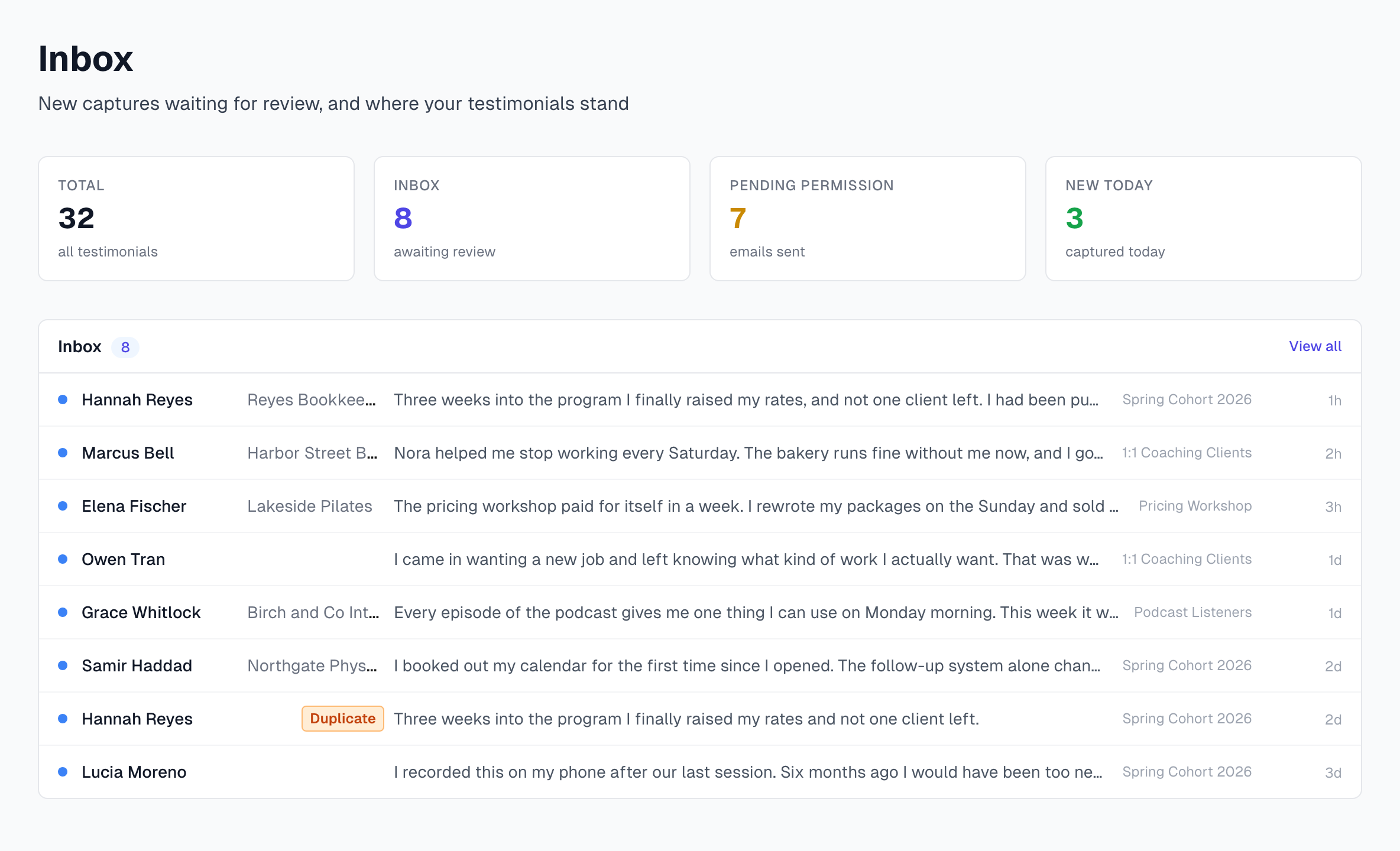
Four cards sit at the top:
Total: every testimonial in your organization.
Inbox: testimonials waiting for your review.
Pending Permission: requests you sent that have no answer yet.
New Today: testimonials captured today.
The list below them shows the newest captures first, 25 to a page. Each row has the author, company, the start of the text, the project and how long ago it arrived. The page updates by itself every 10 seconds, so there is no need to reload it.
The dot at the start of a row shows how far AI has got:
Blue: finished.
Pale blue and pulsing: AI is reading it now.
Gray: waiting its turn.
Red: AI could not finish it.
An orange Duplicate label means it looks like one you already have. See Duplicate detection.
Work through your Inbox
Click Inbox in the sidebar.
Click the top row to open it.
Compare the details with the screenshot and fix any mistakes. See Editing a testimonial.
Decide what to do with it, using the list below.
Click Next at the top of the page, or press the right arrow key. Previous and Next stay inside your Inbox when you start from here.
Your choices for each testimonial:
Approve if you already have permission. This shows it in your widgets.
Send Permission Request in the Permission card if you need to ask. It normally stays in your Inbox until the author answers. See Sending a permission request.
Reject if you will not use it.
Archive to take it out of your active list and keep it for your records.
Clear many at once
The Inbox list has no action buttons of its own. Click View all to open the Testimonials page filtered to your Inbox, then use Bulk actions.
To compare a few side by side, open them in new tabs: hold Cmd or Ctrl and click a row.
If something goes wrong
A row says No text extracted yet
AI is still reading the screenshot, and the row fills in by itself. If nothing changes after a few minutes, open the testimonial and click Reprocess in the Processing card. This counts as one AI capture.
A row has a red dot
Open the testimonial and click Reprocess. If it fails again, capture the testimonial again with a tighter box.
A capture is missing from the Inbox
Look on the Testimonials page. A capture AI could not read leaves the Inbox and shows a red Processing failed label. Open it and click Reprocess to send it back. Captures from sources with Auto-Approve also skip the Inbox, as Capture your first testimonial explains.
The Inbox keeps growing
You are capturing faster than you review. Use bulk actions and tags to sort in batches, and consider archiving anything older than 30 days.
Last updated