Tag categories
Categories group related tags under headings on the Tags page, so a long list stays easy to scan. Type a category name on a tag and the group appears. Here is how to use them, with example structures to copy.
How categories work
A category is a name you give to tags. There is no separate list of categories to manage.
The Tags page shows a heading for each category. Click a heading to collapse or open it.
Tags with no category sit under Uncategorized, at the end.
A testimonial's Tags card groups its tags the same way.
New tags from AI have no category, so they start in Uncategorized.
Categories only keep your tags tidy. You cannot filter testimonials by category, so filter by the tags inside it.
Add a tag to a category
On the Tags page, click Edit in the tag's row.
Type the category name in the box in the Category column. Names you have used before appear as suggestions.
Click Save.
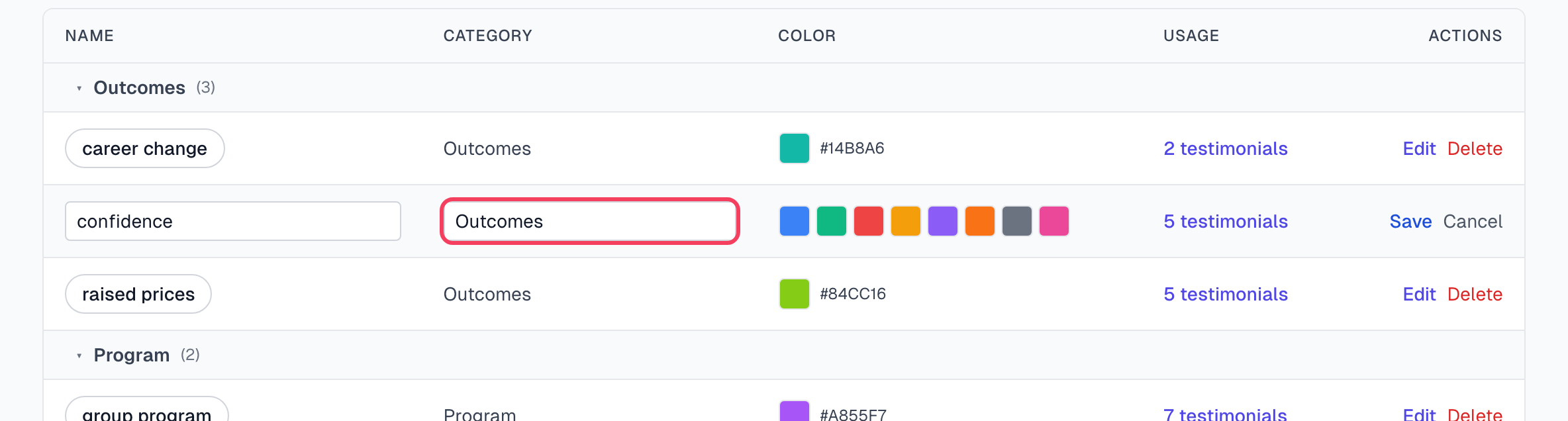
A new name creates the category.
You can also fill in Category when you create a tag with New tag.
Rename a category
There is no rename action. Edit each tag in the category and type the new name in its Category box. Use the same capital letters each time.
Remove a category
Edit each tag in the category and clear the box. The tags move to Uncategorized, and the heading goes when its last tag leaves.
Example structures
There is no single right way to organize your tags. These three are common starting points.
By outcome
For businesses that sell a result.
Category | Example tags |
|---|---|
Outcomes | revenue-growth, time-saved, productivity, peace-of-mind |
Pain points solved | manual-work, missed-deadlines, burnout, churn |
Emotions | confidence, relief, excitement, trust |
Audience | small-business, enterprise, freelancer, agency |
By product
For businesses with several products or feature sets.
Category | Example tags |
|---|---|
Products | your product names |
Features | dashboard, automation, integrations, mobile |
Use cases | onboarding, reporting, collaboration |
Channel | chrome-extension, web-app, api |
By marketing use
For teams using testimonials across campaigns and sales material.
Category | Example tags |
|---|---|
Campaign | spring-launch, q4-promo, anniversary |
Channel | website, email, social, sales-deck |
Stage | top-of-funnel, mid-funnel, bottom-funnel |
Format | quote, story, video, screenshot |
Use color with categories
You have eight colors. Pick one of these patterns and use it across your tags:
One color per category. All Outcomes tags are green and all Pain points tags are red.
Stoplight. Green for good outcomes, yellow for concerns, red for complaints.
Brightness. Bright colors for your main themes and gray for the rest.
Good habits
Start small. Let real testimonials show you which categories you need, rather than building 50 tags up front.
Review the Tags page every few months. Delete tags nobody uses, or combine them into a broader one. See Tag basics.
Let AI find new themes, then move the useful tags into a category. See AI auto-tagging.
If something goes wrong
A category shows up twice, such as Outcomes and outcomes
Capital letters count in category names. Edit the tags in one group so that they match the other.
A tag is not under my category
Its category box may be empty or spelled differently. Edit the tag and fix it. Choosing a suggestion avoids typing errors.
Too many tags are in Uncategorized
Older tags and tags from AI often have no category. Edit each one, or leave Uncategorized as your general group and use categories only where they help.
Last updated