Upgrade or downgrade
An Owner can buy a plan, switch plans, change between monthly and yearly, or cancel, all from Plan and billing. This article also explains what a smaller plan switches off.
Only an Owner can change the plan. Admins can open Plan & billing and read it, and they see who can make the change. Compare the plans first in Plans overview.
Move from Free to a paid plan
Click Settings at the bottom of the sidebar.
Under Organization, click Plan & billing.
Under Choose a plan, click Monthly or Yearly.
Click Upgrade on the plan you want. If you came from our pricing page, the button says Continue to payment.
Pay on the secure checkout page. It belongs to Stripe, which handles our payments.
You return to Plan & billing, which shows a thank-you message and then your new plan.
Your new limits apply as soon as the plan shows on the page. Some payment methods take up to a day to confirm. Until then you see Payment pending, and you are not charged if the payment does not go through.
If you leave the checkout page, you see Checkout was cancelled and you have not been charged.
Change plan or billing cycle
The change happens as soon as you click, with no confirmation step. Check the section below before you move to a smaller plan.
Open Settings > Plan & billing and go to Change plan.
Click Monthly or Yearly.
Click Switch to and the plan name. To keep your plan and only change the cycle, click Switch to yearly billing or Switch to monthly billing.
You see Updating your plan... and then the new plan. If it takes a while, the page says so, and the plan shows there shortly.
To move to Free, cancel your plan. See Cancel your plan below.
The difference is worked out for the days left in your billing period. If you move up, your card is charged for it at once. If you move down, it becomes a credit on your next invoice.
What happens when you move to a smaller plan
A change of plan applies at once. A cancellation applies at the end of your billing period. Either way, your testimonials, tags, projects and team stay as they are. These things change:
Widgets: your oldest stay on up to the new limit. The rest show Off (plan limit), and visitors see nothing where they were embedded.
Collection pages: your oldest stay active up to the new limit. The rest are paused.
Widget content: a widget may show only its newest testimonials, and a video the plan does not cover shows as text.
"Powered by" badge: it comes back if the new plan does not let you remove it.
API tokens: if the new plan has no API access, they stay on the list but stop working.
Your own AI key: if the new plan does not include it, we use ours and your AI captures count again.
Logo: if the new plan does not include it, your logo stays saved but stops showing.
Your address: if the new plan does not include it, links on your own domain send visitors to your free link instead.
If a widget or collection page is switched off, the Owner gets an email listing them. A bar at the top of the app appears if a switched-off widget is still on your website. To choose which widgets stay on, switch one off and another on from the Widgets page.
When you move up again, widgets and pages switched off this way come back, oldest first, up to the new limit. Ones you switched off yourself stay off.
Cancel your plan
Open Settings > Plan & billing.
In the Cancel plan card, click Cancel at period end.
Click Yes, cancel at period end.
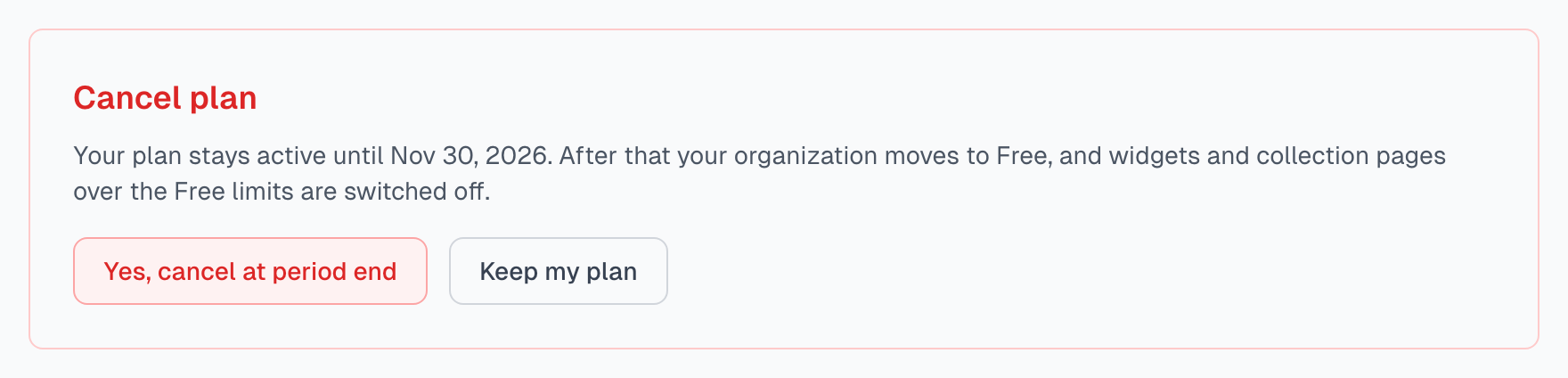
You keep your plan until the date shown. The Current plan card then shows Ends and that date. After it, your organization moves to Free.
Changed your mind before that date? Click Resume on the Current plan card. Nothing extra is charged. Choosing a new plan also withdraws the cancellation.
Deleting your organization is different. A paid plan ends at once. See General settings.
If something goes wrong
The page says only one person can change the plan
You are an Admin. Ask the person it names to make the change. Managing members covers handing over ownership.
Your card was declined, so your plan was not changed
Nothing changed. Update your card on Link and try again. See Invoices and payment.
Update your card on Link before changing your plan
A payment is failing, so the plan cannot change until it is fixed.
My plan is taking longer than usual to update
Wait a moment and reload Plan & billing. If it still shows the old plan after a few minutes, contact us.
I do not see any plan cards
If the page says Your plan is managed by Magic Testimonials., your plan was set up for you. Contact us to change it. If it says Billing is temporarily unavailable., try again later. If Magic Testimonials set your plan, you see only the plans above it.
Last updated