Playback controls
Watch a video testimonial inside Magic Testimonials, jump to its best moments, and fix a video that is sideways or mirrored.
Find the player
Open a video testimonial. The player is at the top of the left column. The video's length shows under it as Duration.
A tall video from a phone gets a tall player. If you see Mirrored (flipped left to right) under the video, the file is mirrored, which is common with older front-camera recordings.
If you see Speed buttons under the video, click 0.5x, 1x, 1.5x or 2x to change how fast it plays.
Jump to a moment
AI picks the best moments in a video. In the AI picks card, click the time next to a moment and the video starts there.
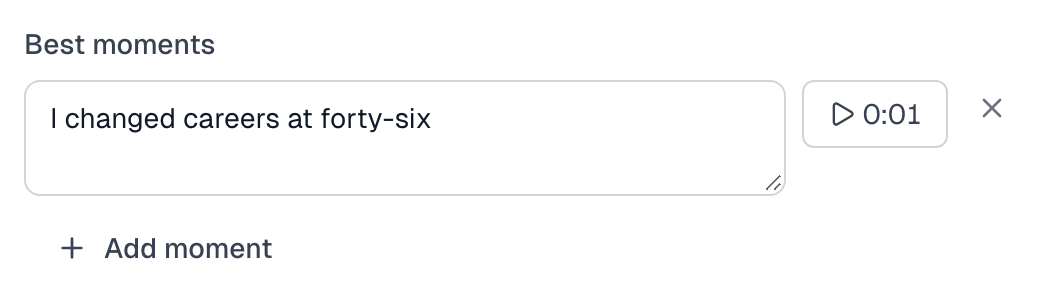
This is a quick way to check that AI's quote matches what the person said. See Auto-summarization.
Fix a sideways or mirrored video
An Owner or Admin can correct the direction of a finished video.
Under the player, click Flip video, Rotate left or Rotate right.
Click the button again in the question that appears, or click Cancel.

This makes a new copy of the video, which takes a minute or two. The current video stays until the new one is ready. The page then shows the new video by itself.
What the messages mean
You see | What it means |
|---|---|
Video is processing. It will be ready to play in a few minutes. | Your video is being prepared. The player appears when it is ready. |
Video playback isn't available right now. | The video cannot be played at the moment. Try again later. |
This video was saved before the storage upgrade and needs to be uploaded again. | This is an older video. Upload the file again. |
Video backup failed. Please contact support. | The video could not be prepared. See Video troubleshooting. |
Last updated