Profile and security
Manage your own account: picture, email, password, connected accounts and browser extension sessions, or leave your organization.
Click Settings at the bottom of the sidebar, then Profile & security under Your account. Everyone can open this page, and changes here affect only you.
Set your profile picture
Your picture comes from Gravatar, a free service linked to your email address. You cannot upload one here.
Go to gravatar.com and sign in with the same email address you use here.
Add your photo there.
Come back and refresh the page. It can take a few minutes to appear.
Without a Gravatar picture, you see the first letter of your name. There is no field to change your name.
Change your email
Under Change Email, type your New Email.
Type your Current Password.
Click Update Email.
You are signed out everywhere, including the browser extension. Sign in again with the new address. If you signed up with Google and have no password, you do not see this section. Set a password first.
Change your password
Under Change Password, type your Current Password.
Type your New Password and repeat it in Confirm New Password. The rules are under the field.
Click Change Password.
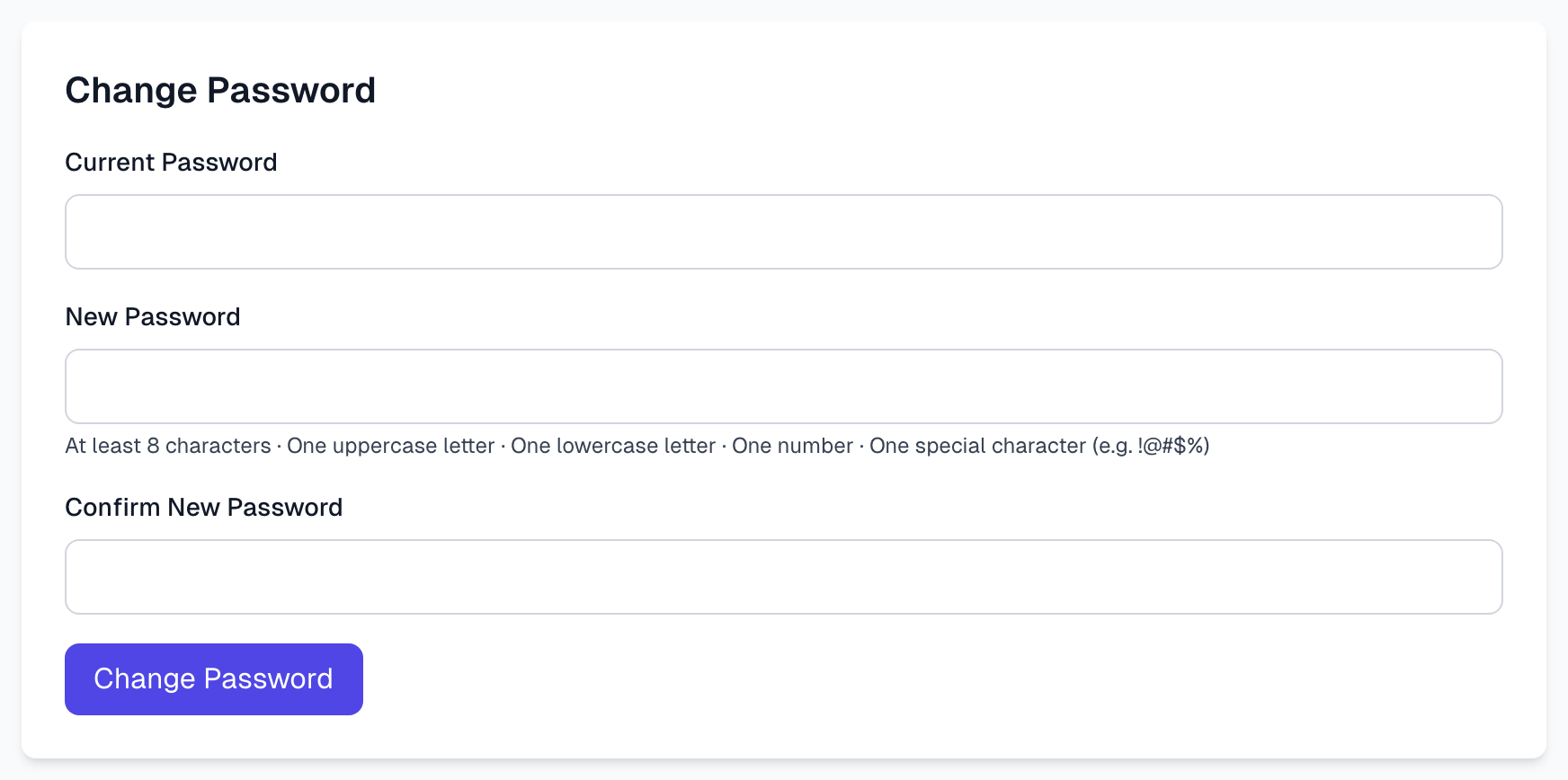
You are signed out everywhere straight away, including this browser and the browser extension, and the sign-in page opens. Sign in again with the new password. So it is also the first step if you think someone else has your password.
If you use Google to sign in and have no password yet, this section is called Set Password. You do not need a current password there, and you are signed out the same way once it is set.
Connect Google
If you see Connected Accounts, click Connect to sign in with that account as well. Disconnect removes it. If it is your only way to sign in, set a password first.
Check your extension sessions
Under Your account, Browser extension lists every Chrome extension signed in as you, with its last activity and expiry date.
Lost a device? Click Revoke next to its session, then Revoke to confirm. The extension there stops working.
Need the extension? Click Add to Chrome.
To sign out everyone's extension, see Managing members.
Leave your organization
Scroll to Leave Organization, click the button, type LEAVE and click I understand, leave this organization.
You lose access at once, and your browser extension is signed out. If you belong to no other organization, your user account is deleted too. To come back, you need a new invitation.
The last member cannot leave, and neither can the only Owner. The page tells you what to do instead. Deleting the organization is on General.
If something goes wrong
Current password is incorrect
Forgot it? Sign out and click Forgot your password? on the sign-in page.
This email is not available
Another account already uses that address. Try a different one, or contact us. Getting help explains how.
My new password was refused
Check it against the rules under the field. A password that has appeared in a known data breach is refused too, so choose a different one.
My picture has not changed
Wait a few minutes and refresh the page. Check that you used the same email address on Gravatar.
Last updated