Transcription
Every video gets a written transcript by itself. AI then uses it to write the testimonial text, add tags and pick the best quotes.
How it works
There is nothing to start. When a video is ready to play, the speech is turned into text. You can leave the page while it runs. The page updates by itself.
When the transcript is done, AI uses it to:
write the Testimonial Text, removing filler words and false starts but keeping the speaker's words
add tags, following your project's rules
choose the summary, main quote and best moments
If the testimonial already has text, AI keeps yours. Your video then shows up in search, including for words spoken in it.
Read the status
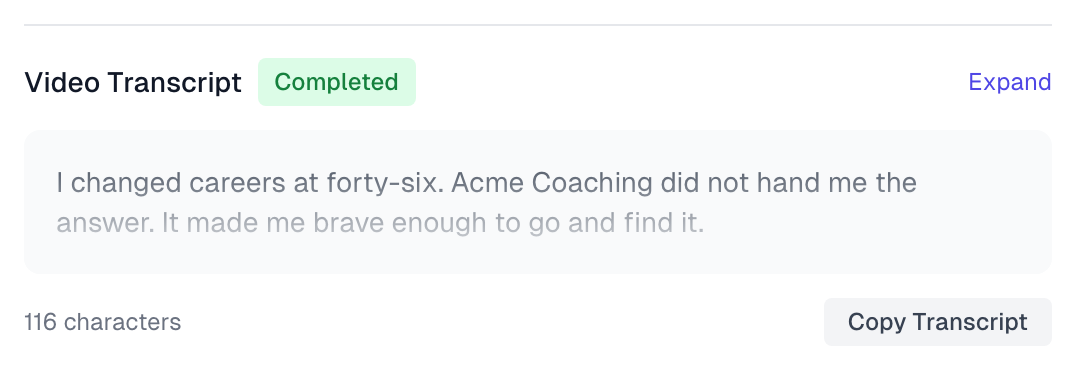
Look for Video Transcript under the player.
Status | What it means |
|---|---|
Processing Pending | The video is in line to be transcribed. |
Processing... | The transcript is being made. |
Completed | The transcript is ready. |
Failed | It did not work. Click Retry transcription. |
Read and copy the transcript
Click Expand to see all of it.
Click Copy Transcript to copy it.
Correct a mistake
You cannot edit the transcript itself. Correct the text that people see instead:
In Edit Testimonial, click Edit.
Change the Testimonial Text.
Click Save.
If a mistake is in a quote in AI picks, fix it there too. Those come from the transcript, so editing the text does not change them.
How accurate it is
Treat the transcript as a first draft. Clear speech in a quiet room gives the best result. Names and brand names are often misspelled, so check those first.
Language
You do not choose a language. See Language and locale.
What it costs
Making the transcript uses no AI captures. Writing the text from it uses one, unless you use your own AI key or the video came from an Endorsal import. If you have used all your AI captures, the transcript still appears, and a Fill from transcript button lets you write the text after your count resets. See AI capture credits.
If something goes wrong
It stays on Processing for a long time
Longer videos take longer. After about an hour, a stuck transcript changes to Failed, and you can click Retry transcription.
Processing Pending does not change to Failed, and it has no retry button. The app tries again by itself for up to 7 days. If it is still stuck after a day, contact us.
Transcription failed again
Check that the video has sound. See Video troubleshooting.
The transcript is ready, but the text is empty
Look for Fill from transcript at the bottom of the video card. Click it to write the text. If the video has no speech, there is nothing to write, so type the text yourself.
Last updated