Two-factor authentication
Two-factor authentication asks for a code from an app on your phone when you sign in. Anyone on any role can turn it on for their own account, and the browser extension then connects through the website.
Turn it on
You need an authenticator app such as Google Authenticator, Authy or 1Password. Two-factor authentication is your own setting, so each teammate turns it on for themselves.
Click Settings at the bottom of the sidebar, then Profile & security under Your account.
Under Two-Factor Authentication, click Enable 2FA.
Scan the QR code with your app. If you cannot scan it, type the key shown under it into the app.
Enter the 6-digit code from the app and click Verify & Enable.
Click Download as .txt to save your 10 backup codes. You will not see them again.
Tick I have saved these codes in a secure location and click Close.
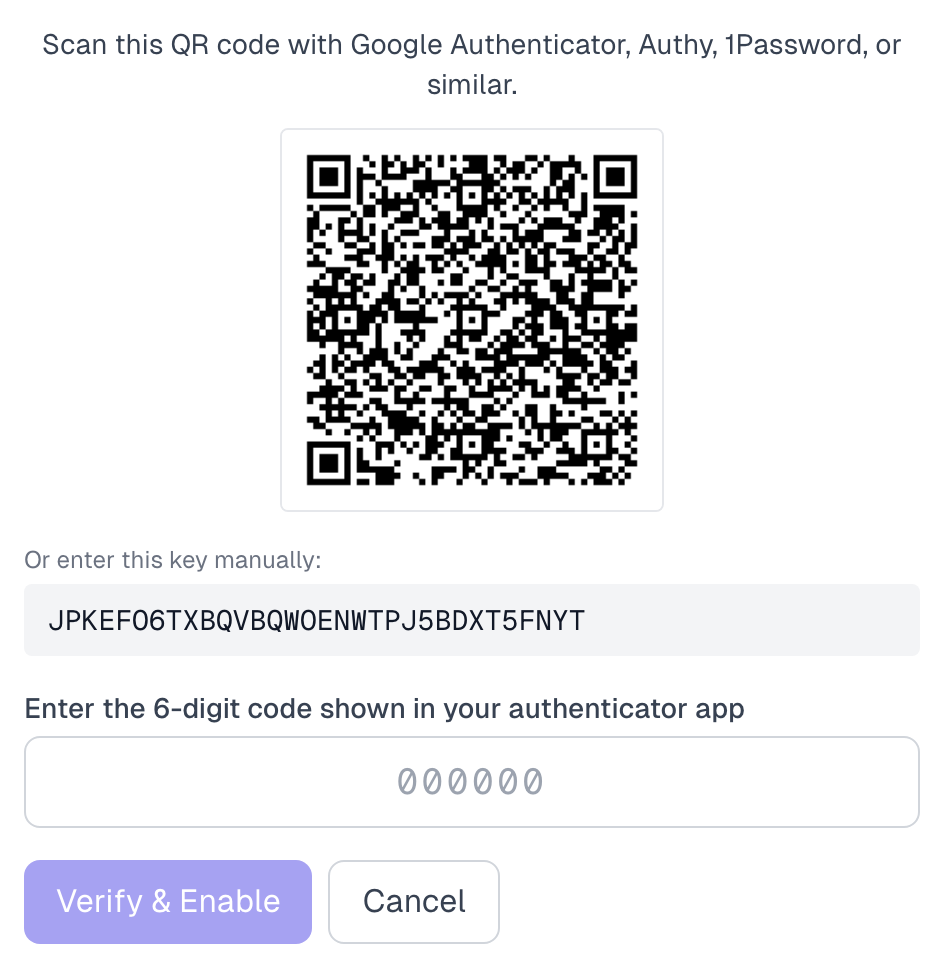
Keep a copy of that key in your password manager if you can. If you lose your phone, you can add the key to an authenticator app on a new one.
Sign in with a code
After your password, or after Continue with Google, the app asks for a code from your authenticator app.
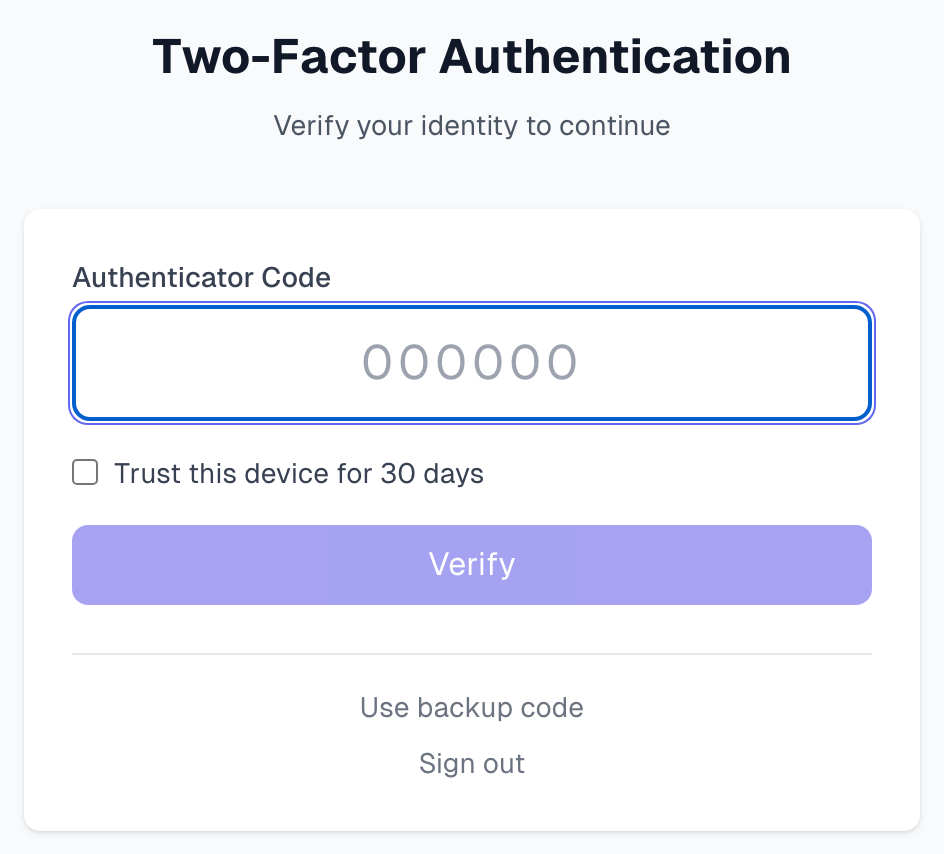
How often: a code lasts for 8 hours in that browser, and then you are asked again. If the 8 hours end while you work, your next action takes you to the code page, and anything you had not saved on that page is lost. After the code you land in your Inbox.
Trust this device for 30 days: tick this on your own computer to skip the code in that browser. Do not tick it on a shared computer.
Use backup code: click this if you do not have your phone. Each code works once.
To sign in with a different account, click Sign out on the code page.
The browser extension
With two-factor authentication on, the extension cannot sign in with your email and password alone. Connect it through the website instead:
In the extension panel, click Continue with Google. A window opens.
If the window asks you to sign in and you use a password, click Sign in with email and password, then sign in.
When asked, enter your code.
Click Connect next to your organization.
Turning on two-factor authentication does not sign out an extension that is already signed in. It keeps working until its session ends. Install the browser extension has more, and your extension sessions are listed under Settings > Browser extension.
Keep your backup codes up to date
The section shows how many of your 10 codes are left. To get a new set:
Click Regenerate backup codes.
Enter a code from your authenticator app and click Confirm regenerate.
Save the new codes. The old ones stop working.
Turn it off
Click Disable 2FA.
Enter your Current password and a Current authenticator code.
Click Confirm disable.
You are then signed out, this browser and your browser extension included, and your trusted devices are forgotten. If you sign in with Google and have no password, set one first. See Profile and security.
If something goes wrong
My code is refused
Your phone's clock may be out of step. Set the date and time to automatic in your phone's settings, then try the next code the app shows.
Too many attempts. Try again in 15 minutes.
You entered a wrong code too many times. Wait 15 minutes and try again.
I lost my phone
Sign in with a backup code, or add your saved key to an authenticator app on a new phone. A backup code gets you in, but it cannot turn off two-factor authentication or create new codes, because both need a code from your app. If you did not save the key, contact us. Getting help explains how.
I lost my phone and my backup codes
Contact us. Getting help explains how.
Someone asked me for a code
Do not share it. We never ask for your codes by email, chat or phone.
Last updated