Bounce handling
A bounce means the permission email could not be delivered. The request shows Email bounced, and to recover you delete it, fix the address and send a new one.
How you find out
The Permissions page shows Email bounced in the row, with no Resend link.
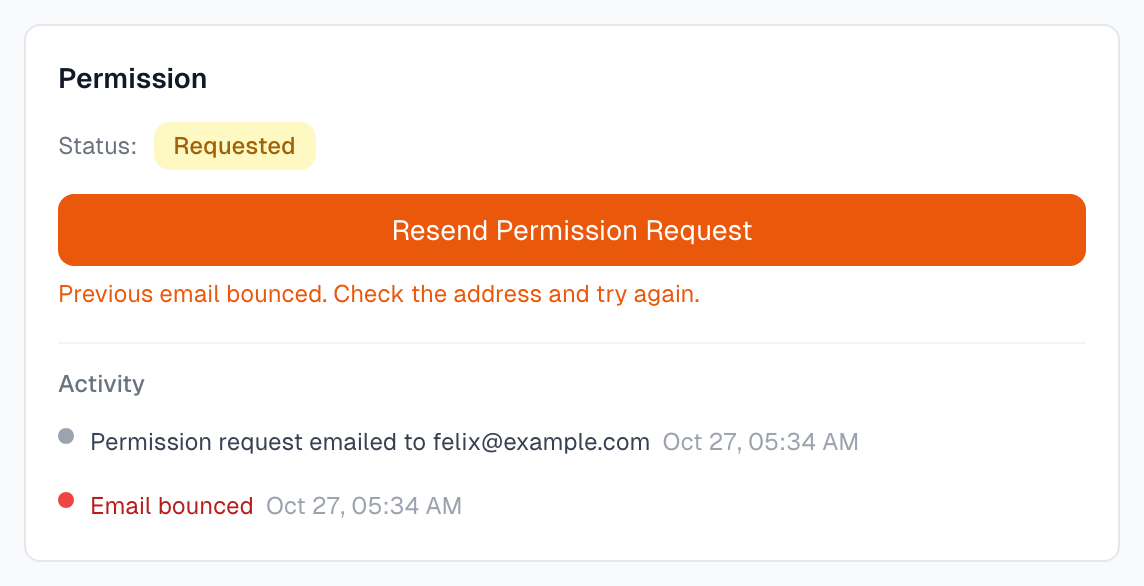
The Permission card shows an orange button and Email bounced in its Activity list.
After a permanent failure, the testimonial also moves to Processing Failed. The label is about the email here, not the AI.
The app does not show the reason. For a permanent failure, it is in the Permission Note column of a CSV export.
What your email setup can detect
Email provider | What we see |
|---|---|
Platform Default | Bounces as they are reported, including temporary ones, and spam reports |
Postmark | Permanent bounces and spam reports, checked every 15 minutes |
Custom SMTP | Nothing, so a bounced request looks like one still waiting |
Why emails bounce
The address is wrong. A typo, a closed mailbox, or the person left the company.
A temporary problem. The mailbox is full or the server is down.
The receiving server refused you. This usually points to your sending setup.
Fix it and send again
On the Permissions page, an Owner or Admin clicks Delete in the row and confirms. The testimonial returns to your Inbox.
Open the testimonial, click Edit, correct the Author Email and click Save.
Click Send Permission Request. The author gets a new email with a new link.
Do not use Resend Permission Request. The orange button does not work on a bounced request. It only shows Permission request already exists. Changing the Author Email does not help either, because the old request keeps its old address.
If the author was asked again
A request that was asked again cannot be deleted. Correct the Author Email on the testimonial, then click Ask again in the row on the Permissions page. The new request goes to the new address with a new link. The address that bounced stays blocked for your organization, even if you change the email back later.
If you need a new address
Ask the author another way, or look in your CRM. Find Email appears only when the Author Email is empty, so clear the field first. See Find one author's email.
If it was a temporary problem
Wait a few hours, then follow the same steps with the same address. If it bounces again, treat the address as bad.
If the address is right and it keeps bouncing
Go to Settings > Email and click Send Test Email, using another address you control. See Test send.
If the test bounces too, check your setup. See Email provider setup.
If the test arrives, the problem is at the author's end. Reach them another way.
If you cannot reach the author
Leave the testimonial unpublished, or use Manual approval if you already have their permission in writing.
While a request stays bounced
Nothing more is sent by itself, and the request stays open until you fix it as above. With Custom SMTP we cannot see bounces, so the request looks like one still waiting, and Resend will still send to that address.
Spam reports
If someone reports your email as spam, the row shows Marked as spam and the testimonial moves to Archived. Resend is gone.
Do not ask this person again. The app would let you delete the request and send a new one, but spam reports damage your sending reputation. If you get several, check that you are writing to real customers and that they will recognize your sender name.
Good habits
Check addresses before you send. Watch for misspelled domains such as gmial.com.
Fix bounces one at a time. Sending again to many bad addresses hurts your reputation.
If something goes wrong
Many addresses bounced at once
The problem is probably your sending setup, not the addresses. Send a test email and see Email provider setup.
I never see bounces
Custom SMTP cannot report them. To get bounce tracking, use Platform Default or Postmark.
Last updated