Collection pages
A collection page is a link you send to your customers, where they leave a written or video testimonial themselves. It lands in your Inbox with their consent attached.
Before you start
You see Collection pages under Collect in the sidebar only if collection pages are switched on for your organization. An Owner or Admin creates and edits pages. Anyone on your team can see the list and copy a link.
Create a page
Click Collection pages in the sidebar.
Click New page.
Enter a Page name. Only your team sees it.
Click Create page. The editor opens.
Change what you need. The Live preview updates as you type.
Click Save.
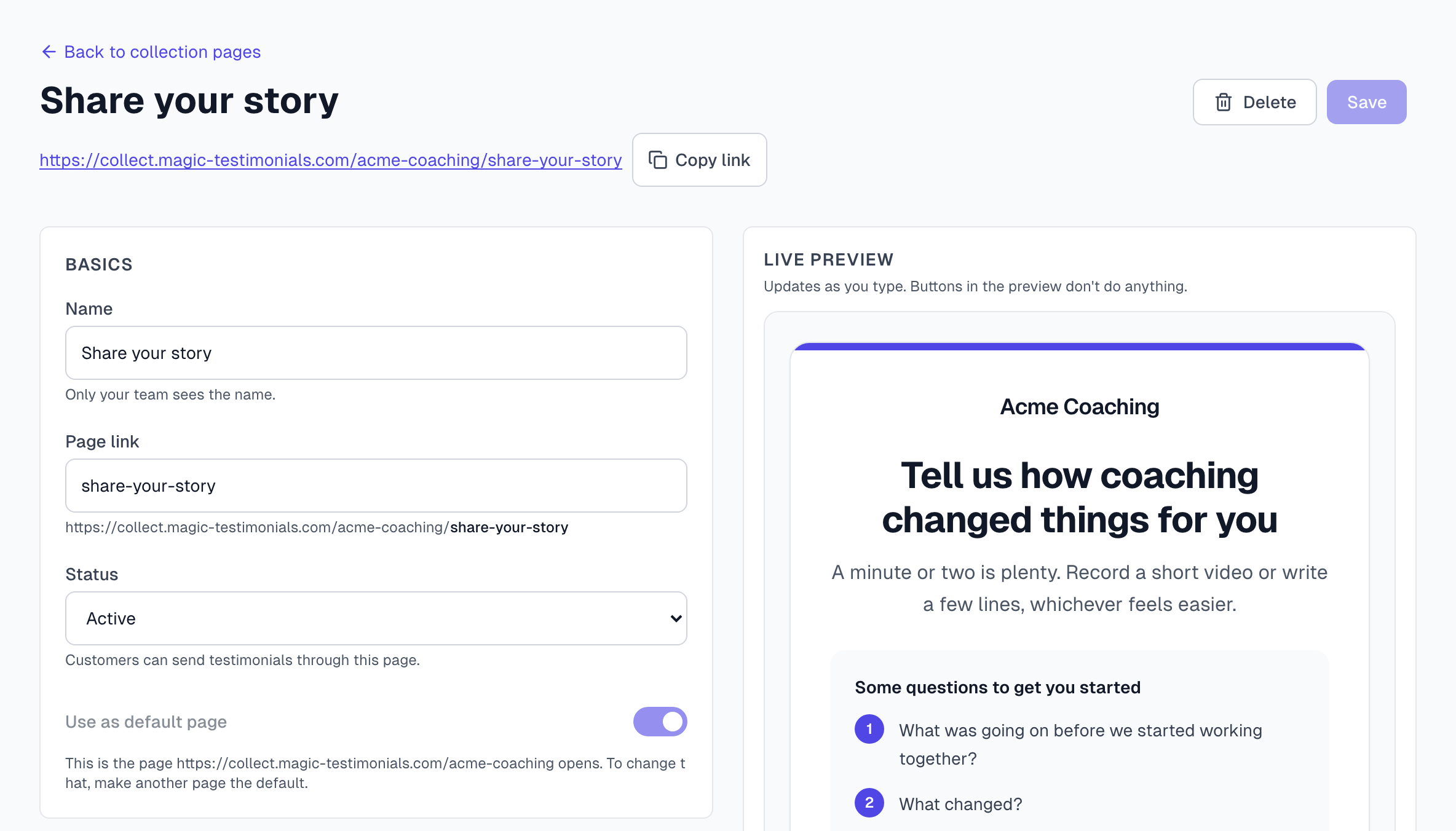
What you can set
Basics: the name, the Page link, the Status and Use as default page.
Program: a project and tags, added to everything that comes in through this page.
Content: the Heading, the Introduction and up to ten Questions to get people started.
Video: turn on Video testimonials so people can record in the browser or upload a file, and set the Maximum length. Turn off Allow written testimonials to collect video only. Your plan decides whether video is included and how long it can be. See Plans overview.
Fields: which details to ask for, and which are required. The name is always required.
Consent: the Consent text people must tick before sending, and an optional Terms link.
After submitting: the thank-you message, and an optional Reward such as a discount code.
Look: the page color, and a program image if your plan includes a custom logo.
Notifications: Email me when someone submits emails your Owners and Admins.
Share the page
On the Collection pages list, click Copy link next to the page.
Send the link to your customers, or add it to your emails and website.
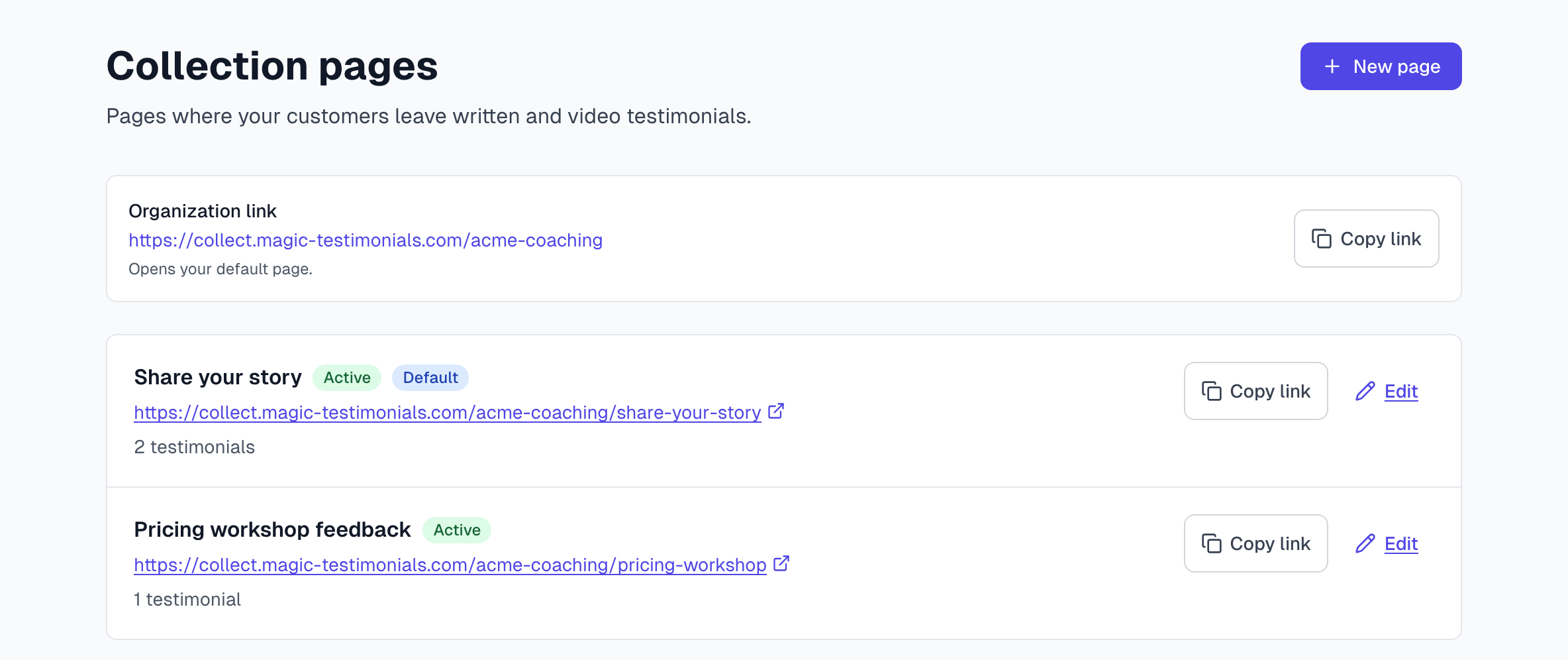
The Organization link at the top opens your default page. Use it if you only need one page.
What your customer sees
Your customer opens the link and needs no account. They write a testimonial, or record or upload a video if you allow it. They fill in the fields, tick the consent box and click Submit testimonial.
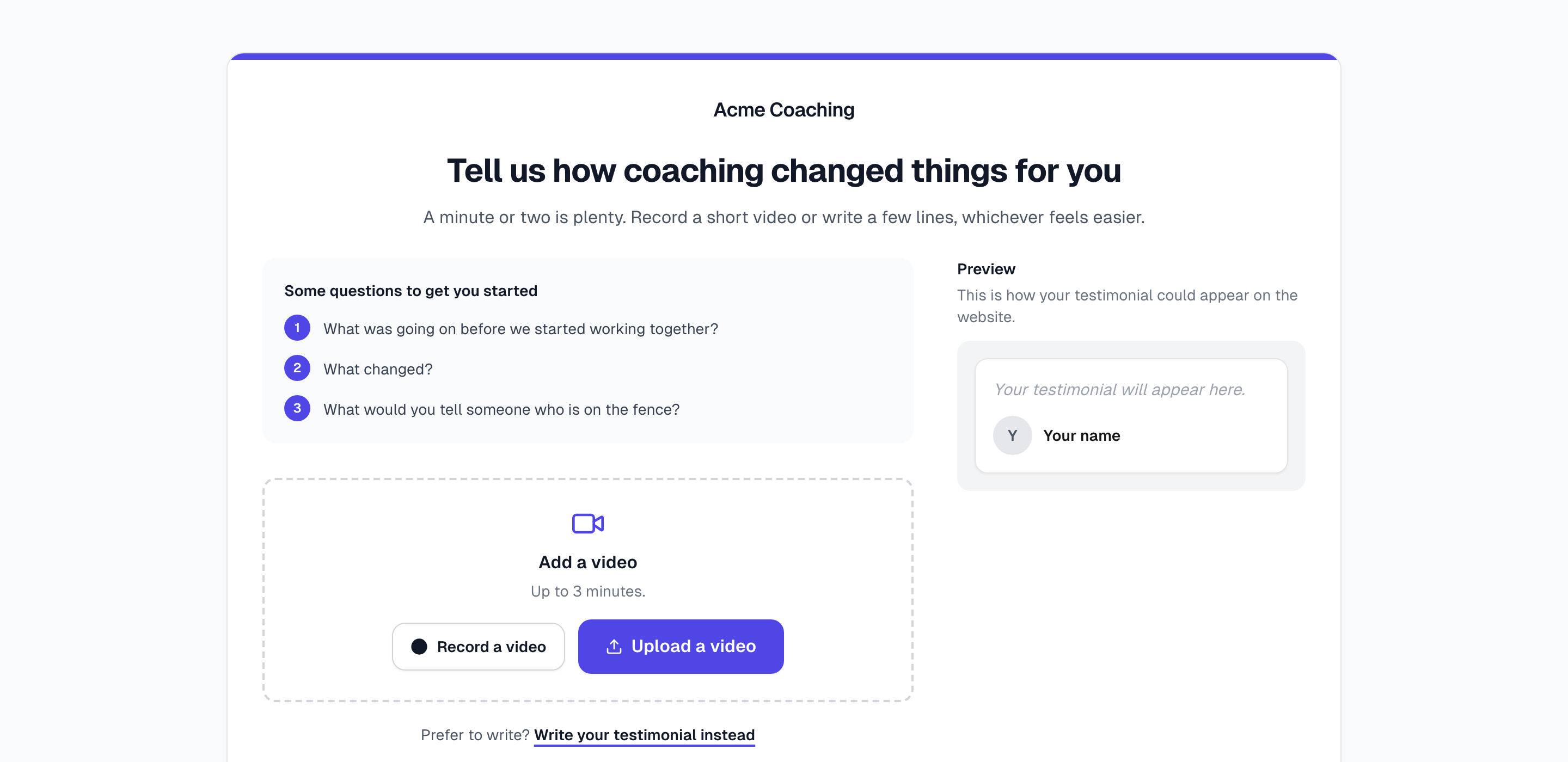
What you get
Each submission arrives in your Inbox, with the page's project and tags and with permission set to Granted, because the customer ticked the consent box.
Written testimonials also get AI tags and picks. They use no AI captures.
Videos go through the usual steps, and use one AI capture when AI writes the text. See Transcription.
Review them as you would any other testimonial, then click Approve. See Review, edit and approve testimonials.
Pause or delete a page
Pause: set Status to Paused and click Save. Customers then see that the page is not accepting testimonials.
Delete: click Delete in the editor and confirm. The link stops working, and the testimonials you collected stay in your account.
Your plan limits how many pages can be active at once. Paused pages do not count.
Settings for all your pages
An Owner or Admin finds these at the bottom of the Collection pages list:
Brand colour: the accent color, unless a page sets its own.
Link name: the part of the address after the domain. Changing it stops links you have already shared from working.
Your address: shows your pages on your own domain, if your plan allows it. Your free link keeps working.
If something goes wrong
I do not see Collection pages
The feature is not switched on for your organization. Contact us.
The New page button is greyed out
You have reached your plan's limit of active pages. Pause a page, or upgrade.
A page says Paused (plan limit)
A plan change paused it. Upgrade, or pause another page and set this one back to Active.
An old link stopped working
Someone changed the Page link or the Link name. Copy the new link and share it again.
Last updated