Preview and test templates
Preview shows a sample of an email inside the editor. For permission emails it shows the fixed formatted email, so a real request to yourself is the only full check.
Preview a template
Click Settings at the bottom of the sidebar, then Email.
Click the Templates tab.
Click Customize or Edit next to the template.
Click Preview. It appears above the buttons. Nothing is sent, and nothing is saved.
What Preview shows
This depends on the template.
PERMISSION REQUEST: the fixed formatted email, filled in with sample details. It looks the same whatever you type, because your text does not reach that version.
Other templates: your body text with sample details, in a simple layout. Here you do see your changes.
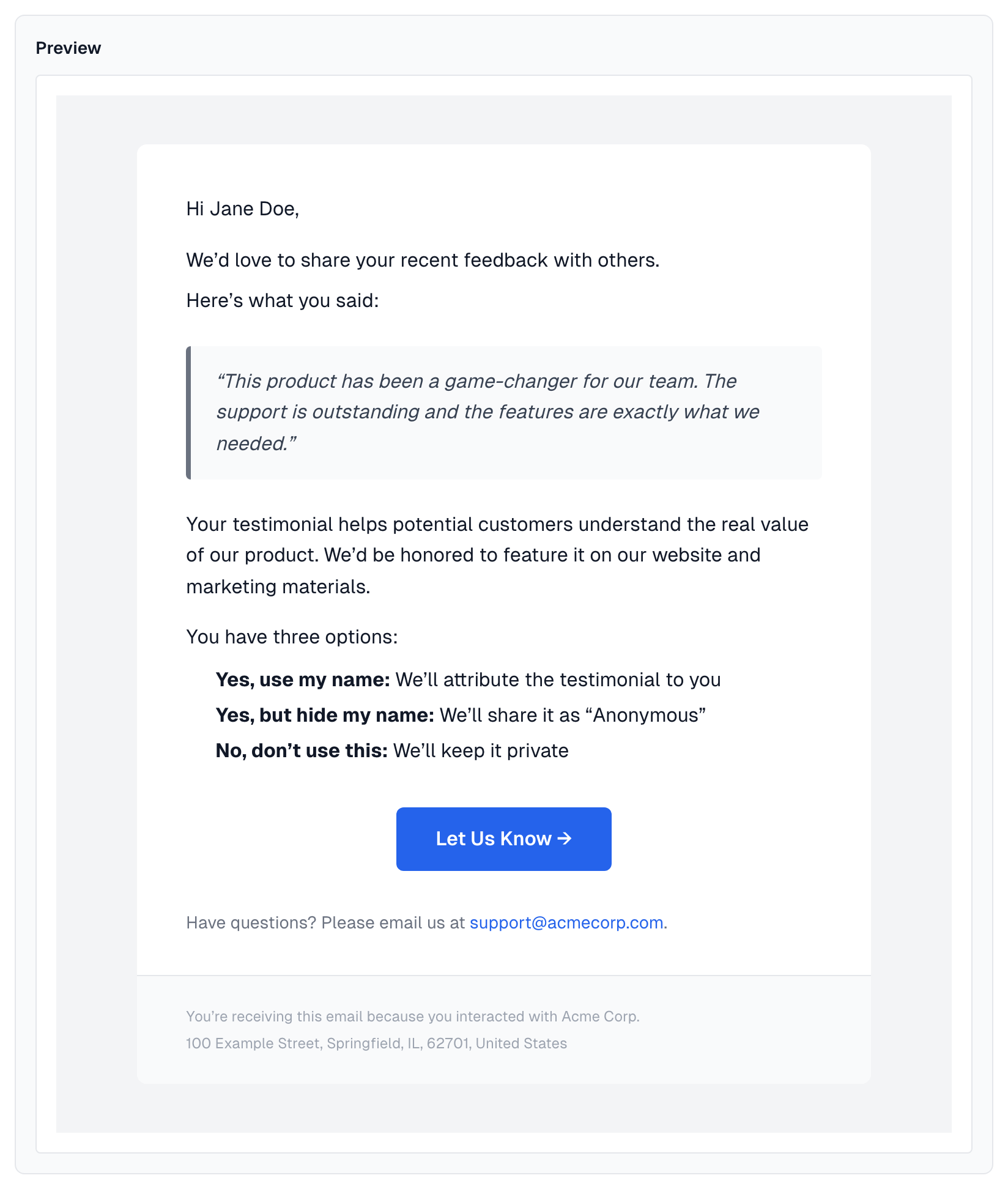
Preview never shows the subject or the plain text copy. It also leaves out your logo and the testimonial screenshot, and it uses Anonymous in place of your Anonymous Display Name. A real email has all of these.
Check your subject and plain text
The only way to see them is a real email.
Pick a test testimonial and set its Author Email to your own address.
Send a permission request. See Sending a permission request.
Check the subject in your inbox.
To see the plain text copy, use your email app's option for viewing the original message, if it has one.
Check delivery
Send Test Email on the Provider & Address tab shows that email goes out, but it uses a short standard message and not your template. See Test send.
Before a big send
Send a real request to yourself, and check the subject, the sender, your logo and the footer.
Open the link and go through the consent page. See The consent page.
Try a Gmail and an Outlook address if you can, on a phone as well as a computer.
If something goes wrong
Preview shows none of my changes
For permission emails, that is expected. Your text reaches only the subject and the plain text copy.
Preview does nothing
Both the Subject and Body Text need some text. An error message appears above the editor.
Preview worked, but Save is refused
Preview does not check required variables, and Save does. See Template variables.
The test email looks nothing like my template
The test email never uses a template. Send a real request to yourself instead.
Last updated