Data not appearing
A testimonial you expected is missing, stuck or not on your website. Most of the time it sits in another list, behind a filter or in a different organization, so work through these checks before you capture it again.
Start with these checks
Click Testimonials in the sidebar. This page lists every testimonial, whatever its status, while the Inbox shows only those waiting for review.
Set Status, Display and All Projects back to their first option.
Open All Tags and remove any tags you chose. If you used the search box, click Clear.
Check the organization name at the top of the sidebar. If you belong to more than one, click the name to switch.
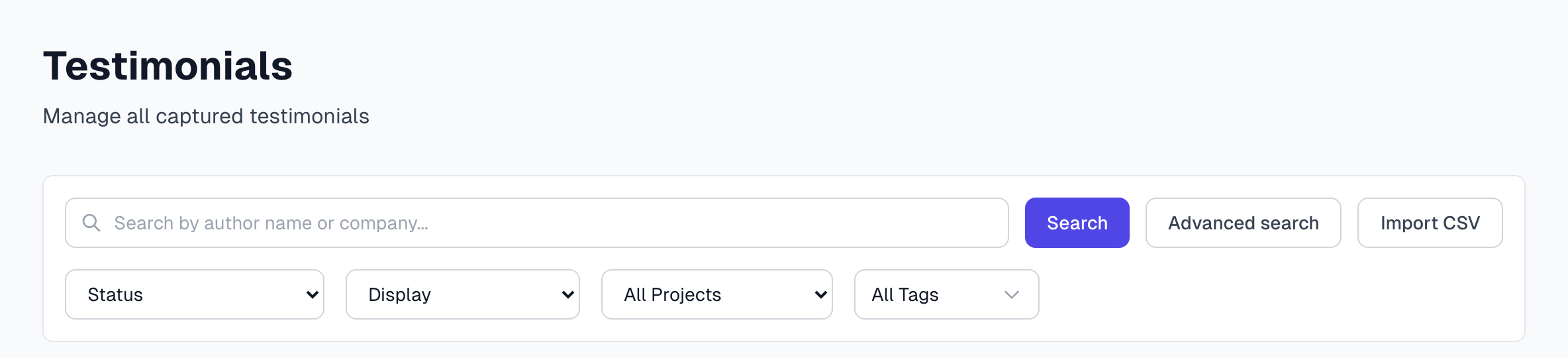
Most missing testimonials turn up here. If yours is still not there, find your problem below.
A capture is not in your Inbox
It skipped the Inbox. Captures from sources with Auto-Approve on go straight to Approved, and they show as Hidden on the Testimonials page. New accounts have this on for sites such as LinkedIn, Google and Facebook, and Gmail counts as Google. See Sources.
AI could not read it. It leaves the Inbox and shows a red Processing failed label on the Testimonials page. The Status filter has no option for this, so keep Status on its first option and look for the label. Open the testimonial and click Reprocess.
It went to another organization. The extension saves to the organization named in its panel, which can differ from the one open in the app. To change it, use the Organization menu on the Settings tab of the panel.
It was split. If the image held several testimonials, each became its own record. See Multi-testimonial split.
It was never saved. A saved capture shows a green Captured! View in dashboard message. If you hit your monthly limit, the capture is refused and is not saved, so you need to capture it again after the reset. See AI capture credits.
For sign-in problems and other extension messages, see Browser extension troubleshooting.
A testimonial is empty or stuck
AI runs in the background, and pages with new work update by themselves.
A new row says No text extracted yet
AI is still working, so give it a few minutes. In the Inbox, a pale blue pulsing dot means AI is reading it, and a gray dot means it is waiting its turn.
If nothing changes, open the testimonial and click Reprocess in the Processing card. This uses one AI capture and replaces anything you typed, as AI capture quality explains.
Reprocess does not help
Capture the testimonial again with a tighter box, or type the details in yourself under Edit Testimonial.
You want to know whether AI ran at all
Open the Usage page and look through your AI capture history. Each row names a task and links to its testimonial. See Usage and quotas.
A video is stuck
Reprocess does not work on videos. See Video troubleshooting.
Imported testimonials stay waiting
An Owner or Admin can click Process AI Pending on the Testimonials page. See CSV import.
A testimonial is not in your widget
It says Hidden, or it has no Live label. A widget shows only testimonials marked Live. Status workflow explains why an approved testimonial can stay Hidden.
The author has not answered. Set Display to Awaiting permission to see these.
The widget does not select it. Check the widget's Project, Tags, Featured only, Minimum rating and Max testimonials. A widget also keeps one testimonial per person. See Create a widget and Widgets overview.
Your plan caps it. Your plan may limit how many published testimonials a widget shows, newest first. See Plans overview.
The whole widget is gone. See Add a widget to your site. If Widgets shows Off (plan limit), see Understanding usage limits.
Search does not find it
The search box on the Testimonials page looks only at the author name and company. To search the words of a testimonial, click Advanced search.
Advanced search shows up to 20 results. Add a filter or a more exact phrase to bring yours into view.
Try another word for the same idea, then the exact words. The two kinds of matching can give different results. See How search works.
A testimonial you just added can be found by meaning only once AI has finished with it.
Details from another tool did not come in
Author details are missing. The automatic lookup runs only when AI reads an email address on a capture, and it fills empty fields only. See Integrations troubleshooting.
An author's email is missing. See Find author emails troubleshooting.
Testimonials did not arrive from Endorsal. Imports run only when you click Import in Settings > Integrations. Then click Show import history to see what came across. See Import history.
Still stuck?
Send us the testimonial's address from your browser and what you have tried. Getting help shows how.
Last updated